


header-logo
Getting started with WixBuild your website and business with Wix. Try using our AI tools to create your website, customize templates, or hire professionals to build or enhance your online presence.
Creating a websiteRead how to use the Wix Editor and manage content on your site. Discover how to protect your visitors' privacy and make your site accessible.
Account & billingReview your account settings, manage your subscriptions and plans and understand your invoices.
Using the Wix mobile appsUse our mobile apps to run your business efficiently on the go and set up a dedicated app for your site members to stay in touch.
Connecting a domainFollow our step-by step guides to learn how to purchase, connect or transfer a domain for your site, and find out how to keep your site’s data secure.
Managing your businessGet tools to grow your business and web presence. Find the right tools for your specific needs, set up online payments and keep track of your site's analytics.
Promoting your siteLearn to make your site more visible promoting it on search engines, sending emails and running paid ads. Improve your online presence with practical tips.
Studio, Partners & EnterpriseGet the most out of your Studio or Enterprise account with advanced features that'll help you work more efficiently.
Need more help?Find solutions for site performance and technical issues, learn about issues we’re working to fix or contact us for help.
placeholder-preview-image
Wix LearnImprove your skills with our courses and tutorials.
Wix BlogGet tips for web design, marketing and more.
SEO Learning HubLearn to increase organic site traffic from search engines.
Website developmentBuild a custom site using our full-stack platform.
Hire a ProfessionalGet matched with a specialist to help you reach your goals.
placeholder-preview-image
In this article
  • Step 1 | Choose your template
  • Step 2 | (Optional) Add more business tools
  • Step 3 | Continue editing your template
  • FAQs

Wix Headless: Creating a Site from a Headless Template

In this article
  • Step 1 | Choose your template
  • Step 2 | (Optional) Add more business tools
  • Step 3 | Continue editing your template
  • FAQs

Wix Headless templates give you a working frontend starting point and business tools already connected. This means less setup, fewer tokens spent on the basics, and more time on what's specific to your project. Choose a template, add any additional tools you need, and continue customizing with your AI coding agent.

Tip:

Before you begin, make sure you have an AI coding agent ready, such as Claude Code, Cursor, or Codex.


Step 1 | Choose your template

Each template is built for a specific type of business — eCommerce, bookings, events, blog, and more. When you choose one, a new headless site is created with the relevant business tools already installed and ready to go.

To choose a template:

  1. Go to Templates in the Wix Studio Workspace.

  2. Click Headless Templates.

  3. (Optional) Click a category to filter: eCommerce, Portfolio, CMS, Bookings, Blog, or Events.

  4. Hover over the template you want and click Use.

Tip:

You can also hover over a template and click View to see a live preview.


Step 2 | (Optional) Add more business tools

Your template already includes the core tools for your business type. If you need more, for example adding a blog to an eCommerce site, you can add additional tools from your dashboard. Then, set them up by filling in your products, services, or content. You can also add the Wix CMS to manage your content in collections.

To add a business solution:

  1. Go to your site's dashboard.

  2. Click Apps on the left menu.

  3. Click App Market.

  4. Add the business solutions you need, such as Wix Stores or Wix Bookings.

Tips:
  • If you added additional business solutions, your AI agent can detect them and build matching pages.

  • Set up the Wix MCP - a tool that connects your AI agent to your site - so it can manage your site and update your products, services, and content for you.


Step 3 | Continue editing your template

Your template comes with a pre-built frontend. Use your AI coding agent to make it your own. Adjust the design, add pages, or build out new features.

To edit your template:

  1. Go to your site's dashboard.

  2. Click Edit Frontend from the Setup tab.

  3. Choose your AI coding agent.

  4. Click Copy Prompt.

  5. Paste the prompt into your AI agent and run it.
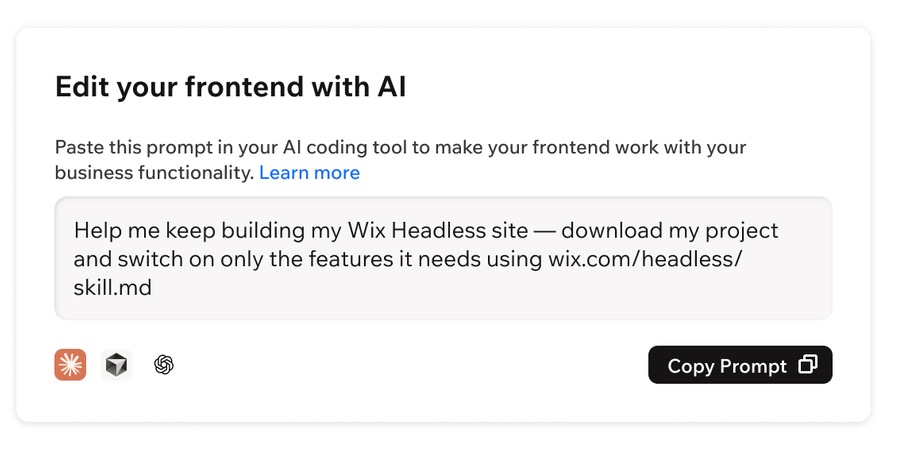
A screenshot of the copy prompt message to edit frontend with AI

FAQs

Click a question below to learn more about Wix Headless templates.

Helpmate

Hello

Need a bit more guidance?
Unlock personalized helpLog in to get the most out of Helpmate.