


Wix Harmony Editor: Adding and Customizing the Wix Gallery
- Adding a gallery
- Adding media to your gallery
- Customizing your gallery
- FAQs
Turn ordinary pages into showstoppers with galleries that show off your curated visuals. Whether you’re sharing travel memories, a portfolio, or community highlights, let your media take center stage with a gallery crafted to match your style.
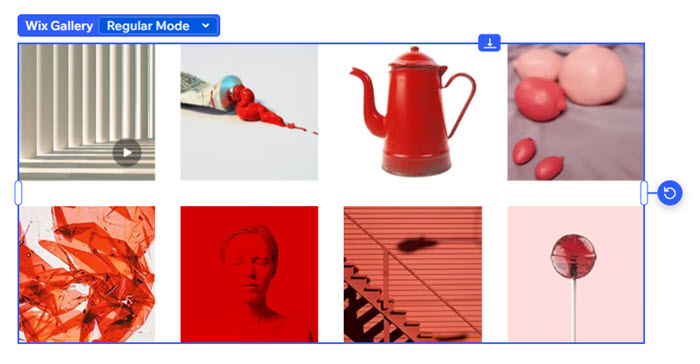
Adding a gallery
To add a gallery:
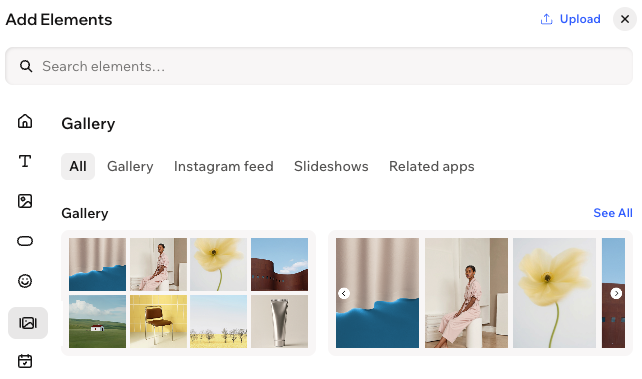
Click + Add at the top left of the editor.
Select Elements.
Click the Gallery icon
 on the left.
Drag a gallery onto your page.
Adding media to your gallery
To add media:
Click the Wix Gallery on the page.
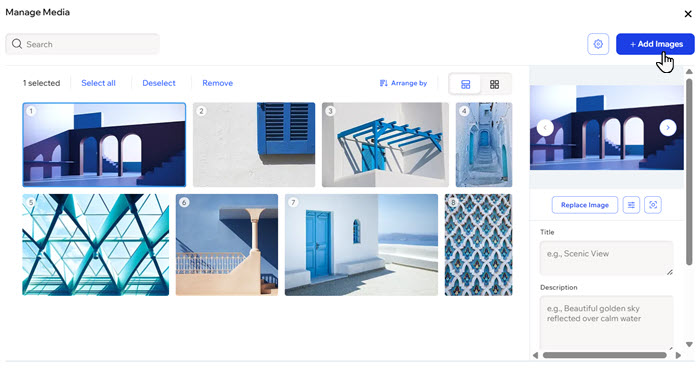
Click Manage Items on the action bar.
Click + Add Media.
Select the media from your Media Manager or click + Upload Media to upload media from your computer.
Click Apply.
Customizing your gallery
Bring your unique vision to life by customizing the regular and expand modes of your gallery. From switching presets to fine-tuning the design, display, and settings, you can shape how your media look and feel.
To customize your gallery:
- Go to your editor.
- Click the gallery on the page.
- Choose what you want to customize:
 on the action bar.
 on the action bar.
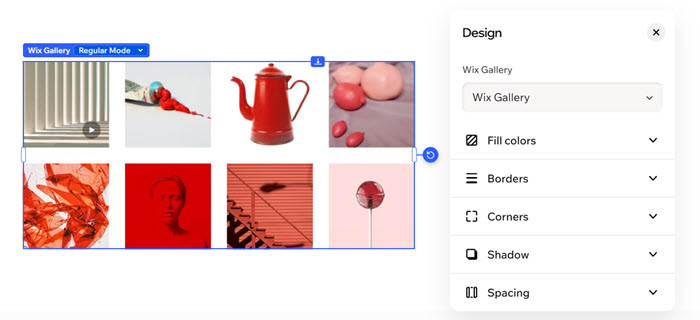
 : Add a color background to complement the content of your element.
 : Define the borders of your element so it stands out, choosing a color, width and style.
 to design each side of the border separately.
 : Make the corners of your element more square or round by dragging the slider under Radius. Click the Edit individual corners icon
  to design each corner separately.
 : Apply inner and outer shadow to give the element an interesting 3D effect, setting the position, blurriness, color and more.
 : Add breathing room to your content by adding padding around the element (or the selected area).
 : Customize aspects of your gallery such as the image aspect ratio, crop or fit your items within the gallery, and choose how many items to display in a row.
 on the action bar.
 on the action bar.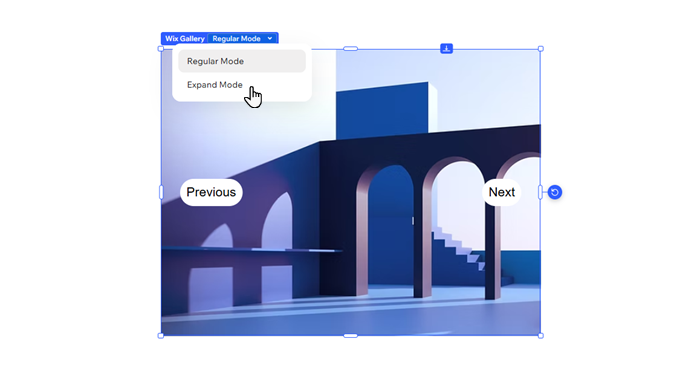
FAQs
 on the action bar.