
Wix Editor: Adding a Video to Your Page Background
3 min
Wow your visitors and add artistic detail to your site with a video background. You can upload your own video, add a free Wix video, or purchase a professional Shutterstock video.

Adding a video to your page background
Get started by uploading a video to your page background.
There are a variety of free, striking options available from Wix, so you can choose something that's perfect for your brand and its aesthetic.
To add a video to your page background:
- Go to your editor.
- Go to the relevant page.
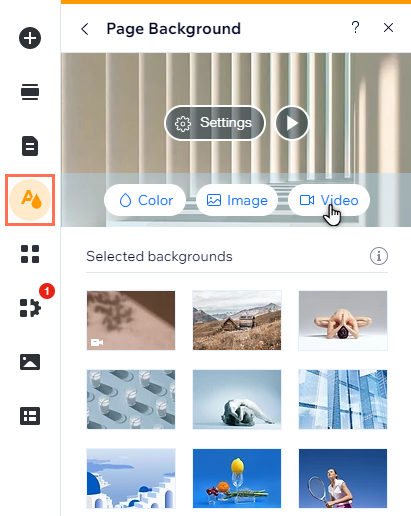
- Click Site Design
on the left side of the editor.
- Click Page Background.
- Select Video.
- Choose what you want to do:
- Upload your own video:
- Click Upload Media.
- Browse your computer and select your video.
- Click Change Background.
- Add a free Wix video:
- Click Media from Wix.
- Select a video.
- Click Change Background.
- Purchase a Shutterstock video:
- Click Shutterstock.
- Select a video.
- Click Buy Video.
- Upload your own video:
- (Optional) Click Apply to Other Pages to add the background to other pages of your site.
Want to remove a page background?
To remove a page background completely, change the background color to white.
Looking for additional design inspiration?
The Wix design hub is a great resource for ideas and
website design trends.
FAQs
Select an option below to learn more about video backgrounds.
Do video backgrounds have sound?
How do video backgrounds work on my mobile site?
What aspect ratios can I use on video backgrounds?
Can I preview what my video will look like?
Anything else I should know?