


Wix Editor: Embedding a Site or a Widget
In this article
- Adding an embed
- Setting up an embed
- Adjusting the sizing of the displayed content
- Guidelines for adding embeds to your site
Display content from external sources by embedding a code snippet or a URL on your site. You can use embeds to create widgets that enhance your site, such as weather and stock widgets, or display external sites on your page.
Adding an embed
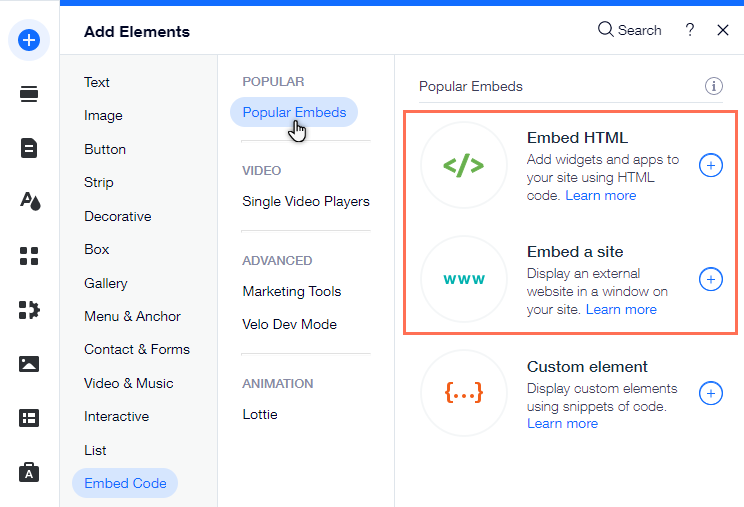
Add an embed to your site directly from the Add Elements panel. You can choose whether to add a code snippet to your site, or embed an external URL.
To add an embed to your site:
- Go to your editor.
- Click Add Elements
 on the left side of the editor.
 - Click Embed Code.
- Click Popular Embeds.
- Choose the type of embed you want to add to your site:
- Embed HTML: Embed a code snippet to display a widget on your site pages and set it up.
- Embed a site: Display an external site in a window on your page.
- Click your chosen embed to add it to your site.
Setting up an embed
After you've added an embed, enter the relevant code snippet or URL to set it up and display sites and widgets to your visitors.
To enter the code / URL:
- Go to your editor.
- Click the embed on your page.
- Select the relevant option to enter the details:
- HTML:
- Click Enter Code.
- Enter the snippet under Add your code here.
- Site:
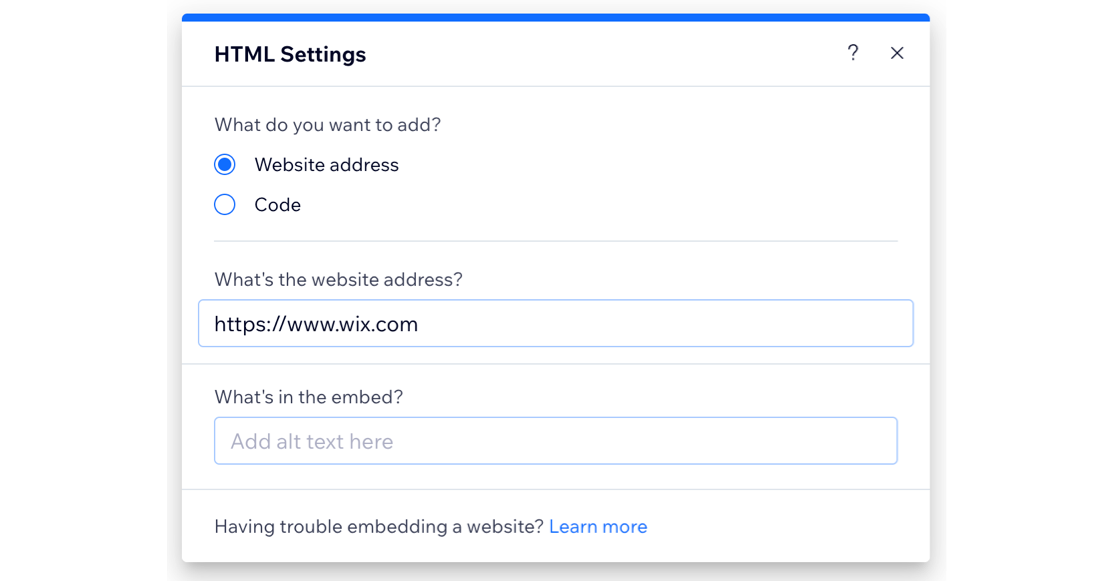
- Click Enter Website Address.
- Enter the URL under What's the website address?.
- HTML:
- Click Apply to save the snippet / URL.
- (Optional) Enter alt text for the embed under What's in the embed?
Important:
- Only HTTPS codes and URLs are displayed.
- Some sites have security policies that forbid them from being embedded on external platforms such as Wix. As a result, they won't appear in the embed after pasting their URL. This is controlled by the site's external coding, and it is not possible to bypass this within Wix.
- We cannot provide support for external codes that were not created or tested by Wix. If you are experiencing an issue with your code snippet, please contact the provider directly.
Adjusting the sizing of the displayed content
Embedded elements often include pre-defined width and height in pixels, set by the service they were acquired from, as in the example below:
1<iframe width="560" height="315"
2       src="https://www.youtube.com/embed/mdWHYvQoY8g"
3        frameborder="0" allow="accelerometer; autoplay; encrypted-media; gyroscope; picture-in-picture" allowfullscreen>
4</iframe>
These settings could potentially crop the content if the iFrame container is smaller than 560 px * 315 px. To prevent this from happening, replace the px values with percentage units and set them to 100% as shown below:
1<iframe width="100%" height="100%"
2        src="https://www.youtube.com/embed/mdWHYvQoY8g"
3        frameborder="0" allow="accelerometer; autoplay; encrypted-media; gyroscope; picture-in-picture" allowfullscreen>
4</iframe>
Note:
The HTML and URL elements in our editor are iFrames. Therefore, the code or site you are embedding won’t be responsive, even if it is originally.
Guidelines for adding embeds to your site
When embedding code or URL on your site, there are some important guidelines you should keep in mind in order to ensure that the element is displayed properly:
- Always make sure the code you are embedding is up to date and HTML5 compatible. Most browsers don't display pages and scripts properly if they were written using older versions of HTML.
- There is no character limit for the HTML and Embed a Site elements.
- Your code must contain HTTPS and not HTTP.
- HTML documents are described by HTML tags. HTML tags normally come in pairs like <p> and </p>. The first tag in a pair is the start tag; the second tag is the end tag. This format of the tags is crucial for maintaining the structure of the page you are trying to embed.
What's next?
- Add embeds to your mobile site to provide a tailored experience for mobile visitors.
- Enhance your site with your own design features and CSS capabilities by using custom elements.
