


Wix Automations: Understanding Run Logs
In this article
- Key features and benefits of the run log
- Understanding statuses
- FAQs
Get detailed insights into how your automations operate by checking the run log. Each time an automation is triggered, the run log presents vital information such as the status of each run, how it performed, and whether there were any issues along the way.
This helps you monitor the success of your automations, identify potential problems, and ensure your workflows run smoothly. For example, if a customer reports not receiving a confirmation email, you can quickly check the logs to see if the automation ran as expected.
Where can I find an automation's run log?

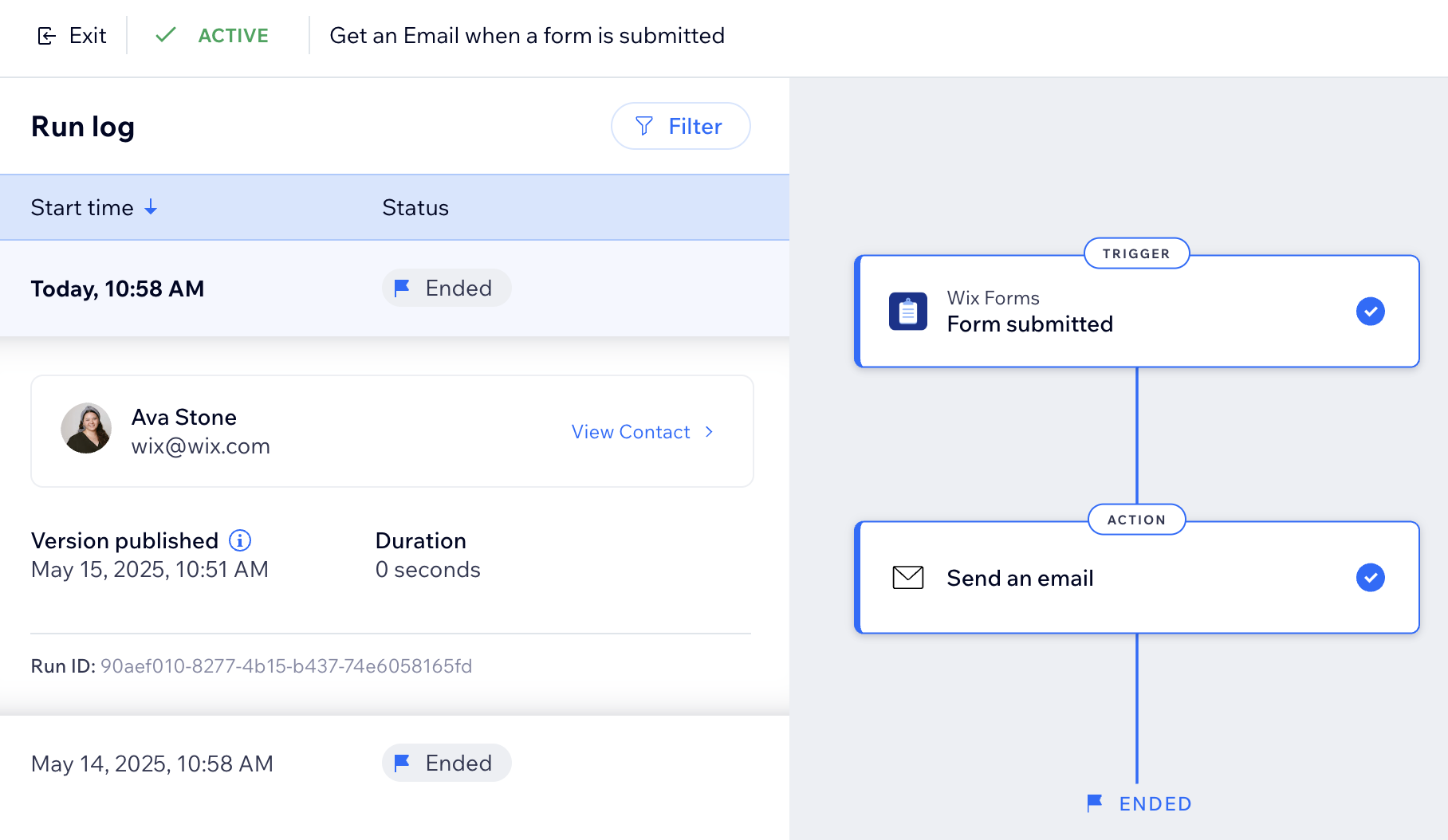
Key features and benefits of the run log
Run logs give you a detailed record of each automation run, including the status, start time, and duration. This allows you to monitor performance and quickly identify any issues. They also help you understand how edits or changes to your automations impact their behavior over time, giving you the visibility needed to keep everything running smoothly and efficiently.
In addition to these benefits, the run log offers several key features to help you track and manage your automations:
- Detailed records: Each run includes information like its status (e.g. In progress, Ended), duration, and completion time. This helps you gauge whether your automations are performing as expected.
- Tracking versions by publish date: Run logs are sorted by the date and time an automation was last published. Whenever you edit and re-publish an automation, the updated version is reflected in the logs, making it easy to identify what changes may have affected the results of your automation.
- Error insights: Statuses like 'Ended with Issues' or 'Failed' provide clear indications when something doesn't work as expected. While some issues may be due to internal technical errors, others might occur due to the automation's configuration.
Did you know?
Logs for completed runs are saved for 30 days, while logs for ongoing runs are stored for up to 1 year. This allows you ample time to review and analyze your automation’s activity history.
Understanding statuses
Each automation run provides information about its progress and actions. Understanding these statuses helps you follow up on automation runs and address any issues promptly.
Run statuses
Run statuses help describe how each automation was executed, its progress, and any potential issues:
- In Progress: The run is currently executing.
- Ended: All actions in the run have completed.
- Ended with issues: The run finished, but one or more actions failed.
- Failed: The run couldn’t execute due to technical issues. This means that no action was performed.
- Skipped: A run is skipped when a task is set to run once per user, or when the data doesn't match the trigger settings. For a full breakdown of skip reasons, see the FAQ section below.
- Cancelled: The run was stopped while in progress (e.g., automation deactivated). For a full breakdown of cancellation reasons, see the FAQ section below.
Step statuses
Each individual step within an automation has its own status indicating its outcome:
- Completed: The step has finished.
- In Progress: The step is currently executing.
- Failed: The step couldn’t perform due to technical issues.
- Cancelled: The step wasn’t performed because the run was stopped.
FAQs
Here are some common questions about run logs:
How can I fix runs or actions that 'Failed'?
Why was my run skipped?
Why was my run cancelled?
How long are the run logs saved for?
Why can’t I find a specific run log?
Does an 'Ended' run status mean that all actions executed successfully?
Can I check how long a run has had its current status?
My in-progress run isn't on the list as it's been more than a year. Will it still execute my actions?
Why is the version published on a date I didn't work on my site?
How can I see the input or output data of a specific step?
 on the left side of the panel.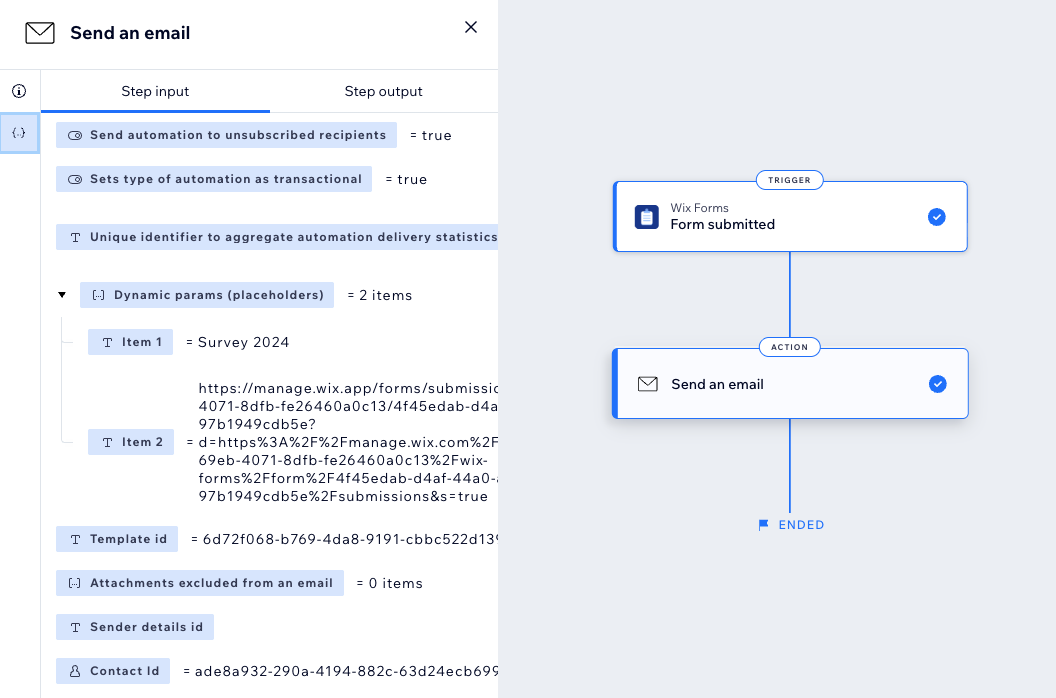
Can I repeat a specific run from the run log?
 .
.