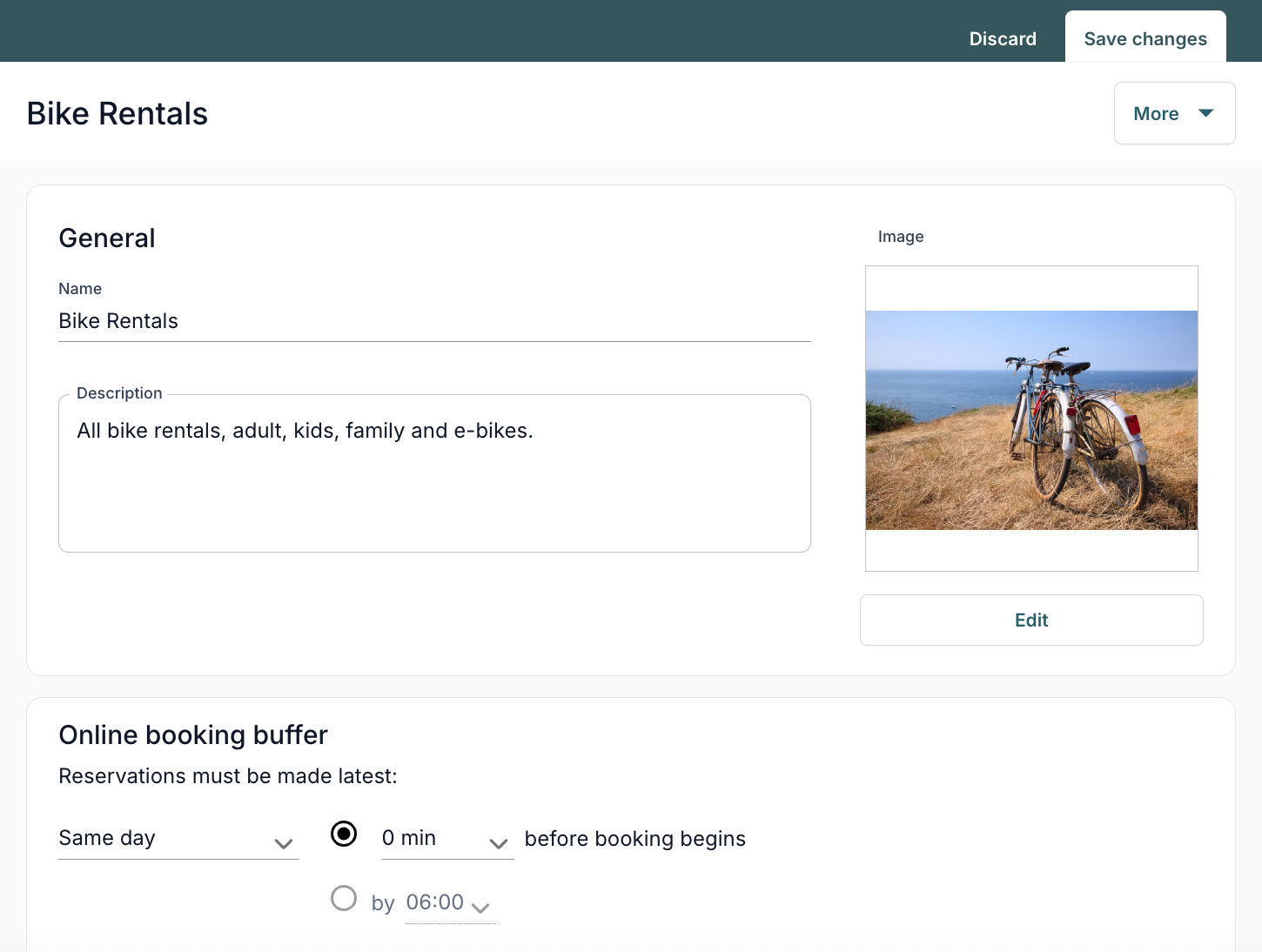
Third-Party Apps: TWICE Rentals
In this article
- Step 1 | Add the TWICE Rentals app to your site
- Step 2 | Create your first rental product
- Step 3 | Customize the app settings in your editor
- FAQs
TWICE Rentals enables you to effortlessly create and manage a professional rental website right within your Wix account. Whether you’re renting out bikes, tools, event equipment, or baby gear, you can showcase your offerings with ease. With seamless integration, Wix supports you at every stage of your rental business online.
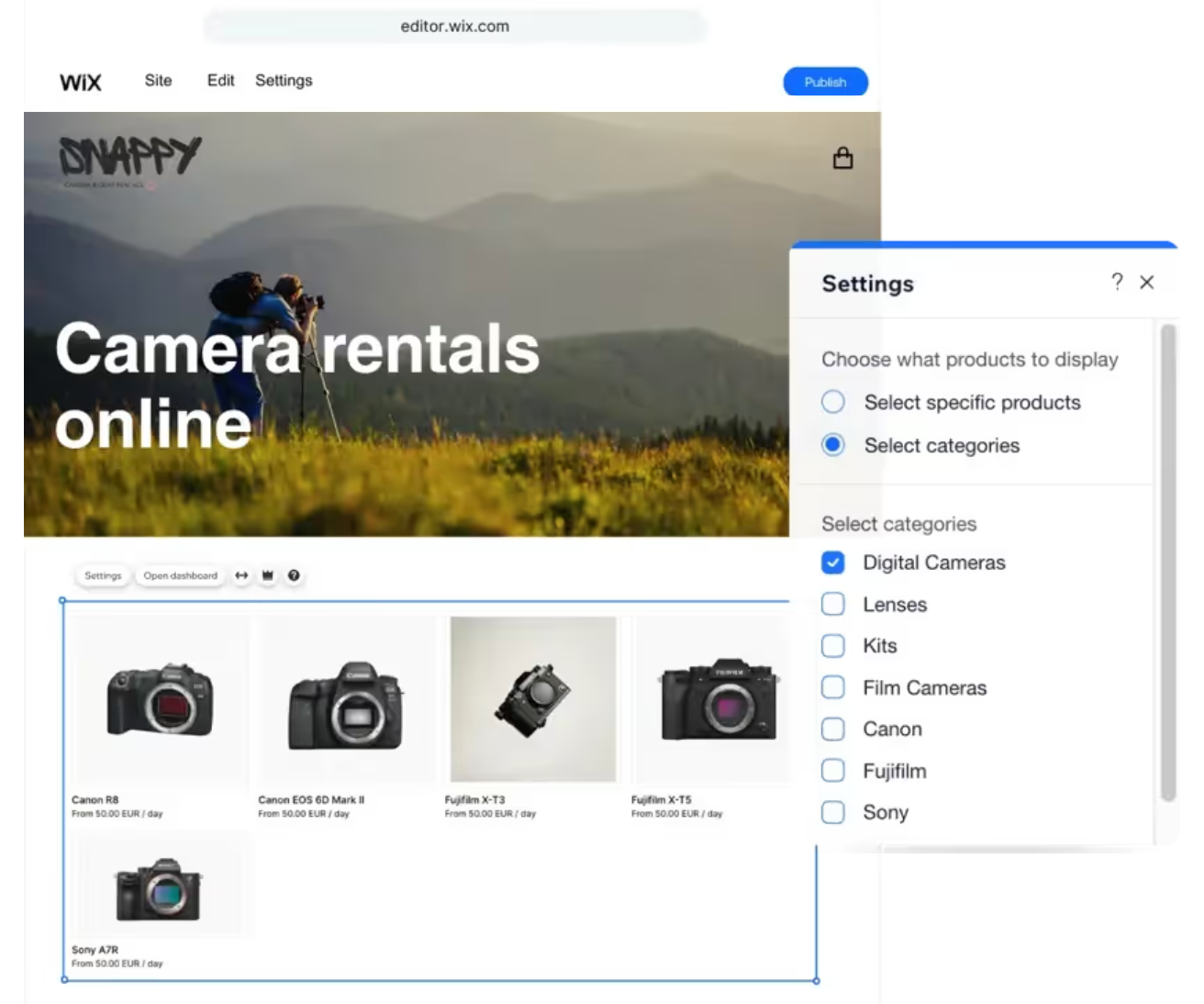
Step 1 | Add the TWICE Rentals app to your site
Get started with TWICE Rentals by adding the app to your Wix site. The app adds two new pages: a Rentals page that displays all your listings and a Product page that automatically displays detailed information for each product listing. The Product page is a dynamic page that updates its content based on which product your visitor selects.
Wix Editor
Studio Editor
- Go to your editor.
- Click Add Apps
 on the left side of the editor.
 - Search for the TWICE Rentals app in the search bar then select the app.
- Click Add to Site.
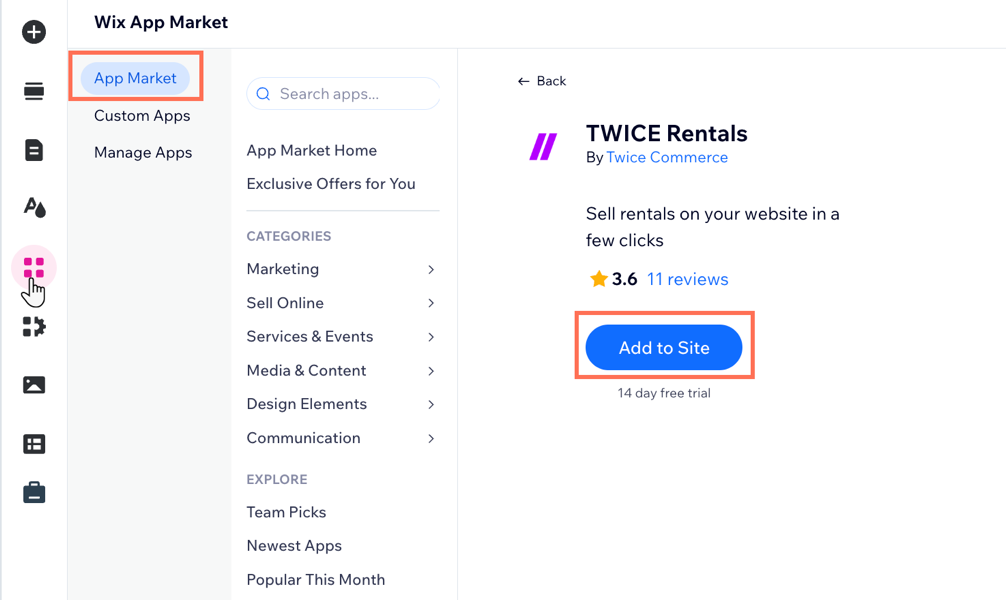
- Click Agree and Add.
- Click Accept all.
Step 2 | Create your first rental product
Once you have installed the app, you can start creating your products. Creating a detailed listing helps your customers find exactly what they’re looking for and makes booking quick and easy.
To create a product:
- Click the Catalog tab.
- Click New product.
- Click each tab and customize the relevant settings:
- General: Enter the product name, category, description, booking price, add an image of the product and select the status of the listing.
- Pricing: Review the default pricing information and make any required changes.
- Variants: Add a new product variant e.g. kids bikes.
- Availability: Set up an inventory log and customize the calendar details, dates, times and capacity.
- Settings: Add additional details such as, sales channels, deposit, required product information and more.
- Click Create.
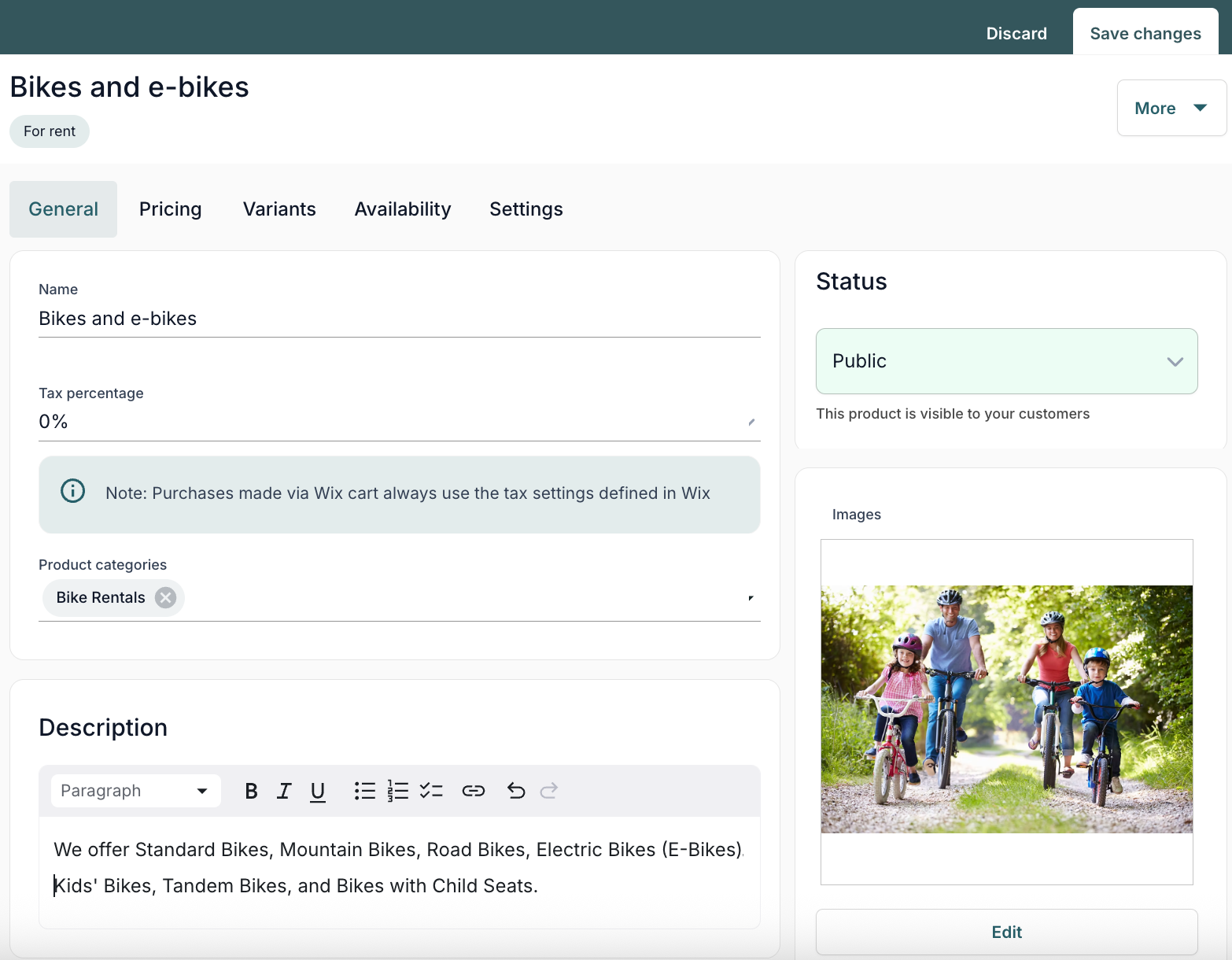
Step 3 | Customize the app settings in your editor
Personalize your TWICE Rentals app by choosing exactly which products you want to showcase. You can display specific products from your catalog, or organize your selection by category to match your business needs.
Wix Editor
Studio Editor
- Go to your editor.
- Click Add Elements
 on the left side of the editor.
 - Click App Widgets.
- Click Product gallery element.
- Click the Product gallery element in your editor.
- Click Widgets settings.
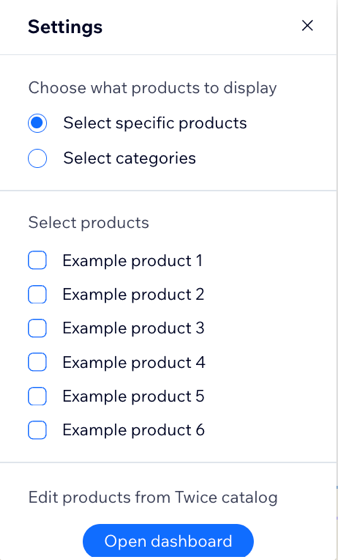
- Choose what products to display:
- Select specific products: Choose the individual products you want to show.
- Select the products you want to display.
- Select categories: Show all products from selected categories.
- Select the categories you want to display.
- Select specific products: Choose the individual products you want to show.
FAQs
Click a question below to learn more about the TWICE Rentals app.
I need help with my rentals, who can I reach out to?
What languages is the TWICE Rentals app available in?
Can I create a category for similar products?