


Pricing Plans: Pausing and Resuming a Plan
In this article
- Pausing a membership plan or package
- Resuming a paused plan
- FAQs
If your services are temporarily unavailable, or a client won’t be using their membership for a period of time, you can pause their plan to stop their benefits and payments.
For example, if a member lets you know they’ll be traveling or unavailable and asks you to temporarily withhold their membership, you can pause their plan until they’re ready to return. During the pause, clients won’t have access to benefits or be charged.
Important:
When you pause a subscription, future payment dates are postponed by the number of paused days, instead of issuing a refund or pro-rated payment.
Pausing a membership plan or package
You can pause a customer’s membership or package. While the plan is paused, the customer won’t be able to use it and will not be charged. When setting up the pause, you can also choose when the plan resumes:
- Resume on a specific date: The plan resumes automatically on the date you select. Future payment dates are postponed by the number of paused days. You can change the resume date at any time.
- Resume manually: The plan stays paused until you decide to resume it. Payment dates are postponed by the total paused days.
To pause a membership plan or package:
- Go to Subscriptions in your site's dashboard.
- Hover over the relevant client and click View.
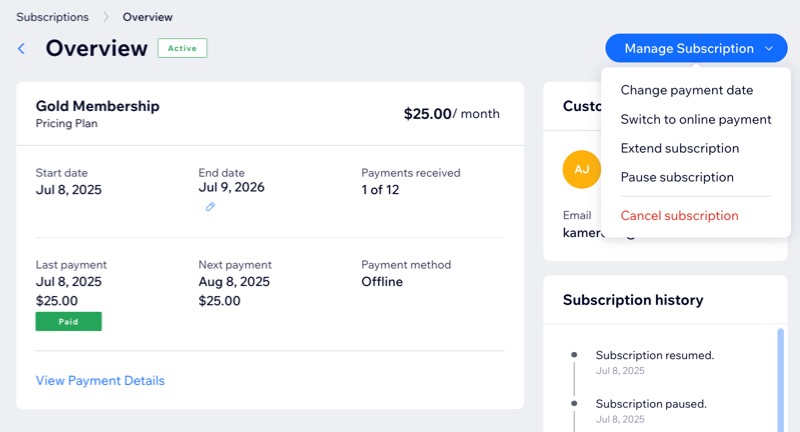
- Click the Manage Subscription drop-down and select Pause subscription.
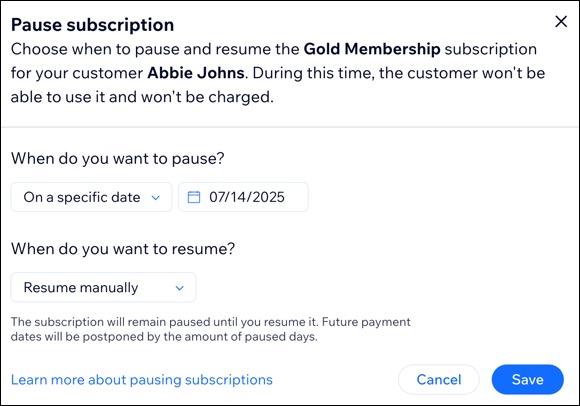
- Click the When do you want to pause? drop-down and select the relevant option:
- Now: Pause the subscription immediately.
- On a specific date: Schedule the pause to begin on a date you choose.
- Click the When do you want to resume? drop-down and select the relevant option:
- On a specific date: The subscription automatically resumes on the chosen date.
- Resume manually: The subscription stays paused until you decide to resume it.
- (Optional) Repeat steps 1 - 5 for other clients.
Resuming a paused plan
You can resume a client's plan at any time if it was set to resume manually, or if you want to change the resume date.
To resume a paused plan:
- Go to Subscriptions in your site's dashboard.
- Hover over the relevant client and click View.
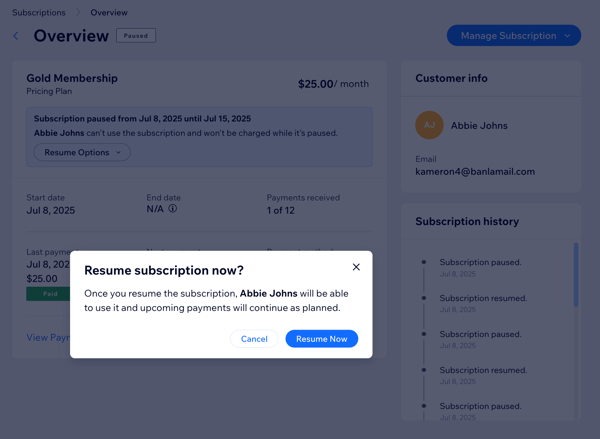
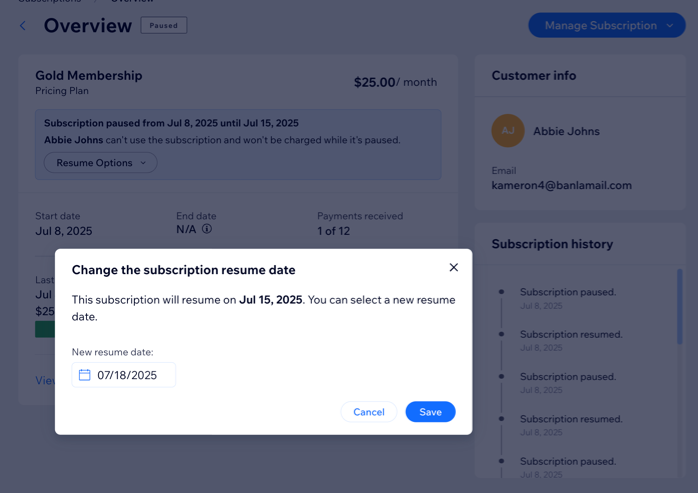
- Click the Manage Subscription drop-down and choose the relevant option:
Resume manually
Resume subscription that was set to 'On a specific date'
Change resume date
FAQs
Click a question below to learn more about pausing and resuming a subscription.
Can I pause a plan that hasn't started yet?
What happens when I pause different pricing plans?
What happens when I resume a paused plan?