


Pricing Plans: Displaying Cart and Checkout Buttons on Your Plan
In this article
- Displaying checkout buttons to your plans
- Editing the text on your checkout buttons
- FAQs
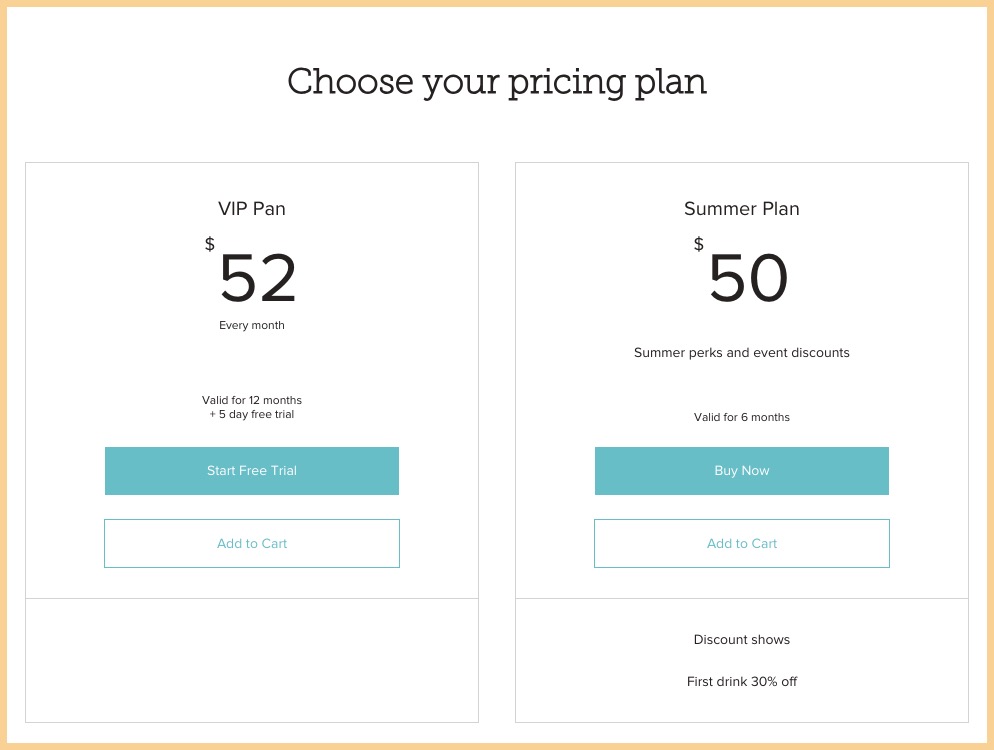
The checkout buttons for your plans let customers choose how they want to purchase. You can show an '
Add to Cart' button, a 'Buy Now' button, or both, depending on the checkout experience you want to offer.
Displaying checkout buttons to your plans
Choose which checkout buttons appear for your plans. This lets you decide whether customers add plans to their cart, go straight to checkout, or choose between both options.
To display buttons to your plans:
Wix Editor
Studio Editor
Wix Harmony Editor
- Go to your editor.
- Go to your Plans & Pricing page:
- Click Pages & Menu
 on the left side of the editor.
 - Click your Plans & Pricing page.
- Click Pages & Menu
- Click the Plans & Pricing element on your page.
- Click Settings.
- Click the Display tab.
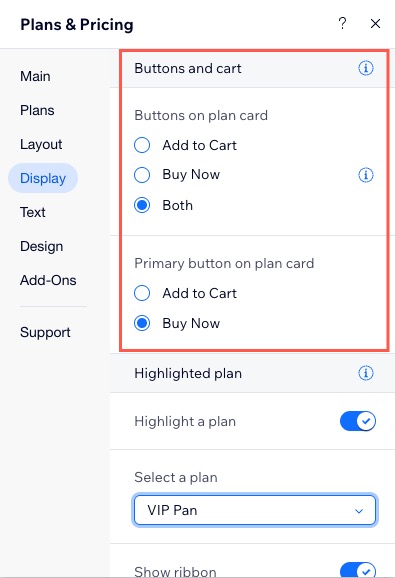
- Select the relevant option(s) under Buttons and cart:
- Buttons on plan card:
- Add to Cart: Adds the selected plan to the cart so customers can continue browsing or review before checkout.
- Buy Now: Allows customers to skip the cart and go straight to checkout from the plan card.
- Both: Displays both options, letting customers choose between adding to cart or going straight to checkout.
- Primary button on plan card:
Note: This option is only available if you select 'Both' under 'Buttons on plan card.'- Add to Cart: Adds the plan to the cart as the default action.
- Buy Now: Immediate checkout as the default action.
- Buttons on plan card:
Editing the text on your checkout buttons
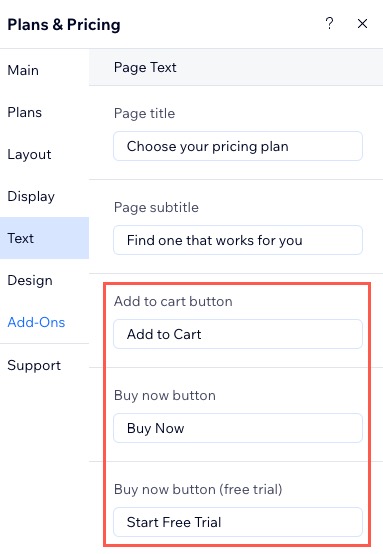
Edit the text shown on your checkout buttons to guide customers through the checkout experience. For example, you can replace the default labels like “Add to Cart” or “Buy Now” with wording that highlights the action you want customers to take.
To edit text:
Wix Editor
Studio Editor
Wix Harmony Editor
Go to your Plans & Pricing page:
Click Pages & Menu
on the left side of the editor.Click your Plans & Pricing page.
Click the Plans & Pricing element on your page.
Click Settings.
Click the Text tab.
Enter the relevant text you want to display (e.g. Add to cart button and Buy now button).
FAQs
Click a question below to learn more about the checkout buttons on your plans.
Can I show both 'Add to Cart' and 'Buy Now' buttons for my plans?
Can I disable both the 'Add to Cart' and 'Buy Now' buttons?