Grouping and Reordering Your Product Filter Display
In this article
- Grouping similar option choices
- Reorder option choices
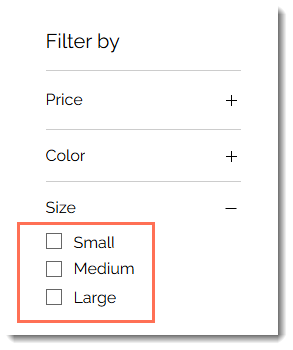
Filters based on your product options and modifiers can make it easier for shoppers to find what they’re looking for on your Category page or grid gallery.
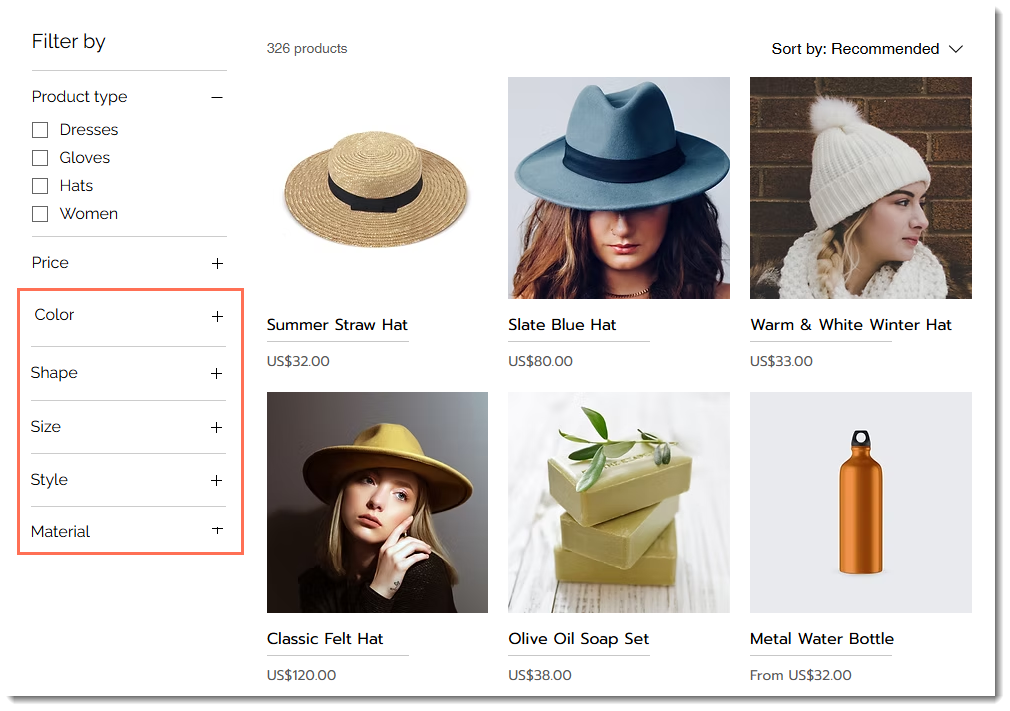
However, if you display filters that have too many options or you order the options in a way that doesn’t make sense, the filters can create confusion and make shopping less intuitive.
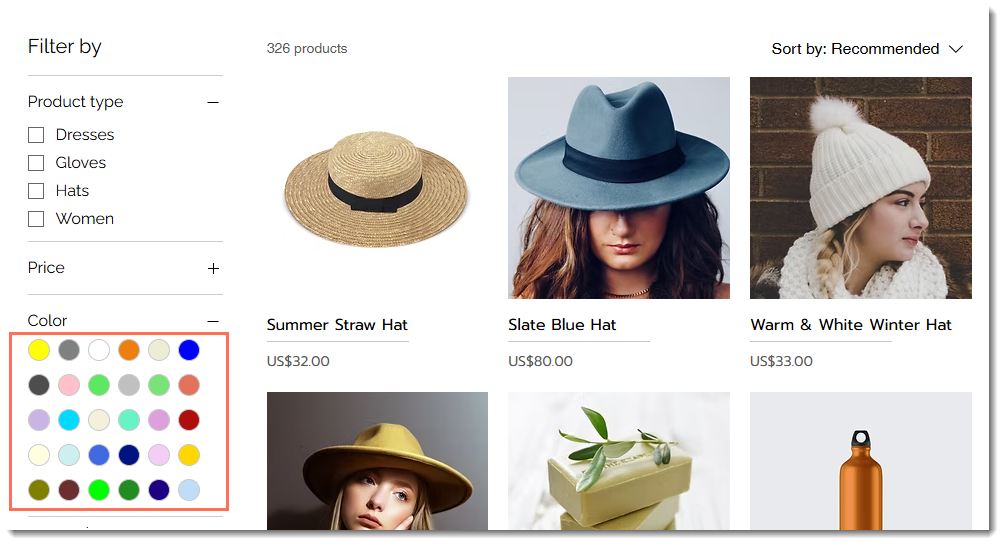
To streamline your customers' experience, you can group choices together. For example, you can group all the blue shades to create one blue filter. You can also reorder your filter options in a logical manner (e.g. organize colors in rainbow order or sort size options from small to large).
Grouping similar option choices
To group choices, click
Manage Filter next to the relevant filter and then
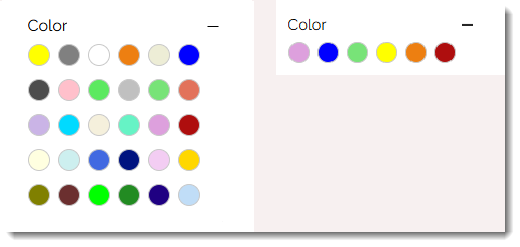
Group Choices. Select a primary choice to represent the group (e.g. Blue) and add the relevant choices to it (e.g. Light Blue, Navy, etc.). This way, for example, instead of displaying an overwhelming number of shades, you can group them into a more manageable display.
Reorder option choices
By default, text choices are listed alphabetically while color choices are listed by how many products have the choice. While this may work well for some options, for other options, such as 'Size', it may not be the most logical order.
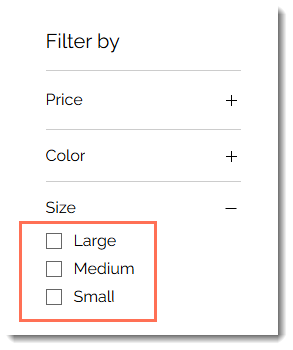
To decide how you want to reorder option choices, click
Manage Filter next to the relevant filter and then select an option from the
How are choices sorted? drop-down. To choose the order yourself, select
Manual and drag the options into an order that makes sense for your site.