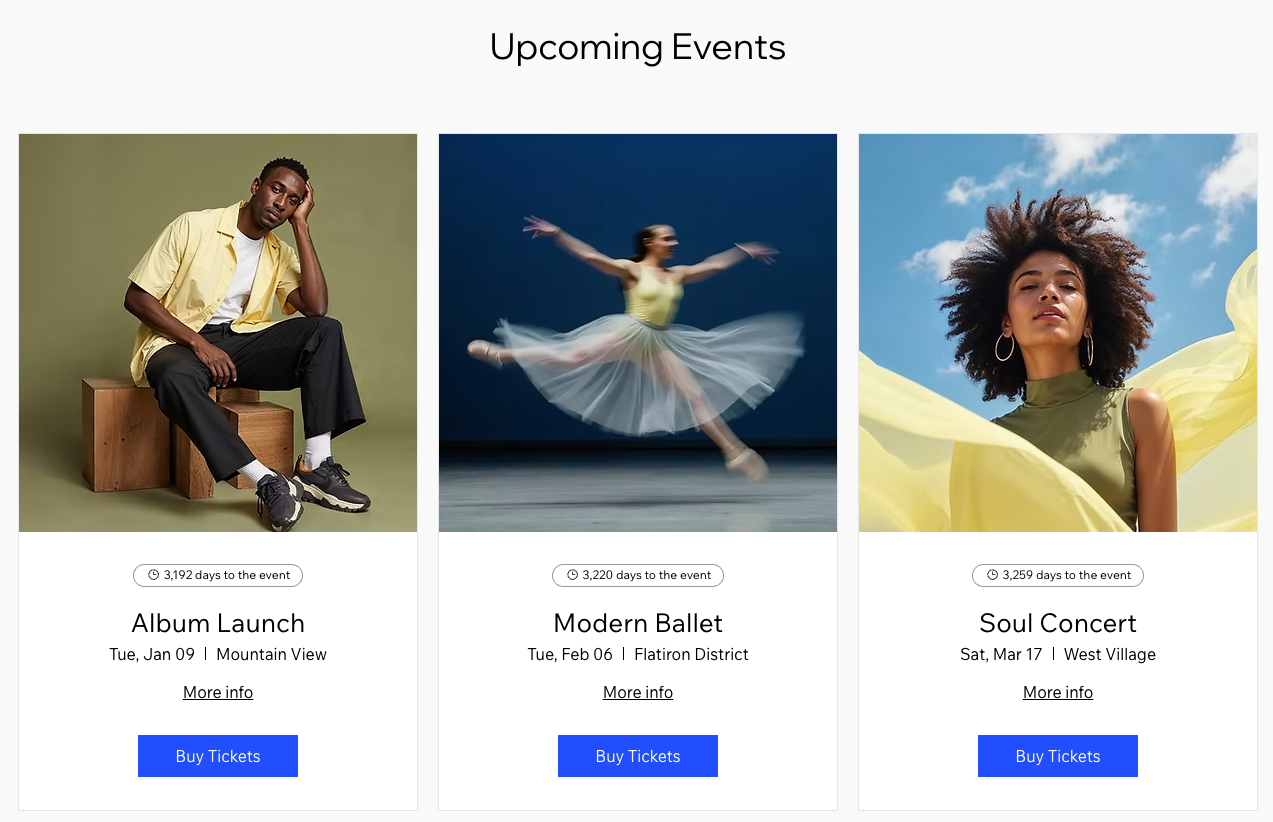
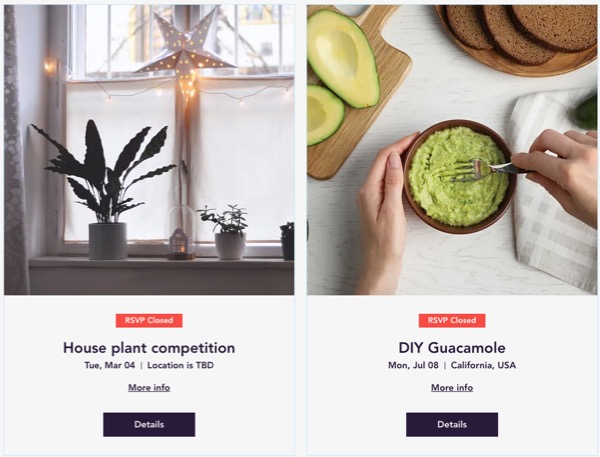
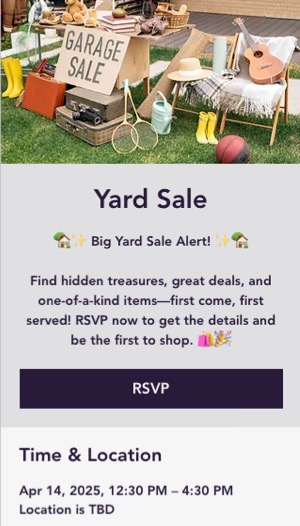
Use the event list element to display your events in an eye-catching way that encourages site visitors to register. You can customize its design, choose which event details to show, and add informative ribbons to highlight important information. There are also separate settings for mobile so your event list element looks great on any screen.
Customizing the event list
Customize your event list element to help attendees quickly understand event details such as the date, location, and availability. You can also show ribbons, guest avatars, and other elements to highlight important information.
To customize the event list:
- Go to your editor.
- Go to the Events page:
- Click Pages & Menu
 on the left side of the editor.
 - Click Event Pages.
- Click your Events page.
- Click the event list element on your page.
- Click Settings.
- Choose what you want to customize:
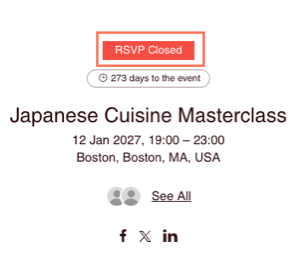
Ribbons help event organizers and attendees quickly understand the status and availability of an event.
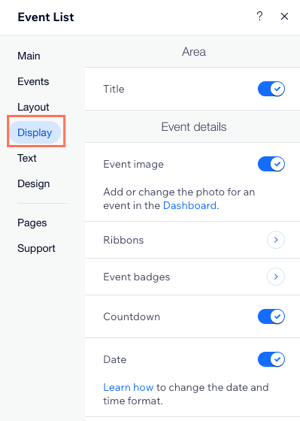
- Click the Display tab.
- Click Ribbons.
- Click the relevant ribbon name and enable the Ribbon toggle:
- Sold Out Ribbon: All tickets for the event are sold out.
- RSVP Closed Ribbon: Registration is closed.
- Join Waitlist Ribbon: Displayed when an RSVP event has a waitlist.
- Membership Ribbon: The event is exclusive to members only.
- Multiple Dates Ribbon: The event occurs on multiple dates.
Tip: Click the Text tab to edit the text on the available ribbons.
Event details / Additional event info
- Click the Display tab.
- Click the relevant toggles to choose what to show or hide:
- Title: Show or hide the event title.
- Load More button: Show or hide the button that lets visitors load more events.
- Event image: Show or hide the event image.
- Ribbons: Click to manage the ribbons shown on your events.
- Event badges: Click to manage the badges shown on your events.
- Countdown: Show or hide a countdown until the event starts.
- Date: Show or hide the event date.
- Location: Show or hide the event location.
- Allow additional info: Show or hide extra event details. If enabled, choose what else to display:
- Date: Show or hide the event date in the additional info section.
- Location: Show or hide the event location in the additional info section.
- Description: Show or hide the event description.
- Guests: Show or hide the guest avatars.
- Social share: Show or hide social sharing options.
Customize the design of your event list to match your site’s look and highlight important event details.
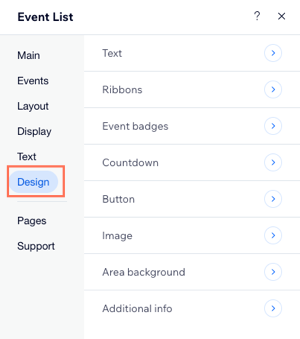
- Click the Design tab.
- Click the relevant design elements to customize the following:
- Text: Personalize the font style, size, color, and other text properties.
- Ribbons: Draw attention to important aspects of the event such as:
- Membership Ribbon: Displayed when a ticketed event has memberships connected.
- Multiple Dates Ribbon: Displayed when an event has multiple dates.
- Event badges: Customize the design of event badges to highlight details such as limited tickets and early bird pricing.
- Countdown: Customize the countdown’s text, colors, border, and corners.
- Button: Customize the appearance of buttons, including their shape, color, and text.
- Image: Customize the appearance of the event image in the list.
- Area background: Customize the background of the event list.
- Additional info: Customize the appearance of extra event details, such as the date, location, description, and social sharing icons.
Customizing the mobile view for your events
Customize your event list for mobile to keep events clear and easy to browse on smaller screens.
To customize the design for mobile view:
- Go to your editor.
- Go to the Events page:
- Click Pages & Menu on the left side of the editor.
- Click Event Pages.
- Click your Events page.
- Click the Switch to Mobile icon
 at the top of the editor.
- Click the event list element on your page.
- Click Settings.
- Choose what you want to customize:
Ribbons help event organizers and attendees quickly understand the status and availability of an event.
- Click the Display tab.
- Click Ribbons.
- Click the relevant ribbon name and enable the Ribbon toggle:
- Sold Out Ribbon: All tickets for the event are sold out.
- RSVP Closed Ribbon: Registration is closed.
- Join Waitlist Ribbon: Displayed when an RSVP event has a waitlist.
- Membership Ribbon: The event is exclusive to members only.
- Multiple Dates Ribbon: The event occurs on multiple dates.
Event details / Additional event info
- Click the Display tab.
- Click the relevant toggles to choose what to show or hide:
- Title: Show or hide the event title.
- Load More button: Show or hide the button that lets visitors load more events.
- Event image: Show or hide the event image.
- Ribbons: Click to manage the ribbons shown on your events.
- Event badges: Click to manage the badges shown on your events.
- Countdown: Show or hide a countdown until the event starts.
- Date: Show or hide the event date.
- Allow additional info: Show or hide extra event details. If enabled, choose what else to display:
- Date: Show or hide the event date in the additional info section.
- Location: Show or hide the event location in the additional info section.
- Description: Show or hide the event description.
- Guests: Show or hide the guest avatars.
- Social share: Show or hide social sharing options.
Customize the design of your event list to match your site’s look on mobile.
- Click the Design tab.
- Click the relevant design elements to customize the following:
- Text: Adjust the font and color of event details such as the event name and date.
- Ribbons: Set the font style and color for ribbons you display (e.g. Membership ribbon).
- Event badges: Customize the design of event badges to highlight details such as limited tickets and early bird pricing.
- Countdown: Customize the countdown’s text, colors, border, and corners.
- Button and Links: Customize the appearance of buttons and links, including their shape, color, and text.
- Image: Customize the appearance of the event image in the list.
- Area background: Customize the background of the event list.
- On click: Choose the font and color for clickable elements such as the event date and location.