


Assigning Tags to Your Sites
In this article
- Assigning tags to your site
- Managing your site tags
- Filtering your site list by tags
- FAQs
Assign tags to your sites to easily organize your list of sites. You can create custom tags to categorize sites by client, business type, or any other criteria that suits your needs.
For example, if you're managing multiple client projects, you can tag sites as 'In Progress', 'Completed', or 'Pending Review' to locate and manage them better.
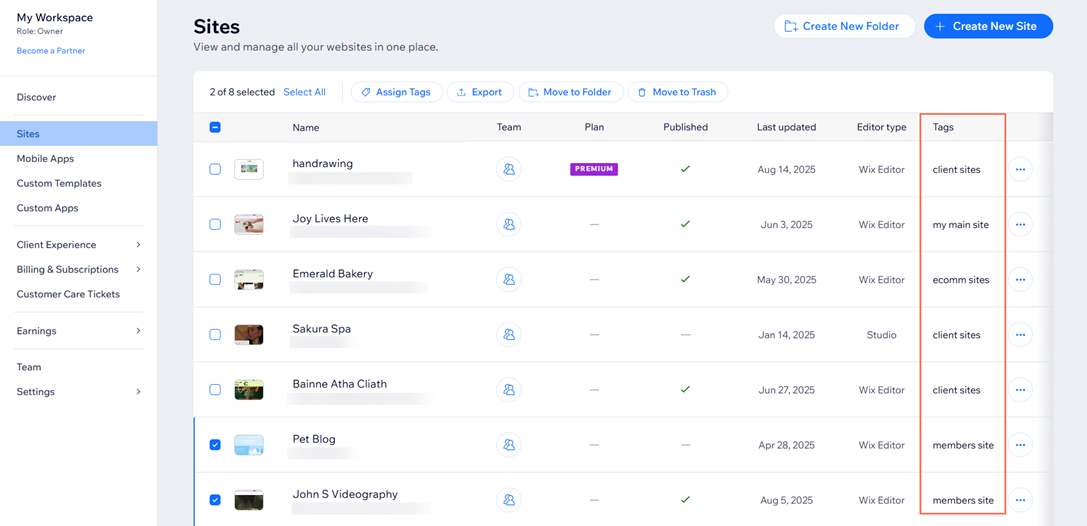
Assigning tags to your site
Create and assign tags to categorize your sites, making them easier to find and work with. You can assign multiple tags to your sites to suit your needs.
To assign tags to your site:
- Log in to your Wix account.
- Click the List View icon
 at the top right.
 - Click the checkbox next to the site you want to assign a tag to.
- Click Assign Tags at the top of the list.
- Enter a name for the tag in the text field and click + Create.
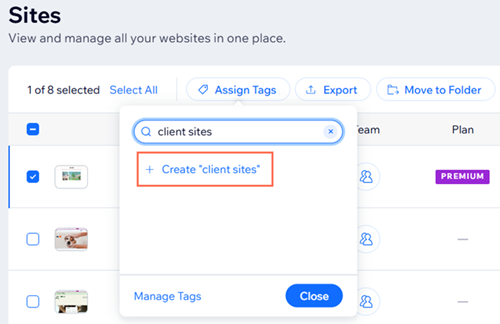
- Click Apply.
Tip:
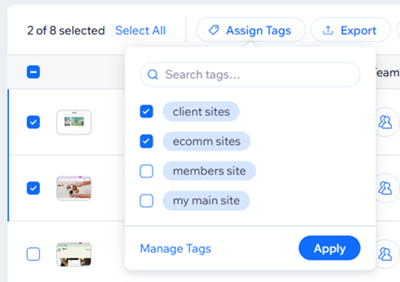
You can assign multiple tags to a site by clicking the checkboxes next to each tag after you click
Assign Tags.
Managing your site tags
Rename or delete your tags to keep your site list tidy and updated.
To manage your site tags:
- Log in to your Wix account.
- Click the List View icon at the top of the list.
- Click the checkbox next to any of your sites.
- Click Assign Tags.
- Click Manage Tags.
- Choose what you want to do:
Rename
 next to a tag you want to rename.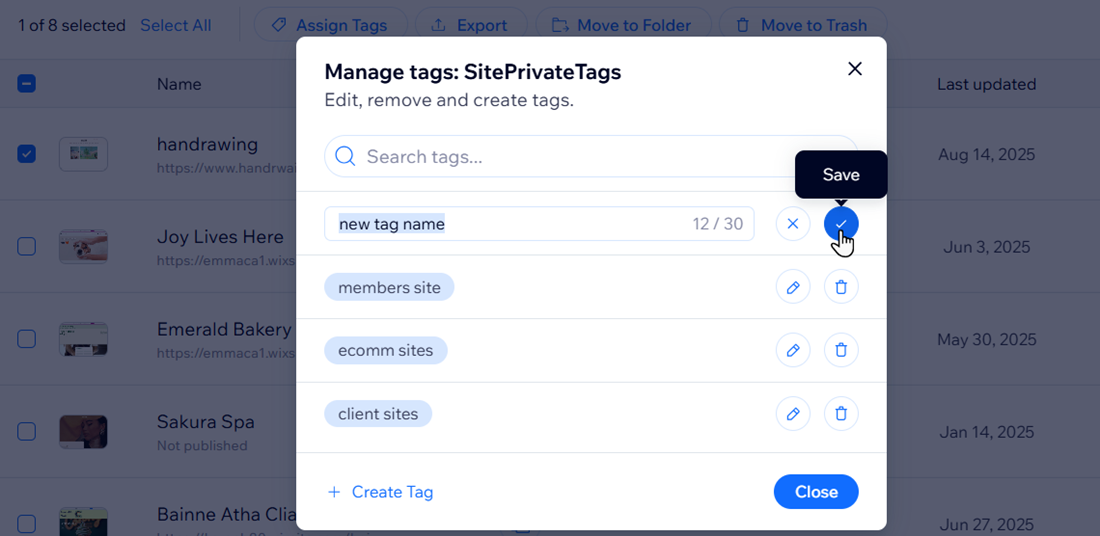
Delete
 next to a tag you want to delete.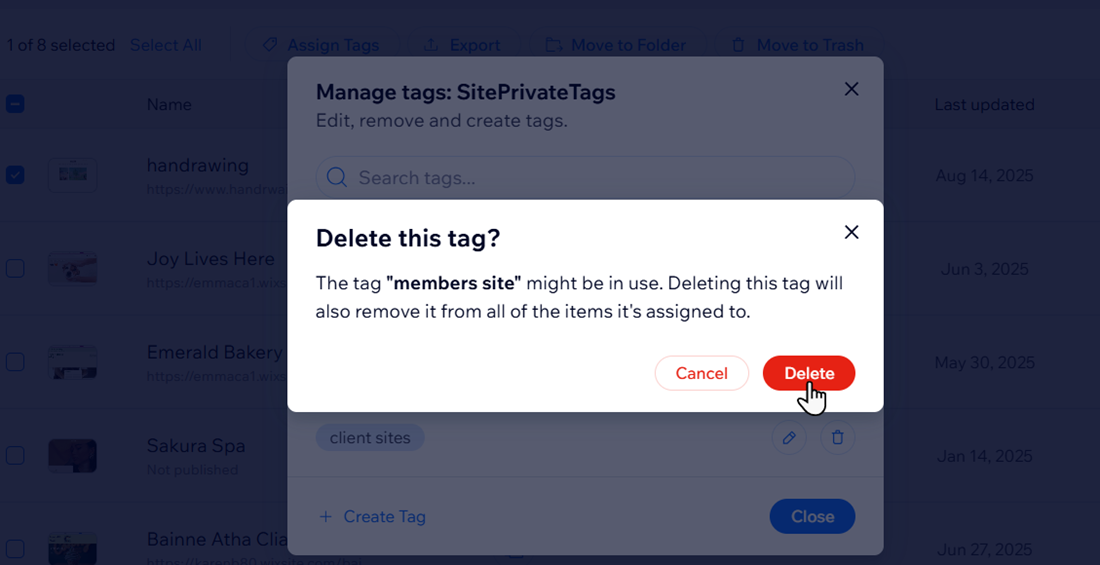
Filtering your site list by tags
Filter your site list by tags to help you quickly locate specific sites based on the tags you've assigned to them.
To filter your site list by tags:
- Log in to your Wix account.
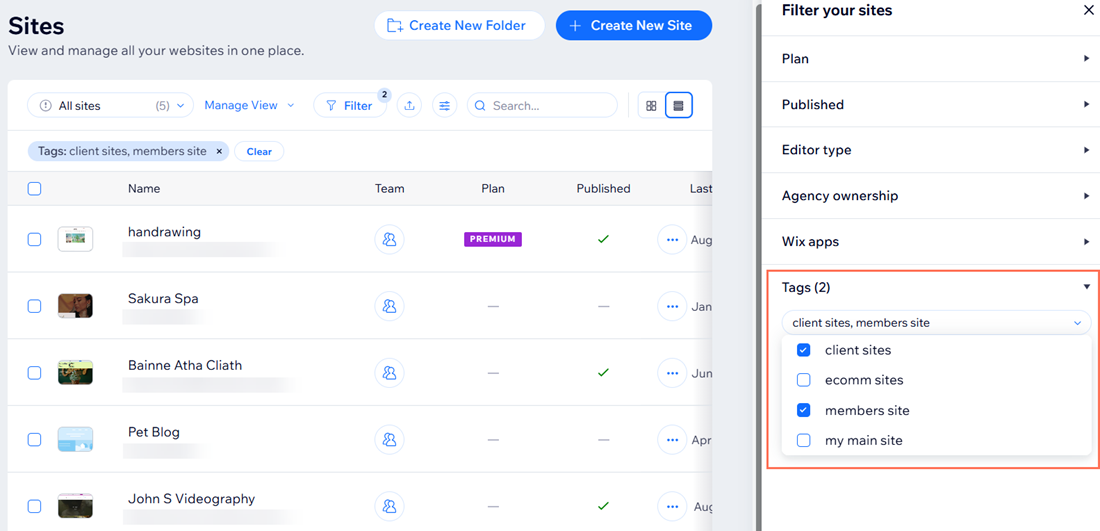
- Click Filter at the top.
- Click Tags.
- Click Select tags and click the checkboxes next to the tags you want to show in the list of sites.
Tip:

You can view your site list as a grid instead of a list by clicking the
Grid View icon
 at the top right.
at the top right.
FAQs
Click a question below to learn more about assigning tags to your sites.
Can I assign multiple tags to a single site?
Does deleting a tag affect the site that it was assigned to?
What happens if I delete a tag that’s assigned to multiple sites?
Can other team members see and use the tags I create?
