


Setting How Shipping and Tax Displays in the Cart Page
3 min
Important:
This article is relevant for Wix Stores, Wix Bookings, Wix Restaurants Orders (New) orders.
You can show your customers' shipping and tax charges, right on the Cart page.
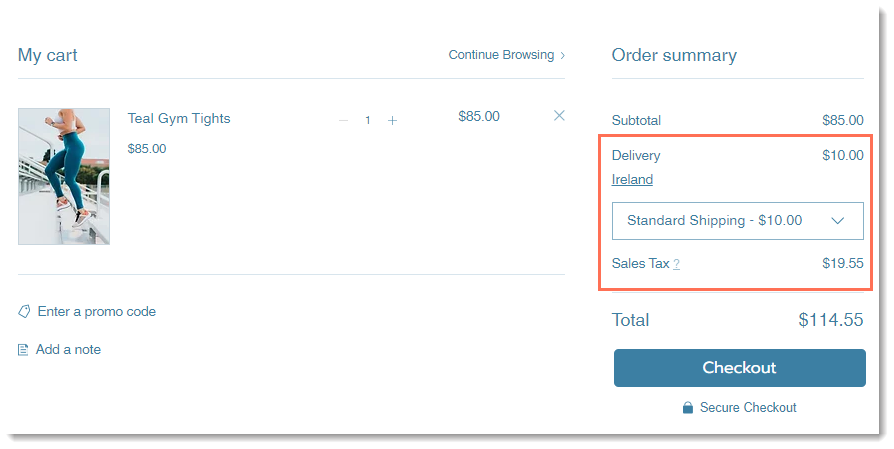
Customers see their location displayed in the cart and have the option of entering a different one, for example, if they are shipping to another destination.
Next, if you created more than one delivery option, customers can choose the one they prefer.
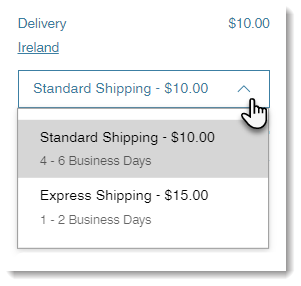
After making these selections, your customers see an updated total price, based on the location and delivery option selected.
If you prefer not to display shipping and tax in the Cart page, you can hide either one.
Important:
Estimated taxes are not displayed if you have included tax in the price of your products.
Setting how shipping & tax displays in the Cart page
Access to the Cart page varies according to which business solution or solutions you use.
Tips:
- If you're using Wix Restaurant Orders (New), access to the Cart page is always through Cart & Thank You.
- Wix Restaurant Orders (New) is not yet available in the Wix Harmony Editor.
Wix Editor
Studio Editor
Wix Harmony Editor
- Go to your editor.
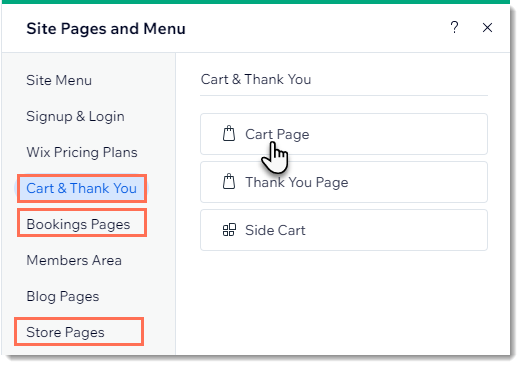
- Go to your Cart page:
- Click Pages & Menu
 on the left side of the editor.
 - Select an option:
- You have only 1 business solution (e.g. only Wix Stores or Wix Bookings):
- Click your business solution (e. g. Wix Stores).
- Click Cart Page.
- My site has 2 or more business solutions:
- Click Cart & Thank You.
- Click Cart Page.
- You have only 1 business solution (e.g. only Wix Stores or Wix Bookings):
- Click Pages & Menu
- Click the Cart Page element on your page.
- Click Settings.
- Click the Settings tab.
- Select or deselect the Shipping & delivery rates checkbox.
- Select or deselect the Tax costs checkbox.
Tip:
In addition to displaying tax and shipping info in the Cart page, you can display a tax or shipping message on every page with product prices.
