


Wix Forms: Adding a Signature Field
A signature field allows visitors to electronically sign their names before they submit a form. Signature fields are useful for health waivers, registration forms and application forms. All signatures are saved in your form submissions dashboard.
Important:
The signature field is a premium feature. Learn more about
upgrading Wix Forms.

Important legal information:
Legal recognition of electronic signatures may have different and additional requirements according to internal laws/regulations of the country. Make sure you verify which requirements apply to you in accordance with local laws.
To add a signature field to a site form:
New Forms
Old Forms
- Click the relevant form in your editor.
- Click Edit Form to open the form builder.
- Click Add
 on the left side of the builder.
 - Click General.
- Click Signature and drag the form element onto the page.
- Click the newly added field on your form and click Settings.
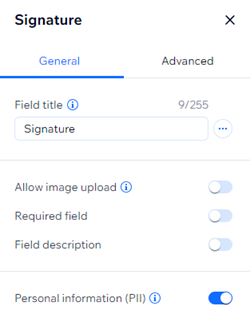
- Choose from the following customization options:
- Field title: Give a short title that tells people what you are asking for in the field.
- Allow image upload: Enable the toggle to allow people upload an image of their signature instead of signing with their mouse or trackpad.
- Required field: Enable or disable the toggle to make the signature field mandatory or optional. If required, site visitors need to sign the form before submitting.
- Field description: Add a field description if your form needs additional explanation (e.g. terms and conditions or additional legal information for health waiver forms)
- Personal information (PII): Protect personally identifiable information (PII) like addresses and passport info with an additional layer of protection.
Good to know:
- Once the form is submitted, a preview image of the visitor's signature will appear in your form submission table. You can download the table’s contents, however the PDF will only display “Signed” without an image of the signature.
- The form field key can be found under the Advanced tab in the settings panel. Use this key to reference the form field in code. It can't be changed later.
How do I know if I'm using old Wix Forms or new Wix Forms?
This article will help you understand the differences between old and new Wix Forms.
