


Wix Editor: Password Protecting a Specific Page of Your Site
2 min
In this article
- Adding password protection to a page
- FAQs
Limit the access to a specific site page by password protecting it. Visitors who navigate to a protected page are prompted to enter the password. This allows you to share your exclusive content on your own terms.
Important:
If you choose to password protect a page, this also prevents search engines from crawling and indexing that page. This means that password protected pages do not appear in search results.
Adding password protection to a page
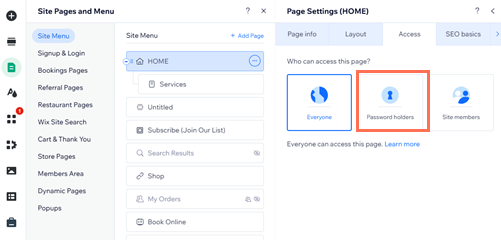
Head over to the Page Settings panel to add a password to a site page. Once you publish this change, you can send the password to anyone who needs it.
To password protect a page:
- Go to your editor.
- Click Pages & Menu
 on the left side of the editor.
 - Click the More Actions icon
next to the relevant page.
- Click Settings.
- Click the Access tab.
- Select Password holders.
- Enter your chosen password for the page.
- Press the Enter key on your keyboard.
Tip:
Make sure to send the password to visitors that you want to access the page.
FAQs
Select a question to learn more about password protected pages.
When should I add password protection to a page?
Can I password protect my entire site?
Can I password protect my site's homepage?
Is code affected by password protection?
