


Wix スマートチャット:AI をトレーニングする
この記事内
- 知識ルールを作成する
- 制限ルールを作成する
- トレーニングルールを編集または削除する
- よくある質問
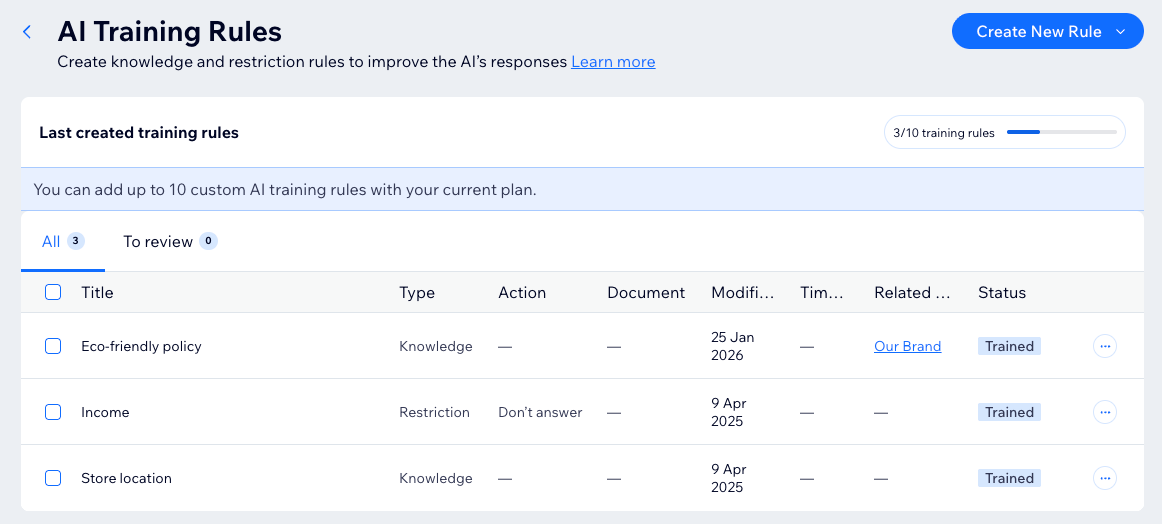
AI のトレーニングルールを作成することで、ビジネスに関する知識を活用して回答を充実させることができます。AI はこの情報を学習し、それを使用してより正確で的確な回答を提供します。また、AI が特定のトピックに関する情報を提供しないように制限することもできます。
サイトに掲載している公開情報に加えて、サイト訪問者に可能な限り最高のサービスを提供するうえで重要となる、独自の豊富な知識があります。通常、この情報は販売する商品やビジネスが提供するサービス、顧客へのサポートなどに関するものです。
注意:
ルールを追加しても、AI のトーンは変更されません。トーンやその他のインタラクションパーツを調整するには、「AI のアイデンティティとスタイル」ページに移動してください。
知識ルールを作成する
スマートチャットに知識ルールを作成すると、AI がサイト訪問者の質問により正確に回答できるようになります。知識ルールはより多く追加するほど、回答の速度と正確さが向上します。
オンラインアパレルショップの例を見る

エコフレンドリーなビジネスの例を見る

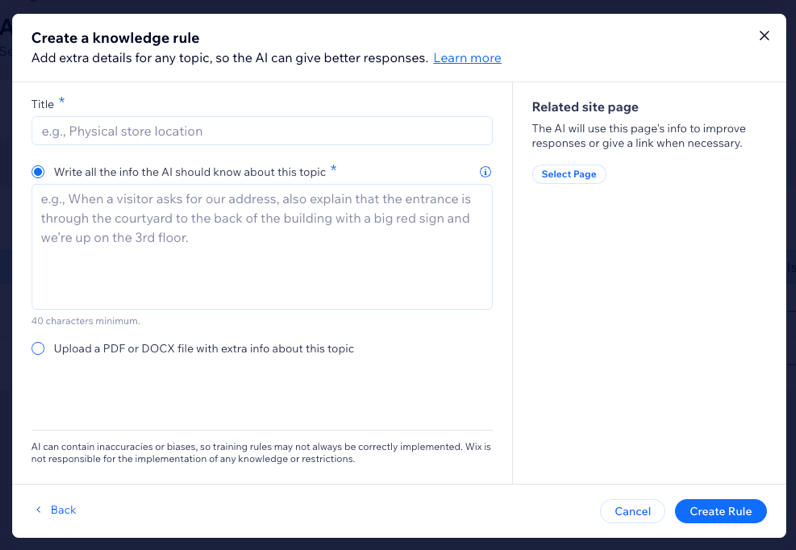
知識ルールを作成する方法:
- サイトダッシュボードの「スマートチャット」にアクセスします。
- 「アクション」ドロップダウンをクリックし、「知識を追加」を選択します。
- 知識ルールに、後から認識しやすい明確なタイトルを付けます。
- AI に知識ルールを追加する方法を選択します:
- このトピックについて AI が知っておくべき情報をすべて入力:テキスト欄にすべての情報を入力します。
- このトピックに関する追加情報を含む PDF または DOCX ファイルをアップロード:該当する情報を含むファイルをコンピュータからアップロードします。「ファイルを追加」をクリックして文書をアップロードします。
- (オプション)知識ルールを特定のページまたは商品にリンクさせます(例:返品に関する知識ルールを専用の返品ポリシーページにリンクさせます):
- 右側で「ページを選択する」をクリックします。
- サイトからページを選択します。
- 「ルールを作成」をクリックします。
ヒント:
休暇中の営業時間など、期間限定のイベントに関する知識ルールを追加する場合は、後でそれらのルールを忘れずに削除してください。
制限ルールを作成する
AI がサイト訪問者に提供するトピックの情報を制限することで、AI のコミュニケーションをより詳細に制御することができます。収益や休暇日など、回答すべきでないトピックを追加することで、ビジネスの境界線を明確にすることができます。
パーソナルトレーニングビジネスの例を見る

ファイナンシャルサービスサイトの例を見る

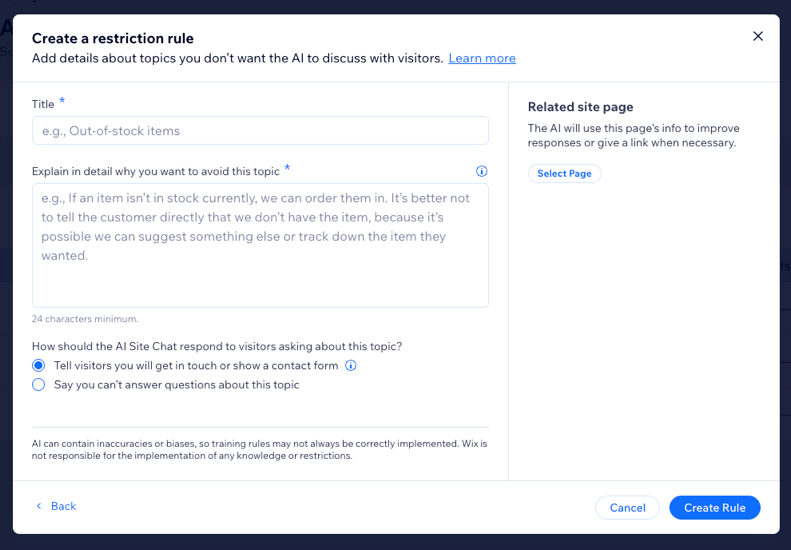
制限ルールを作成する方法:
- サイトダッシュボードの「スマートチャット」にアクセスします。
- 「アクション」ドロップダウンをクリックし、「制限を追加」を選択します。
- 制限ルールに、後から認識しやすい明確なタイトルを付けます。
- テキスト欄に説明を入力します。
- オプションを選択します:
- サイト訪問者に対して追って連絡する旨を伝えるか、問い合せフォームを表示:このトピックに関する訪問者のメッセージは Inbox に転送されます。
ヒント:追って返信できるよう、お問い合わせフォームを設定します。 - 該当のトピックに関する質問には答えられないと回答:AI は、そのトピックに関する訪問者の質問には回答できないというメッセージを自動で送信します。
- サイト訪問者に対して追って連絡する旨を伝えるか、問い合せフォームを表示:このトピックに関する訪問者のメッセージは Inbox に転送されます。
- (オプション)関連サイトページを追加する:制限ルールをサイトの特定のページまたは商品にリンクさせます。たとえば、法的なトピックを避けるという制限ルールを、サイトの利用規約ページにリンクさせます。
- 右側で「ページを選択する」をクリックします。
- サイトからページを選択します。
- 「ルールを作成」をクリックします。
トレーニングルールを編集または削除する
知識ルールや制限ルールに入力した情報は、編集または削除することができます。
トレーニングルールを編集または削除する方法:
- サイトダッシュボードの「スマートチャット」にアクセスします。
- 「AI ツール」セクション下で、該当するトレーニングルールのタイルをクリックします。
- 編集または削除したいルールにマウスオーバーします。
- オプションを選択します:
編集

削除
 をクリックします。
注意:
PDF / DOCX ファイルをアップロードして追加した知識ルールを編集することはできません。ただし、元の知識ルールを削除し、更新されたファイルで新しい知識ルールを追加することは可能です。
よくある質問
AI のトレーニングに関する詳細については、以下の質問をクリックしてください。
知識ルールや制限ルールを追加しなかった場合でも、AI は機能しますか?
確認が必要なトレーニングルールがあるのはなぜですか?
AI チャットをテストする際にルールを追加することはできますか?
ルールに関連サイトページを追加する必要があるのはなぜですか?
知識ルールを追加する際に、アップロードするファイルに画像を含めることはできますか?
追加できる知識ルールや制限ルールの数に制限はありますか?
顧客とのチャットで知識ルールや制限ルールが使用された回数を追跡することはできますか?