


Wix Vibe: Testing Your Site with AI
In this article
- Creating and running site tests
- Managing your site tests
- FAQs
Important:
Wix Vibe is no longer available for creating new sites. If you already have a site built with the Wix Vibe Editor, you can continue editing and publishing. To create your next site with AI, we recommend using the Wix Harmony Editor.
Ensure your site works perfectly before visitors arrive. The AI testing agent simulates real user behavior—like submitting forms or navigating menus—to catch potential issues early. You can then let the AI fix discovered problems instantly, helping you launch with confidence.
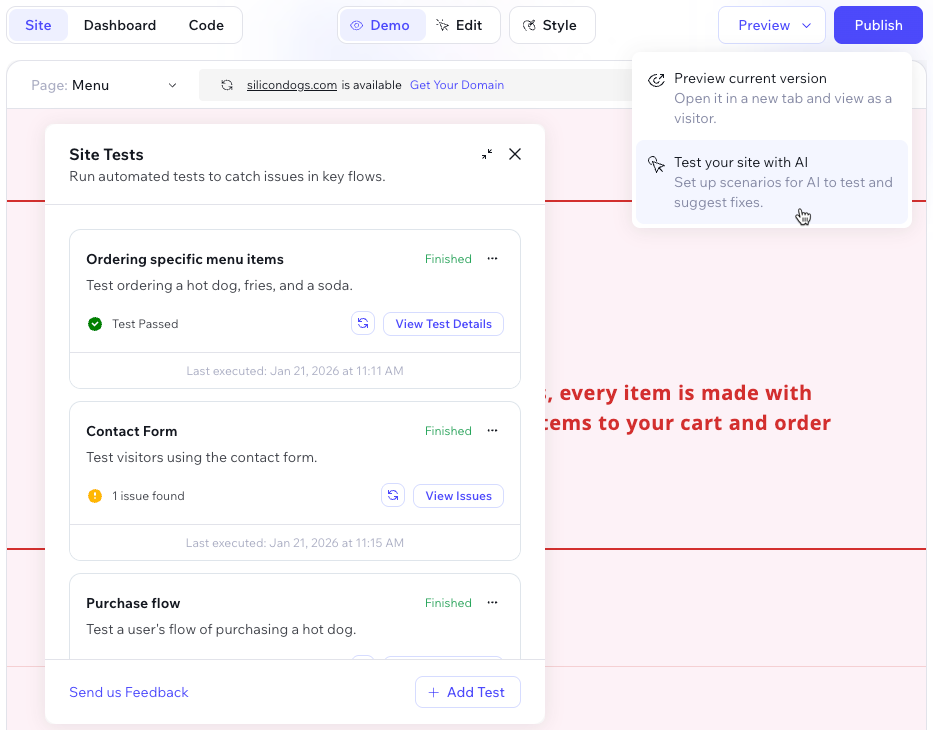
Creating and running site tests
Wix Vibe automatically generates 3 predefined tests for your site so you can start checking your main flows immediately. You can run these tests to verify your site's functionality, or create your own custom tests for specific scenarios. Once the AI completes the test, you can review the results and apply instant fixes to any issues found.
Note:
Predefined tests were generated automatically when your site was created. If you do not see them, create custom tests instead to verify your site.
To run a test and fix issues:
- Go to your editor.
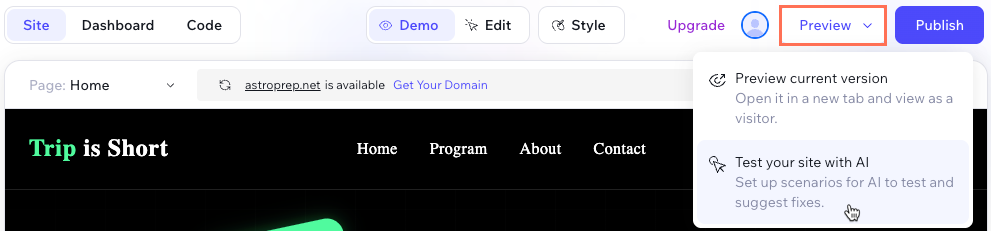
- Click Preview at the top and select Test your site with AI.
- Choose how you want to test your site:
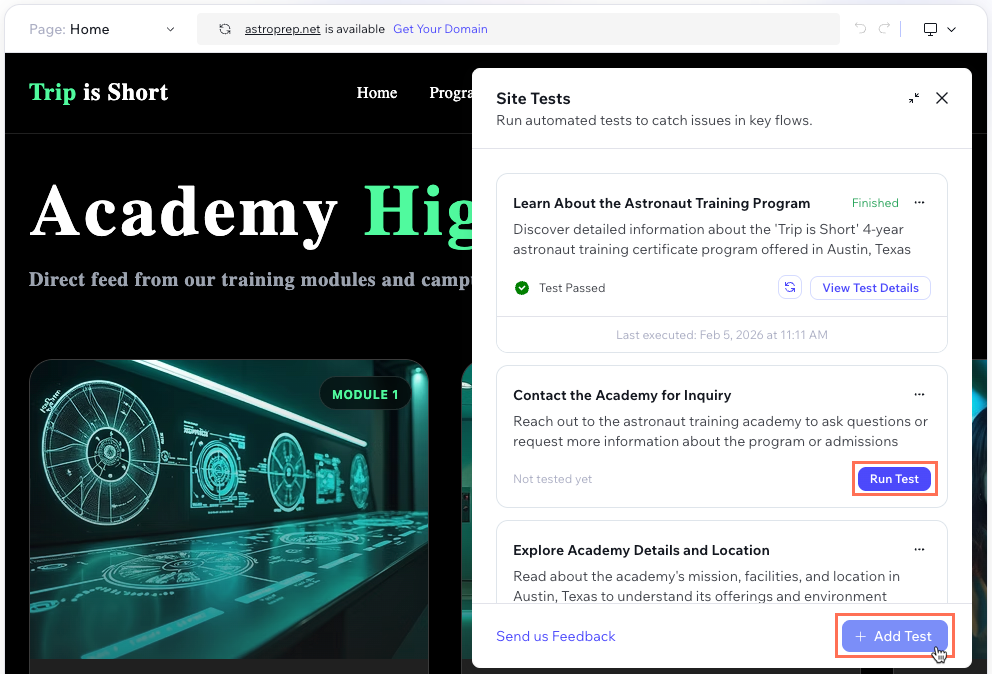
- Run a predefined test: Click Run Test next to the relevant test.
- Create a custom test:
- Click + Add Test.
- Enter a name for the test in the Name field.
- Enter a description of the scenario you want to test in the Scenario field (e.g. "Check that the contact form submits successfully").
- Click Add.
- Click Run Test next to your new test.
- (Optional) Manage the test while it runs:
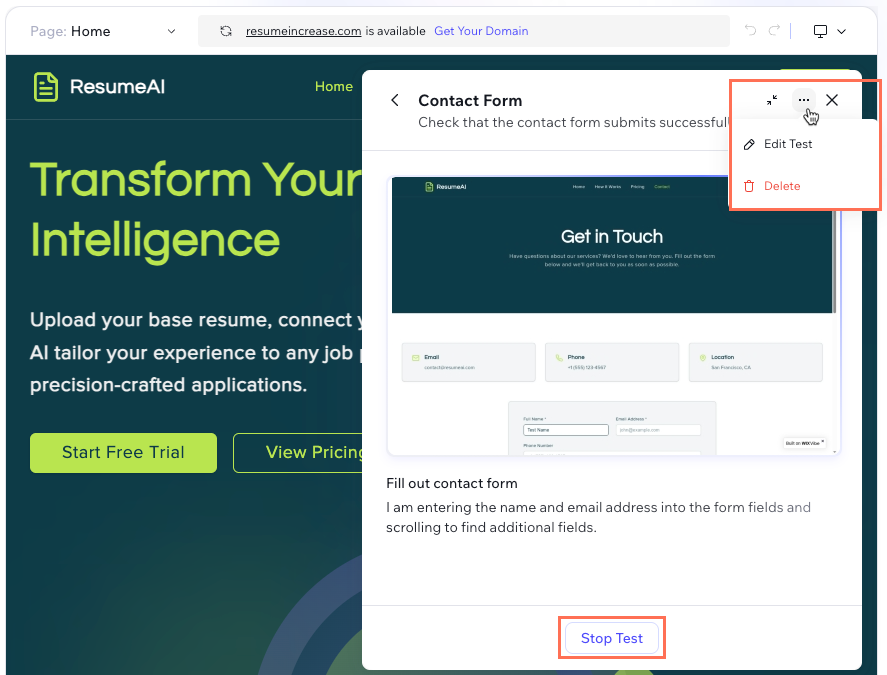
- Collapse or expand the panel: Click the Collapse icon
 to close the test panel. You can click the Expand icon
  to reopen the test panel and view the progress.
 - Edit the test: Click the More Actions icon
 and select Edit Test to modify the test.
 - Stop the test: Click Stop Test to stop the test from continuing.
- Delete the test: Click the More Actions icon and select Delete to permanently remove the test.
- Collapse or expand the panel: Click the Collapse icon
- (If issues are found) Choose what you want to do:
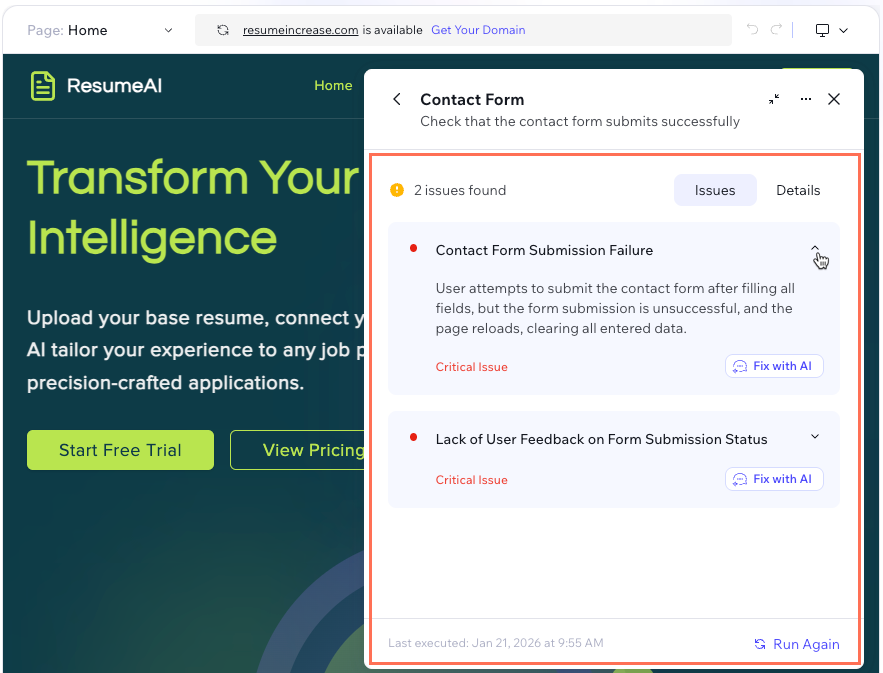
- View summary: Click the drop-down next the relevant issue to expand a summary of the issue.
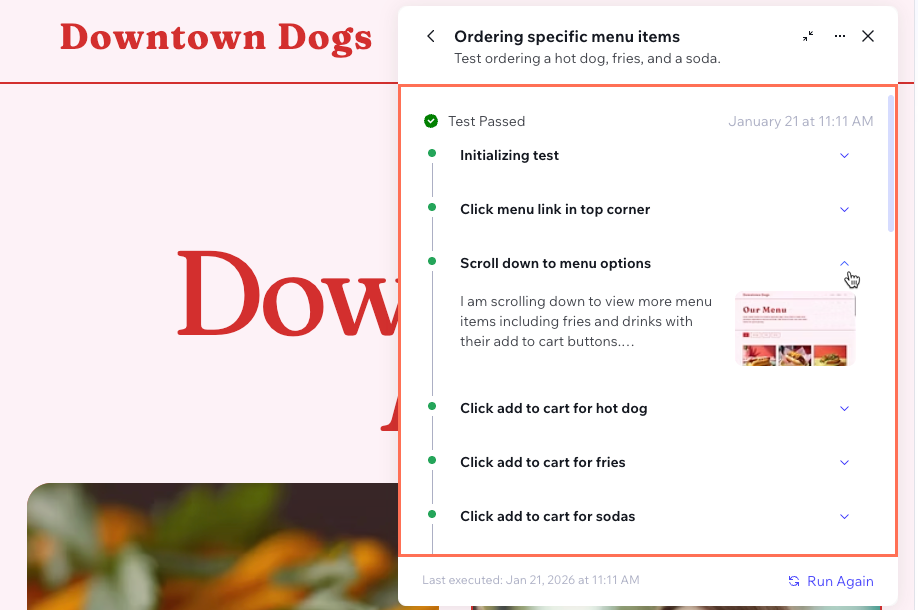
- View details: Click the Details tab to view the steps AI took to perform the test. You can click any of the steps to view more details about them.
- Fix with AI: Click Fix with AI to have AI attempt to fix the issue. You can watch the progress in the chat panel on the left as AI fixes the issue.
- Run test again: Click Run Again to have AI perform the test again. Alternatively, you can attempt to fix the issues manually in the Wix Vibe Editor. If the test is successful, you'll see Test Passed in the panel.
- Click Preview and select Preview current version to open the current version of your site in a new tab where you can manually test your site.
- When you're ready to make any changes go live, click Publish at the top right.
Managing your site tests
Keep your testing workflow organized by editing or removing tests as needed. You can verify your site regularly by re-running saved tests after making design changes.
To manage a test:
- Go to your editor.
- Click Preview at the top right and select Test your site with AI.
- View a list of your tests in the Site Tests panel.
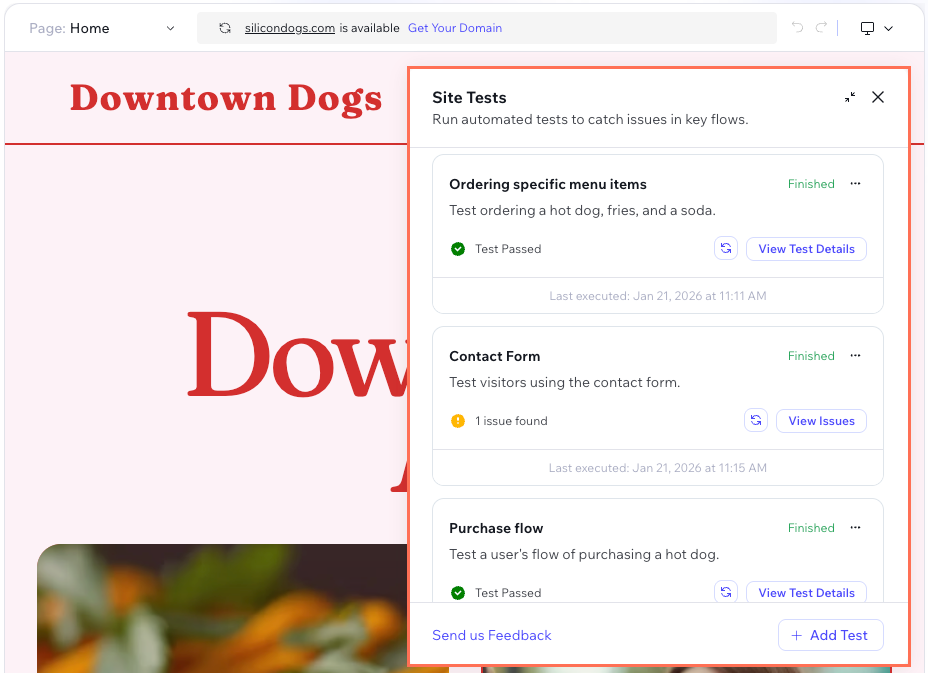
- Choose what you want to do:
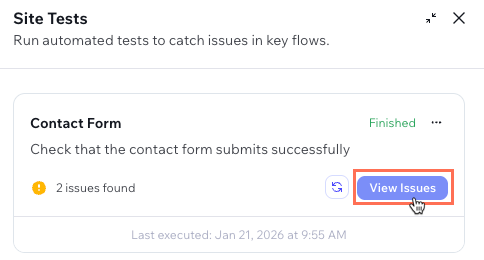
View issues
View test details
Run test again
 to have AI run the test again.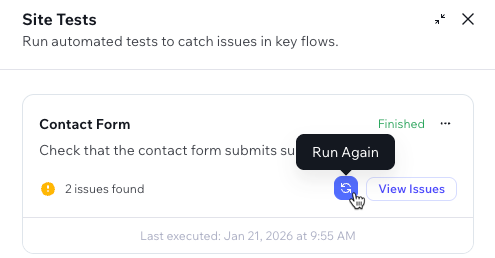
Edit test
Delete test
FAQs
Click a question below to learn more about testing your site in Wix Vibe.
What kind of tests can I run?
Can I fix issues manually?
Do these tests affect my live site?
