
Wix Harmony Editor: Working With Layout Guides
5 min
Layout guides help you line things up as you build your site. They give you a visual guide on the page, so it’s easier to place elements, keep spacing consistent, and create a layout that feels balanced.
You can choose the guide style that works best for you, change how it looks, and decide whether it stays visible in the editor or only appears while you drag elements.
Good to know:
Layout guides are different from the grid used to build a section layout. Layout guides help you position elements on the page. The
section grid helps you arrange content inside a section.
Showing layout guides in the editor
Turn on layout guides when you want more visual structure as you build your site. You can choose between columns, blocks, and dots, then decide whether the guides stay visible in the editor or only appear while you drag elements.
To show the layout guides:
- Go to your editor.
- Click the Layout Guides icon
 at the bottom left.
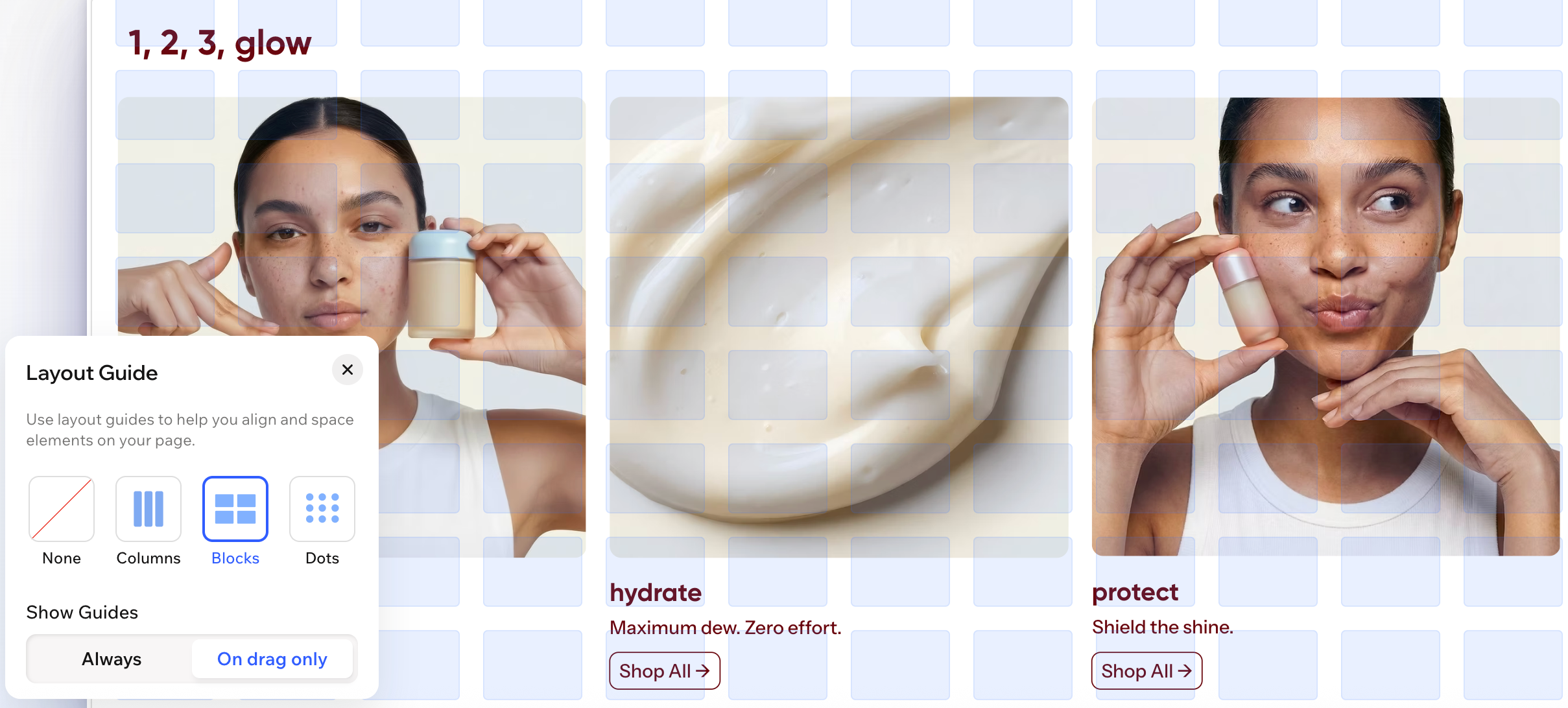
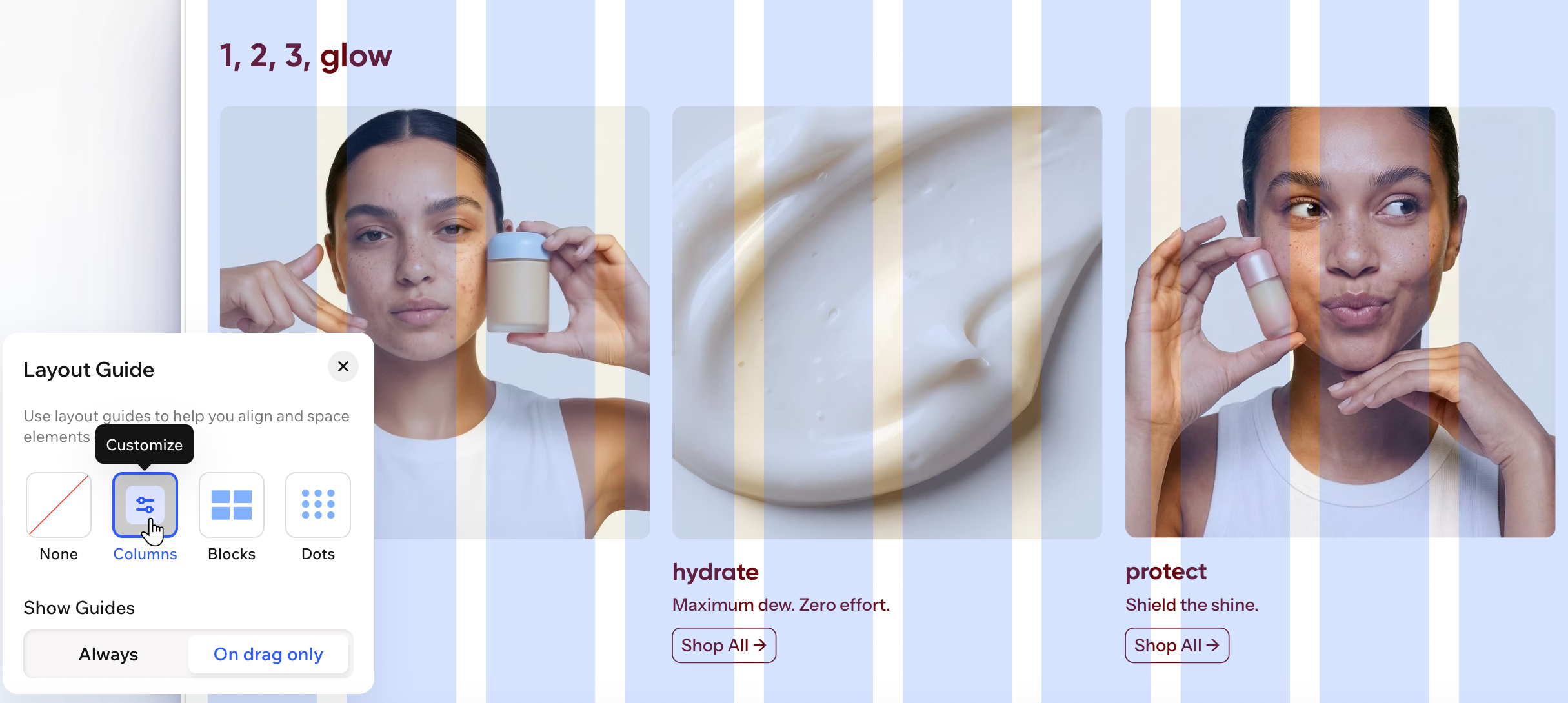
 - Choose a style for your layout guides: Columns, Blocks or Dots.
- Decide when you want to see the layout guides under Show Guides:
- Always: Display the layout guides on this page at all times.
Tip: This means the layout guides appear every time you open the editor – until you choose to turn them off. - On drag only: See the layout guides only when you're dragging elements around the page.
- Always: Display the layout guides on this page at all times.
- (Optional) Hover over the style you chose (e.g. Columns) and click Customize
 to adjust the settings.
Adjusting the layout guides
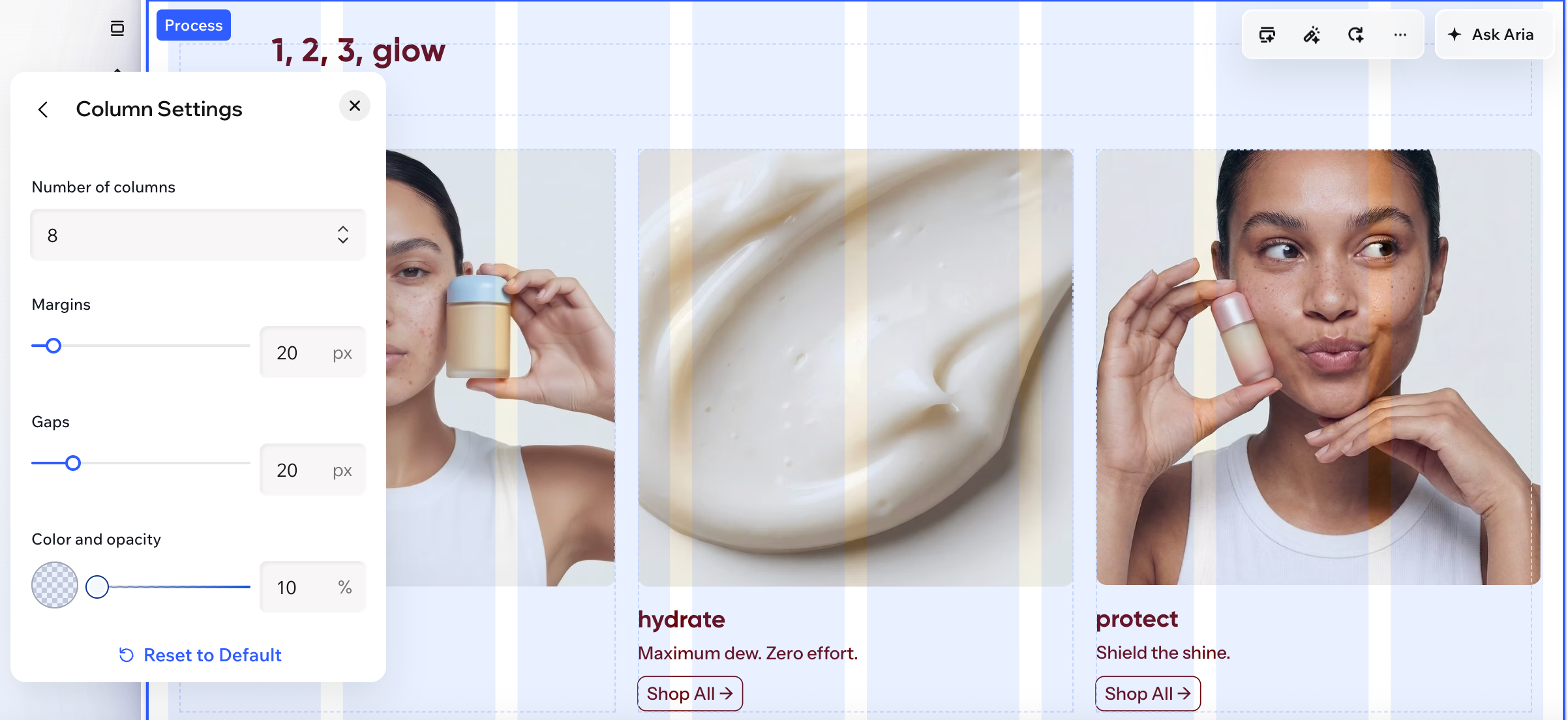
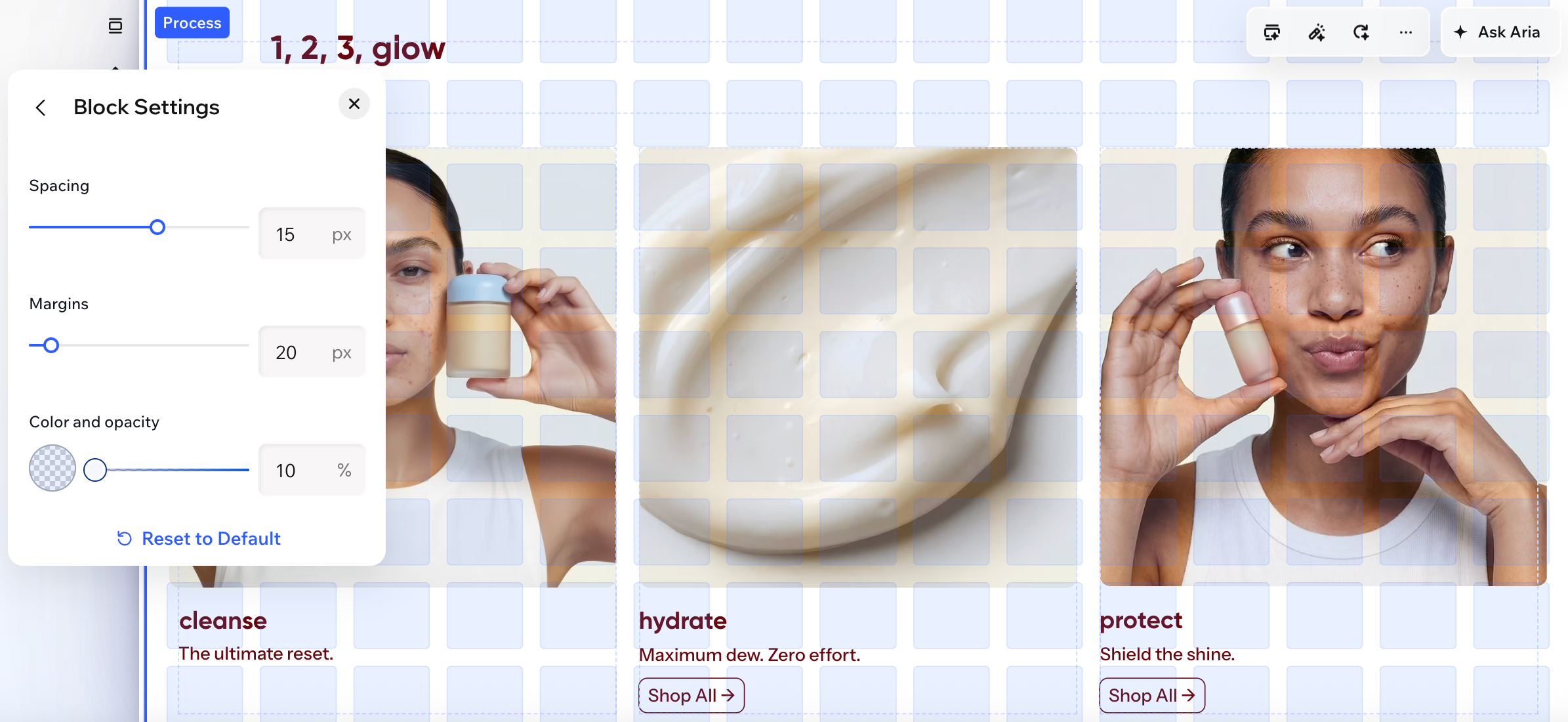
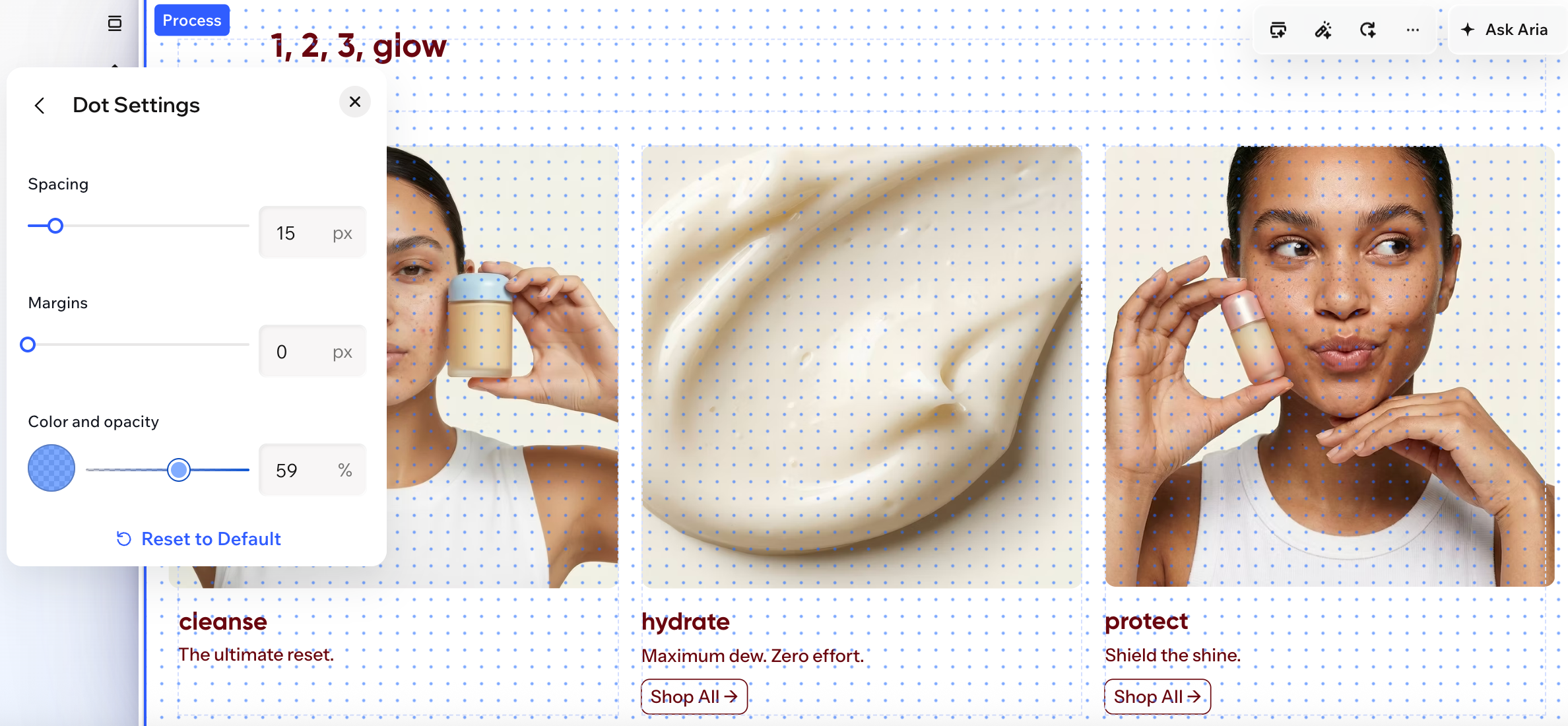
Adjust your layout guides at any time to match the way you design. You can switch to a different guide style or update settings such as spacing, margins, color, and opacity for a more precise editing view.
To adjust the layout guides:
- Go to your editor.
- Click the Layout Guides icon
 at the bottom left.
 - (Optional) Click to choose a different look for your layout guides.
- Hover over the look you chose and click Customize to adjust the settings.
Columns
Blocks
Dots
Disabling the layout guides
Turn off layout guides if you want a cleaner editing view. You can disable them across your whole site at any time, then turn them back on again whenever you need them.
To disable the layout guides:
- Go to your editor.
- Click the Layout Guides icon
 at the bottom left.
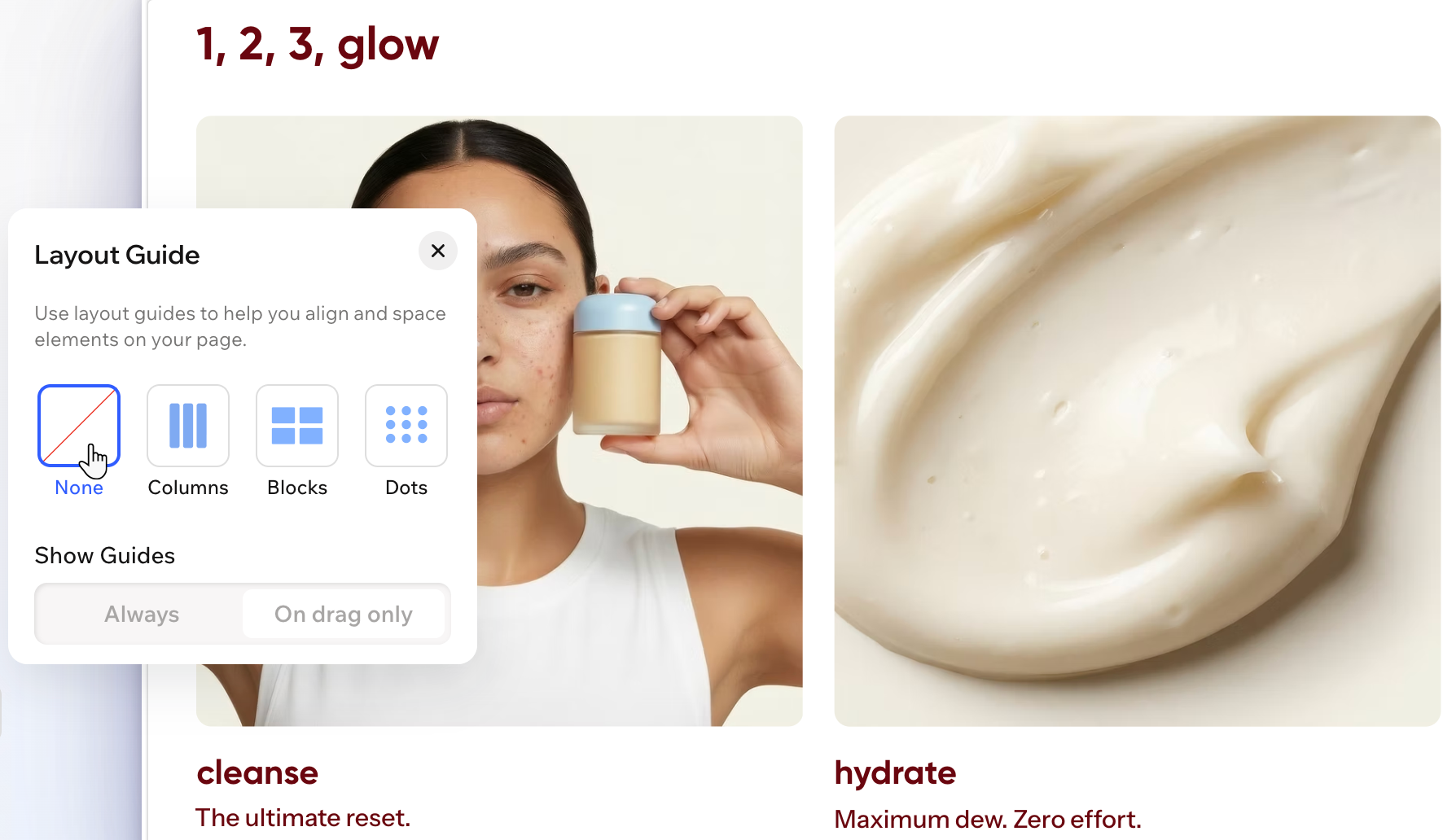
 - Click None.
FAQs
Click a question below to learn more about layout guides.
Can visitors see the layout guides on my live site?
Do layout guides apply to the whole site or just 1 page?
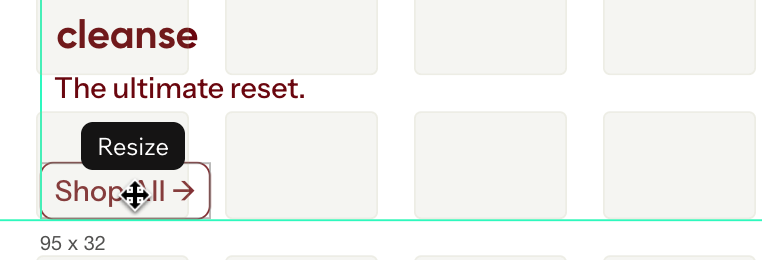
Do layout guides help elements snap into place?
Are my custom settings saved if I switch to another guide style?
What happens when clicking 'Reset to Default'?