


Using a Passkey to Log In to Your Wix Account
In this article
- Enabling passkeys
- Adding a new passkey
- Logging in to your Wix account with a passkey
- Deleting a passkey
- FAQs
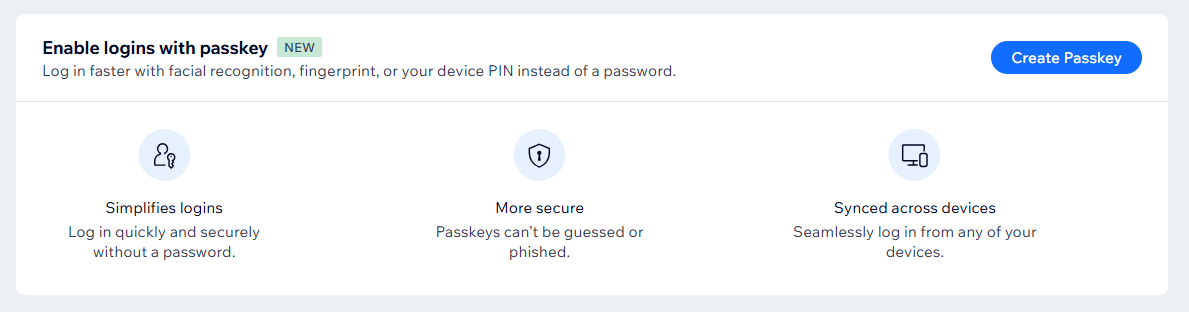
Passkeys let you log in to your Wix account without entering a password. With a passkey, you can use your device's built-in security features (fingerprint, facial recognition, or your device PIN) to sign in to your account quickly and securely.
Use a passkey in conjunction with
2-step verification to help you avoid scams and stolen passwords. You can also sync your passkeys so you can log in with multiple devices.
Before you begin:
- You will be prompted to confirm your email when you enable passkeys, so make sure it's correct and update your email address if required.
- You need to use a device that supports passkeys (e.g. Windows Hello, Touch ID and Face ID for Mac/iPhone, or fingerprint and screen lock for Android.)
Enabling passkeys
Start using passkeys by enabling the option on the Account Settings page of your Wix account.
To enable passkeys:
- Go to Account Settings in your Wix account.
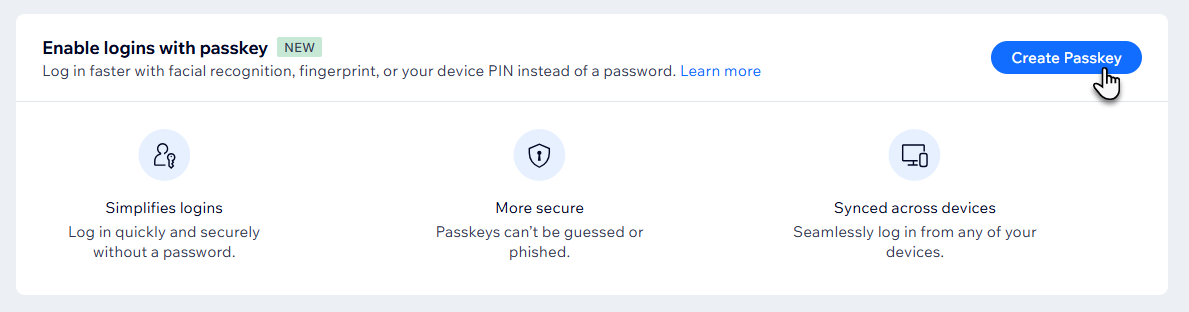
- Scroll to the Enable logins with passkey section and click Create Passkey.
- Enter your password to verify it's you and click Next.
- Click Continue.
- Follow the on-screen instructions to finish creating your passkey.
Note: The prompt to set up your passkey may open in a separate window, so make sure your browser allows pop-ups.
Note:
Wix does not store any biometric login data or device PINs. These are stored on your device only and are used to verify that you're logging in to your account.
Adding a new passkey
You can add more passkeys for other devices at any time from the Account Settings page.
To add a passkey:
- Go to Account Settings in your Wix account.
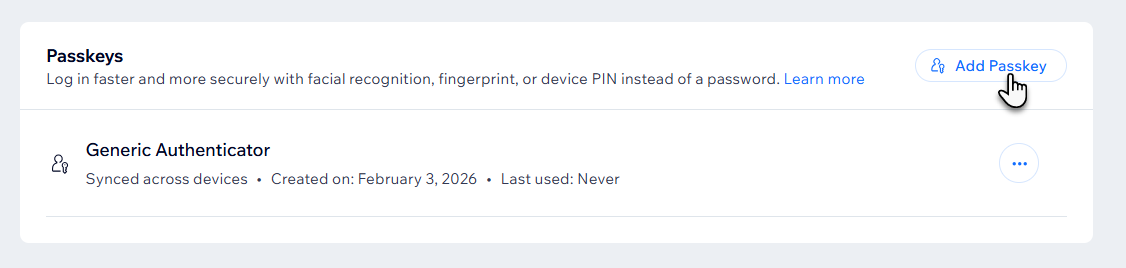
- Scroll to the Passkeys section and click Add Passkey.
- Enter your password to verify it's you and click Next.
- Click Continue.
- Follow the on-screen instructions to finish creating your new passkey.
Note: The prompt to set up your passkey may open in a separate window, so make sure your browser allows pop-ups.
Logging in to your Wix account with a passkey
Sign in to your account with your passkey from the Wix login page or Wix app. You'll verify your login on your device using a passkey, and not on the Wix login page.
To log in with a passkey:
Wix.com
Wix app
- Go to Wix.com.
- Click Log In at the top right.
- In the email field, click Use a passkey.
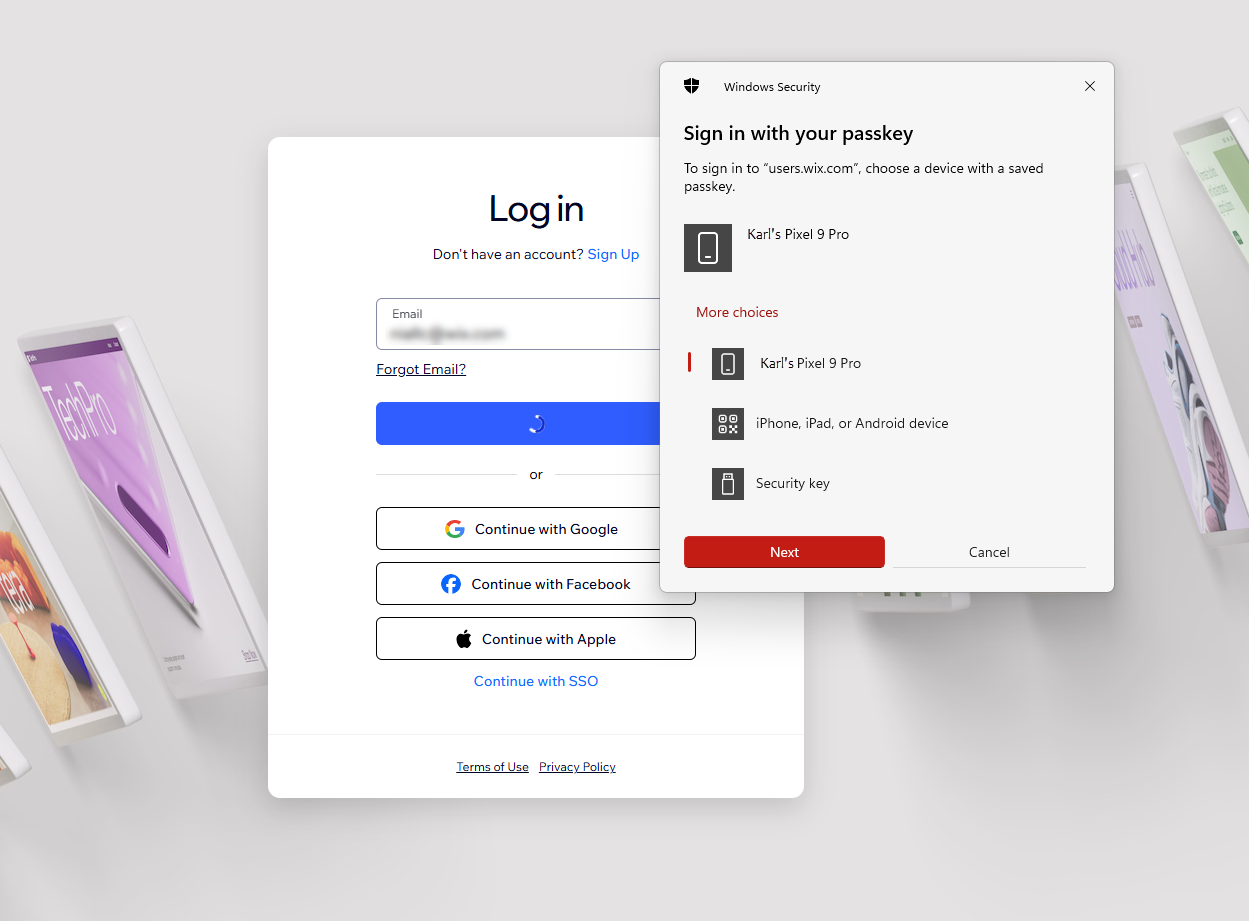
- Follow the prompts on your device to sign in to your account.
Tip:
If you don't see the
Use a passkey option, you can enter your email address and click
Continue with Email. You'll see the prompt to log in with your passkey on the following screen.
Deleting a passkey
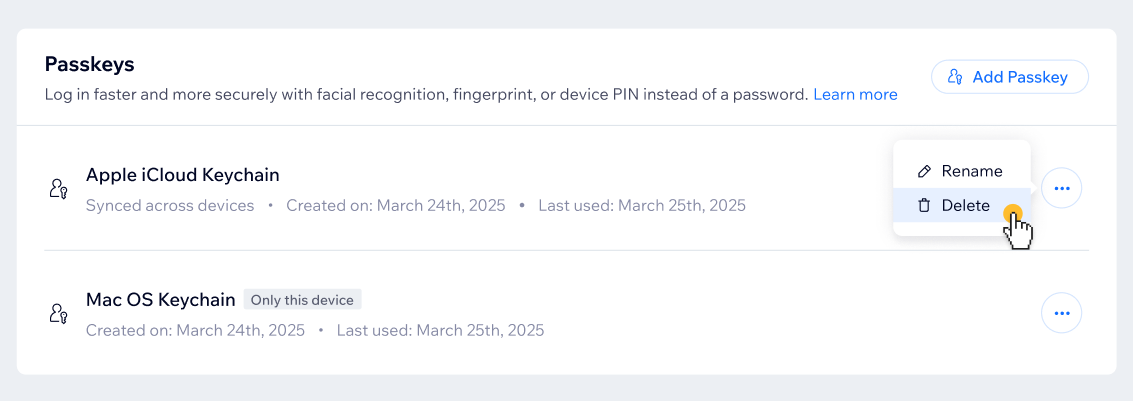
Delete a passkey at any time from the Account Settings page of your Wix account.
To delete a passkey:
- Go to Account Settings in your Wix account.
- Click the More Actions icon
 next to the passkey you want to delete.
 - Click Delete.
Note:
Deleting a passkey removes it from your Wix account only. You won't be able to sign in using a passkey that has been deleted, but Wix is unable to remove passkeys from your device. To completely delete a passkey, check the steps for your specific device.
FAQs
Click a question below to learn more about using passkeys with your Wix account.
Where can I see all of my passkeys?
What does passkey 'synced across devices' mean?
Why does my passkey not work?
What happens if I lose the device my passkey is stored on?
Can I rename my passkeys?
 next to the passkey you want to rename, enter the new name, then click
Save.
next to the passkey you want to rename, enter the new name, then click
Save.
Can I still log in using my email address and password?
How do I use 2-step verification with passkeys?
