


Wix Stores: Creating Promo Cards
In this article
- Creating promo cards
- FAQs
Important:
Promo cards are a feature of the new Wix Stores product catalog. If you don't see Promo cards in your dashboard, you may be on the previous version. Request migration to the new product catalog to access this feature.
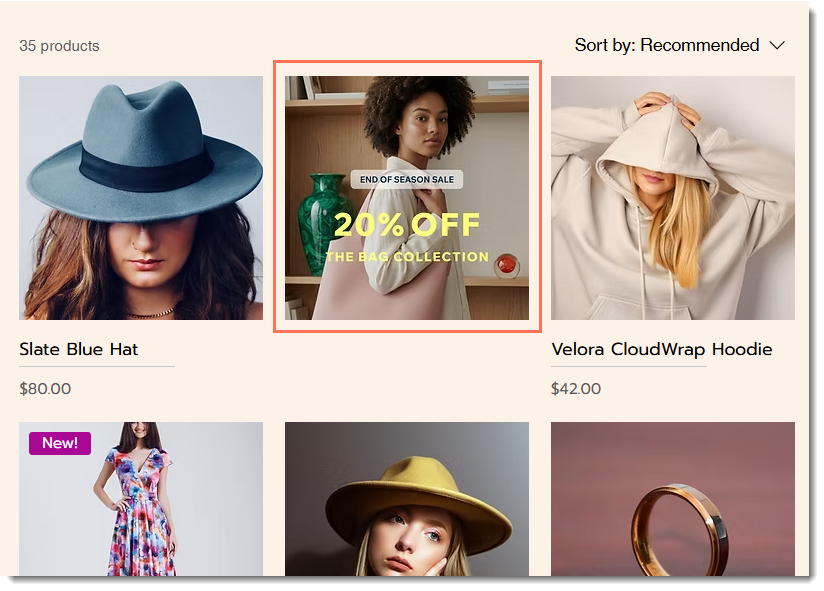
Promo cards, also known as content cards or promo tiles, let you place promotional content directly in your Category page or grid gallery. You can use them to highlight sales, feature collections or services, and display editorial content, such as shopping guides.
Creating promo cards
Promo cards are created and managed in your dashboard. From there, you can assign them to relevant categories and specify an exact placement.
Tip:
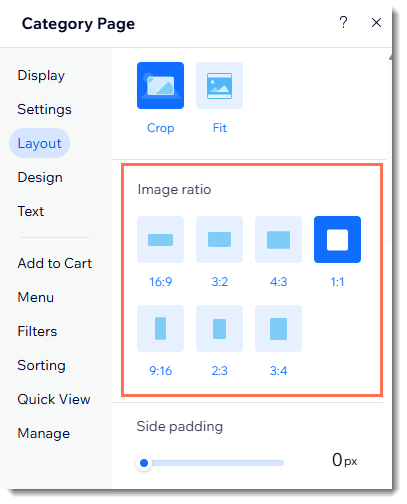
Use the same aspect ratio for your promo cards as the product images in the relevant element.
- Learn more about aspect ratios.
- Read more tips for creating effective promo cards.
To create promo cards:
- Go to Promo Cards in your site's dashboard.
- Click Add Promo Card.
- Enter a name in the Promo card name field.
- In the Media section, click the Add icon
 and upload an image or GIF.
 - (Optional) Enter the URL that opens when a visitor clicks the promo card.
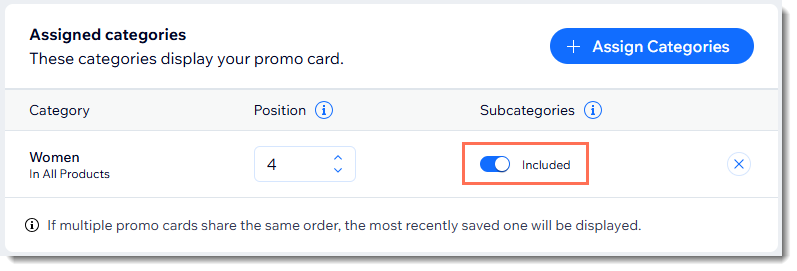
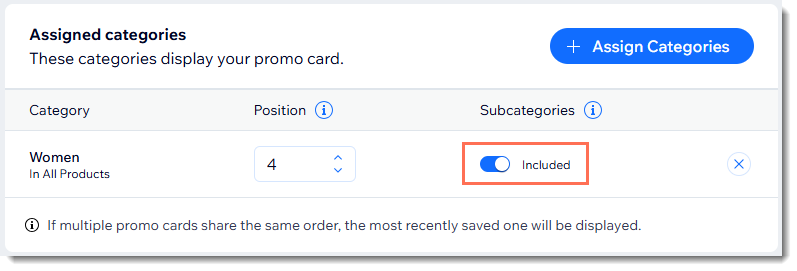
- Click + Assign Categories.
- Select one or more categories where you want the promo card to appear and click Assign.
Tip: You can select a parent category and choose whether you want to include all of its subcategories. - Set the promo card's position among the products in each relevant category (i.e. if you select 3, the card appears as the 3rd item in the grid).
- Click the Excluded / Included toggle to show or hide the promo card in subcategories.
- (Optional) Add tags:
- Click + Assign Tags.
- Enter a tag name and press Enter on your keyboard to create your first tag.
Tip: Next time, you'll be able to select the tag you created or click Manage Tags to create a new one.
- Click Save.
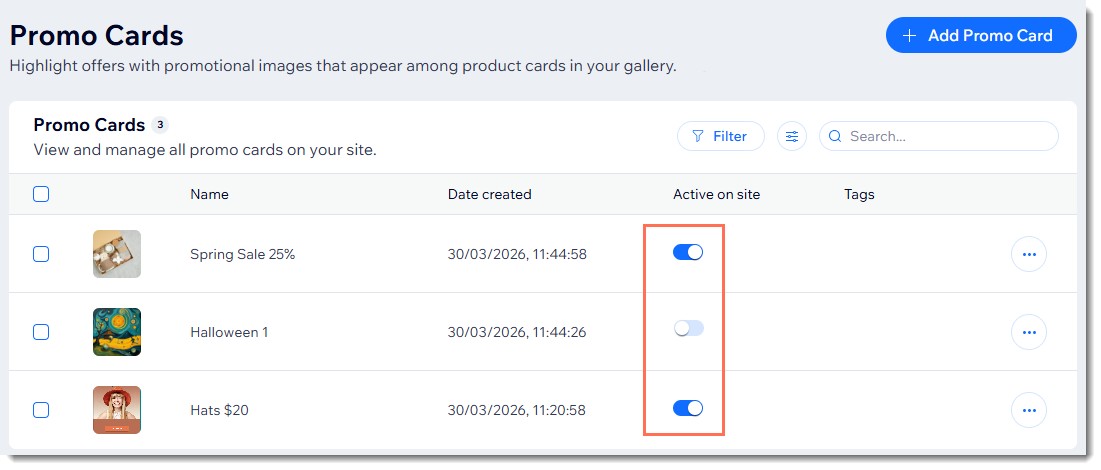
Tip:
As soon as you click
Save, the promo card is live on your site. To hide or unhide the card, click the
Status toggle.
FAQs
Where can promo cards appear?
What can I use promo cards for?
What aspect ratio should my promo card have?
Why isn't my promo card showing?
What are promo card tags and how can they help me?
Can I assign a promo card to more than one category?
I have lots of promo cards. How can I organize them?