
Wix Legends: Adding a Legend to Your Site
Add your Legend to your site so visitors can start a conversation without leaving the page. Since your Legend represents you or your business, it can offer consultations, answer questions, and interact with visitors outside your working hours - directly from your site.
You can add your Legend to a Wix site with the Legends app, or to any other site with an embed code.

Publish your Legend from your Wix Legends workspace. Once you publish it for the first time, you can add it to any site.
Step 1 | Choose how to add your Legend
To begin, select your site type in the Wix Legends workspace and choose how to add your Legend.
To add your Legend:
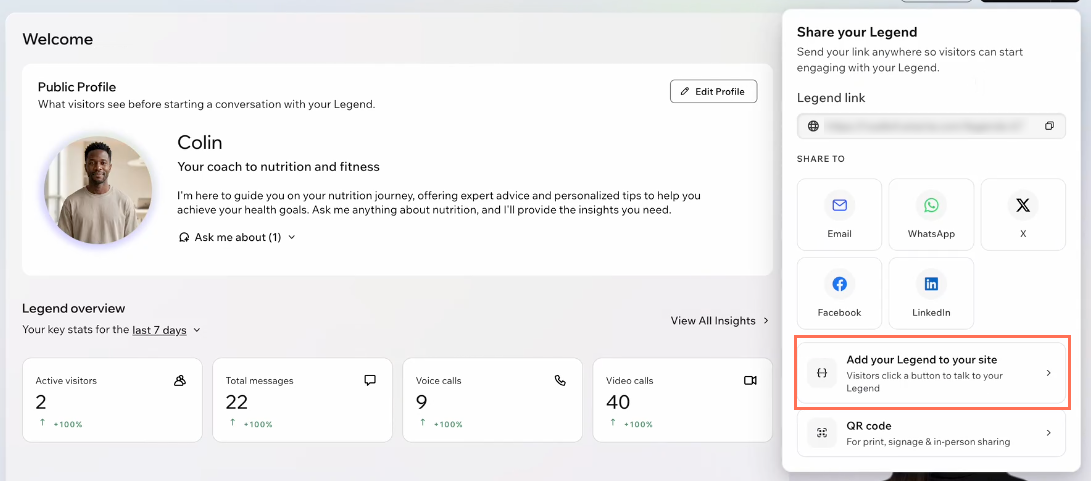
Click the Share icon
 at the top right.
Click Add your Legend to your site.
Select where you want to add your Legend:
Wix site: Add the Legend widget in to a Wix site (Wix Editor, Studio Editor, or Wix Harmony Editor). Copy your Legend ID and click View in App Market to continue.
Other website: Add a line of code to a non-Wix site. Click Copy code and paste it as an HTML embed on your site.
Note: On non-Wix sites, the widget appears on the bottom right of your site page(s).
Continue to the next steps if you are adding a Legend to a Wix site.
Step 2 | Add the Legends widget to your site
Install the Legends app in your editor and add the widget to every page you want visitors to reach it.
To add the Legends widget:
(In the App Market) Click Add to Site.
Choose which site to add the app to.
Note: After you select a site, you're redirected to the editor and the widget is automatically added to the page. If it isn't, continue to the next steps.Click the Add Elements icon on the left side of the editor.
Click App Widgets.
Click or drag the Legends Widget onto your page.
 on the left side of the editor.
You can also open the App Market straight from your editor. Search for the Legends app, then add it to your site.
Step 3 | Connect and customize the widget
Paste your Legend ID to link the widget on your site to your published Legend. Then, customize how the widget appears on your site.
To connect and customize the widget:
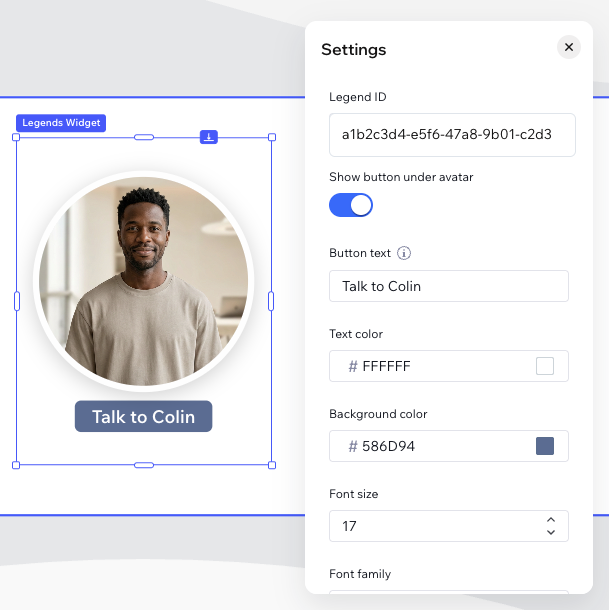
Click the Legends widget on your page.
Click Settings.
Paste your Legend ID in the Legend ID field.
Tip: Copy and paste the Legend ID from the Wix Legends workspace.(Optional) Set up your widget using the following options.
Enable the toggle to show a button below your Legend's avatar. Enter the button text (e.g. "Talk to Colin"), change the colors and font.
Drag the widget to resize it or move it to a different spot on the page.
Pin the widget to keep it visible at all times.
Publish your site so visitors can start interacting with your Legend.
Review your Legend's conversations with visitors. You can add more knowledge so it handles the questions your visitors ask most.
FAQs
Click a question below to learn more about adding your Legend to your site.