Studio Two Editor: Working with Site Colors
This article refers to the new Studio Two Editor, released in November 2026. If you're unsure whether you’re using the Studio Editor or the Studio Two Editor, view more information here.
Use site colors to give the site a consistent look. Edit the default colors or add your own in the Site Styles panel.
About site colors
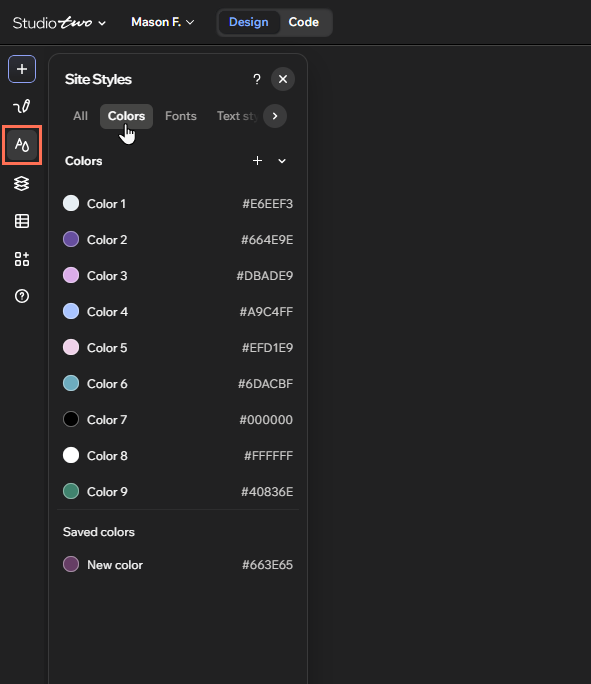
Every site you create in the Studio Two Editor comes with 9 colors by default, named Color 1 to Color 9. The top 6 are the default colors for apps and elements.
Whether you've created a site with Aria or chosen a template, these colors reflect the site's initial style. You can change them and add your own.
Changing site colors
Customize the site's colors in the Site Styles panel to match its branding.
To change the site's colors:
Click the Site Styles icon on the left side of the editor.
Select the Colors tab.
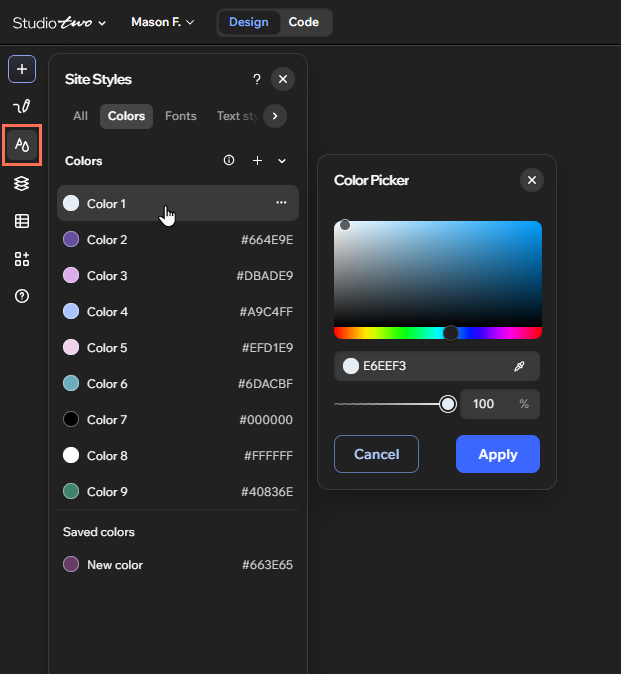
Click the color you want to customize.
Choose a new color from the picker. You can select it from the palette, use the dropper, or enter the hex code into the field.
Click Apply.
 on the left side of the editor.
Adding and managing custom colors
To add and manage custom colors:
- Go to your editor.
- Click the Site Styles icon on the left side of the editor.
- Select the Colors tab.
- Choose what you want to do:
- Add a new color:
- Click the Add color icon
 .
- Choose a new color from the picker. You can select it from the palette, use the dropper, or enter the hex code into the field.
- Click Apply.
- Click the Add color icon
- Manage colors:
- Hover over the relevant color and click the More Actions icon .
- Use the options to manage the color:
- Rename: Click Rename and enter the new name for the color into the field.
- Delete: Click Delete to remove the color.
- Add a new color:
 .
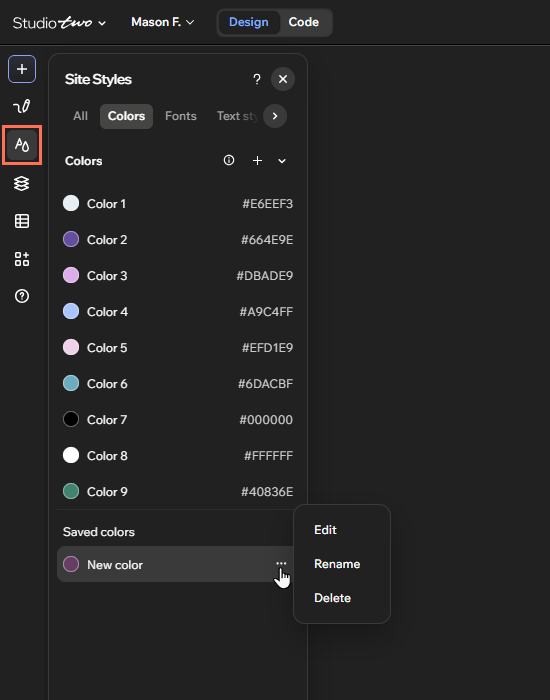
You can't delete the site's default colors, because they're linked to specific content and actions. You can still change and rename them.
Applying site colors to elements
As colors are assigned to categories of elements and content, they're automatically applied to some themed elements in the Add Elements panel (e.g. styled text elements).
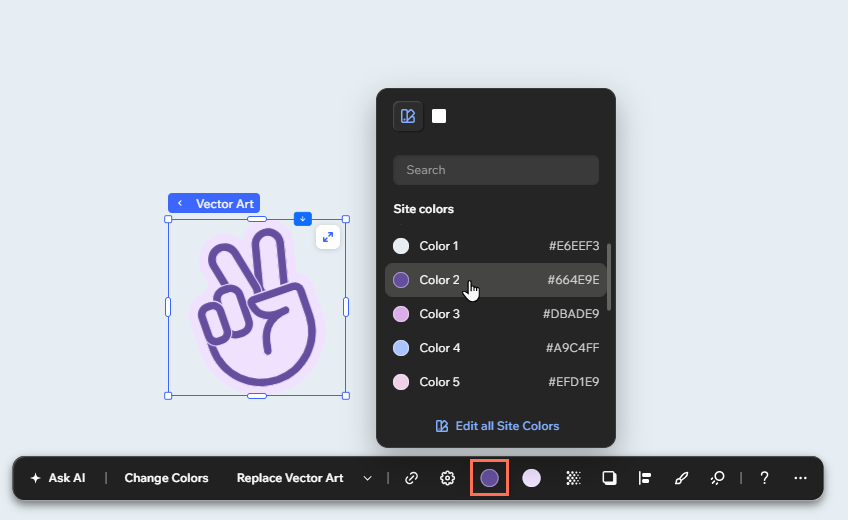
You can apply site colors to elements from the action bar.
To apply site colors to elements:
- Go to your editor.
- Click the relevant element on the canvas.
- Click the color you want to change on the action bar.
- Click the Brand icon in the panel.
- Select a color under Site colors.
 in the panel.