
Studio Two Editor: Adding Custom CSS
This article refers to the new Studio Two Editor, released in November 2026. If you're unsure whether you’re using the Studio Editor or the Studio Two Editor, view more information here.
Custom CSS is a styling language that controls how elements look on a site. Using CSS, you can customize aspects like colors, spacing, borders, animations, and hover effects.
In the Studio Two editor, you can use AI to generate CSS for any element by describing the effect you want in plain language. This article covers how to generate CSS with AI, and what to do if the result needs adjusting.
Custom CSS applies to the specific element you select. To apply a style across all elements of the same type (e.g., every primary button on your site), use styled elements instead.
Using AI to add CSS to an element
Describe the effect you want, and Aria generates the CSS code for you. The result is applied to the element immediately so you can see it on the canvas.
Describe 1 effect at a time. Don't combine multiple changes in one prompt as it is more likely to confuse the output.
Include the state if relevant; e.g. "on hover," "when the page loads," "when selected"
Be specific. Instead of "make the button stand out," try "add a thick red border around the button on hover"
To generate CSS with AI:
Click the element you want to style.
In the Inspector panel on the right, scroll down to Custom CSS and click + Add.
In the Custom CSS panel, click the Generate CSS code with AI field and type a description of the effect you want (e.g., "add a glowing blue border on hover").
Click Enter.
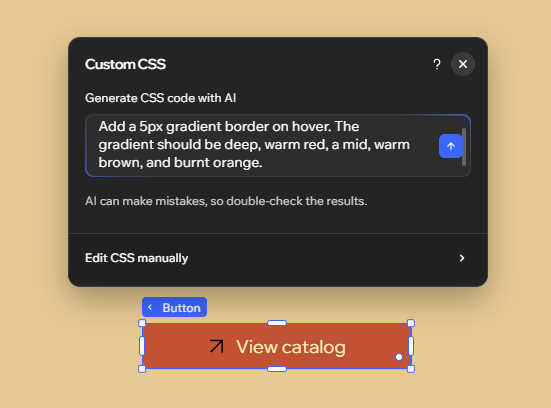
The CSS is generated and applied to the element on the canvas. A Style Summary appears below the field with a plain language description of what the code does.
Troubleshooting your CSS
If the AI result doesn't look the way you expected, there are 2 things you can try to improve it: rewrite your prompt, or edit the code directly.
To rewrite your prompt:
In the Generate CSS code with AI field, clear your previous prompt and type a new description.
Click Enter. The new CSS replaces the previous result on the canvas.
To edit the CSS manually:
If the AI result is close but not quite right, you can change the code directly without starting over.
In the Custom CSS panel, click Edit CSS manually.
Update the code in the Custom CSS editor.
Click Save.
FAQs
Click a question below to learn more about custom CSS.