Customize the section background to set the tone of a page and guide where visitors look. Choose a brand color, a solid color, a gradient, an image or a video, then adjust the settings to your exact needs
Changing the section background
The background is the fastest way to change how a whole page reads. All background types are available in one single panel, so you can try them out before committing to a specific design.
To change the section background:
- Go to your editor.
- Click the relevant section.
- Click Background on the action bar.
- Select a background type at the top of the panel, then set it up:
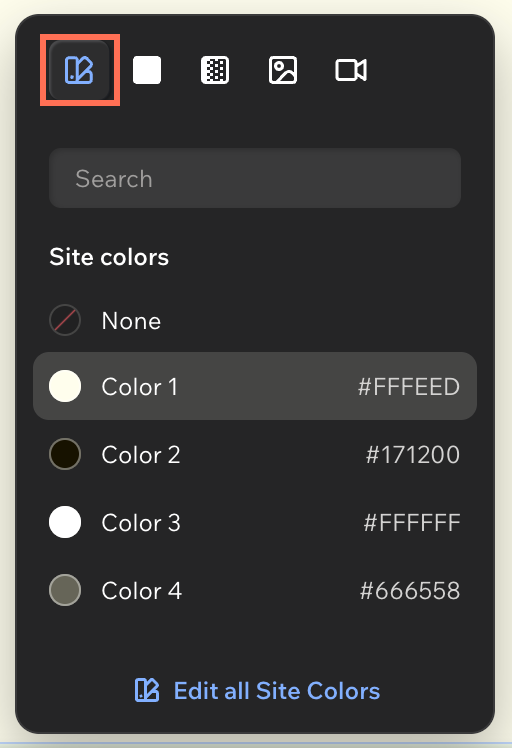
Click the Brand icon  .
Select one of your existing site colors.
Tip: Click Edit all Site Colors to change the colors in your palette.
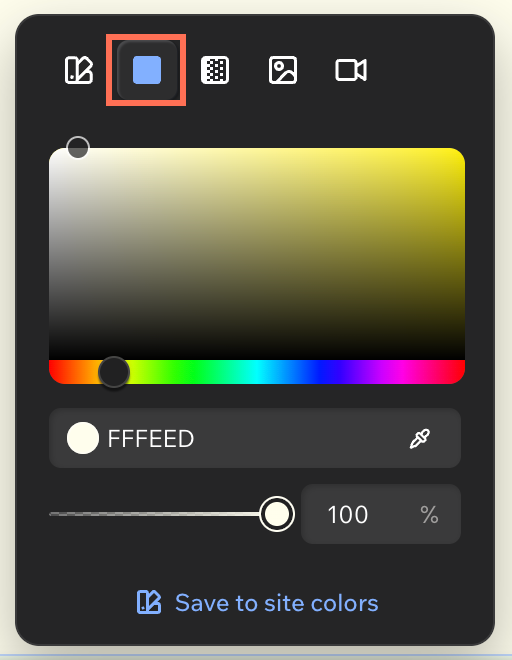
Click the Solid icon  .
Choose a color from the spectrum, or enter a hex value.
Tip: You can also click the Eyedropper icon to pick a color from the page.
(Optional) Drag the slider to set the color's opacity.
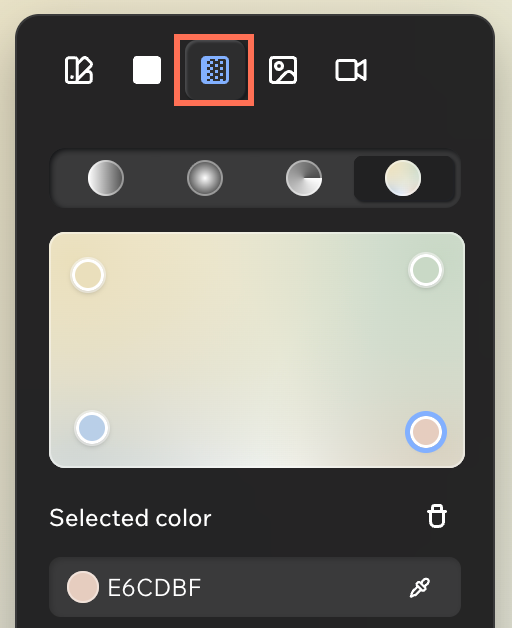
Click the Gradient icon  .
Select a gradient type at the top: Linear, Radial, Conic or Fluid.
Adjust the gradient using the available options (e.g. angle, colors, opacity, etc.)
Tip: Click Save to site colors to add the gradient to your site's styles.
Click the Image icon  .
Click +.
(In the Media Manager) Select an image, or upload your own.
Click Add to Page.
Set up the image using the options:
Focal point: Drag the blue dot on the thumbnail to choose which part of the image stays visible when the section is resized.
Blend mode: Click the dropdown to choose how the image blends with the color behind it.
Color behind Image: Choose the color that shows through when the image's opacity is below 100%.
Opacity: Drag the slider to make the image more or less visible.
Image scaling: Decide how the image fits in the section. Click the Settings icon  , then click the dropdown to select Scale to fill, Tile or Original size.
Alt text: Add a description for the image background. Click the Settings icon , then click Accessibility.
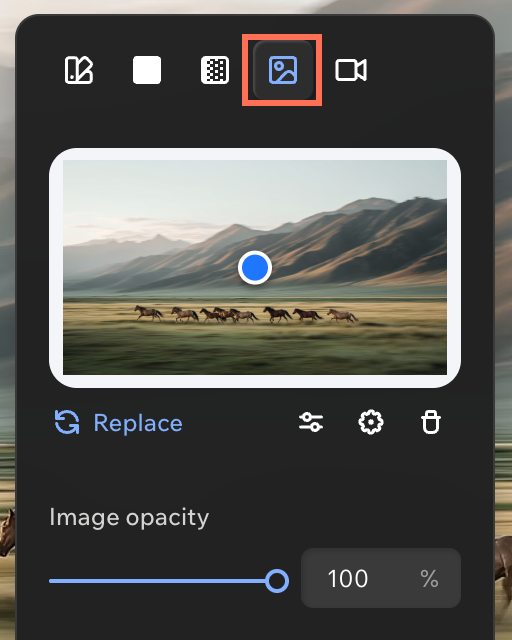
Tip:
To crop, filter or retouch the image, click the Adjust icon  to open it in Photo Studio.
Click the Video icon  .
Click +.
(In the Media Manager) Select a video, or upload your own.
Click Add to Page.
Set up the video using the options:
Focal point: Drag the blue dot on the thumbnail to choose which part of the video stays visible when the section is resized.
Color behind video: Choose the color that shows through when the video's opacity is below 100%.
Video opacity: Drag the slider to make the video more or less visible.
(Optional) Click the Settings icon to set how the video plays:
Play in a loop: Enable the toggle to play the video continuously, or disable it so the video only plays once.
Show play and pause button: Enable the toggle to let visitors start and stop the video themselves.
Play video on mobile: Enable the toggle so that the video plays on smaller screens as well. If it's disabled, the video will appear as a static image.
Mute Video: Enable the toggle to play the video without sound.
Quality: Click the dropdown to select Highest quality, Optimize performance or Adaptive.
Playback speed: Click the dropdown to select the speed (e.g. 0.5x, Normal, 1.25x).
Accessibility: Add alt text describing the video under Accessible name. If the video doesn't add meaning for screen readers, enable the Set as decorative toggle instead.
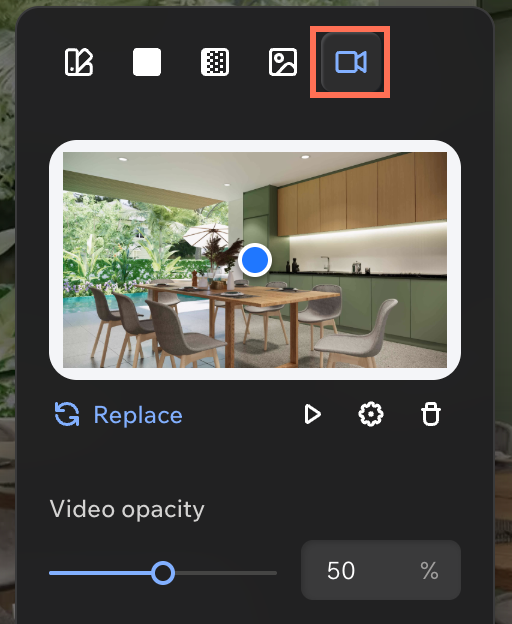
Tip:
Click the Play icon  to preview the video on the canvas.
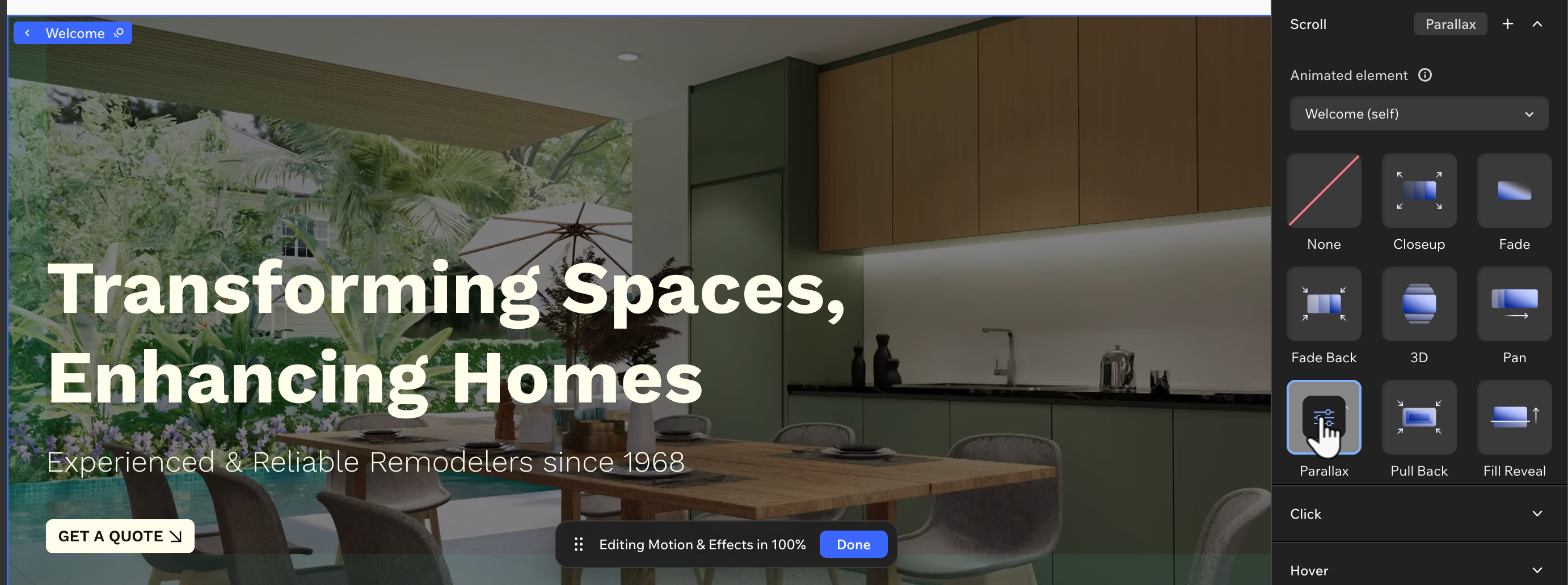
Animating the section background
Add movement so the background reacts as visitors scroll down the page. Effects like Parallax and 3D create a sense of depth and pull attention to the section.
To animate the section background:
Go to your editor.
Click the relevant section.
Click the Motion icon  on the action bar.
(In the Inspector) Click Scroll.
Select an effect.
FAQs
Click a question below to learn more about designing the section background.
Does the background I set apply to smaller screens?
Yes. Changes you make on desktop apply to smaller screen sizes, unless you customize the design for those breakpoints.
Can I reuse a color or gradient across my site?
Yes. Click Save to site colors in the Solid or Gradient tab to add it to your site's styles.