Site Members: Adding and Managing Custom Member Pages
3 min
This article refers to the new version of the Members Area app which is not available to all users yet. If you're using the previous version, read the information
here.
Create your own private pages with exclusive content for members. You can design the page as you like with the elements and content you need. These pages are automatically added to the
login bar menu for easy access.
Adding a custom member page
Add a custom member page to give members a unique space with content tailored to them, such as resources, perks, or role-specific information. You can design the page like any other site page and then control who can access it using your member roles and permissions.
Wix Editor
Studio Editor
Wix Harmony Editor
- Go to your editor.
- Click Pages & Menu
 on the left side of the editor.
- Click Members Area.
- Click + Manage Member Pages at the bottom.
- Click +Add Page next to Custom Member Page.
- Give the new page a name:
- Hover over the new page and click the More Actions icon
 .
- Click Settings.
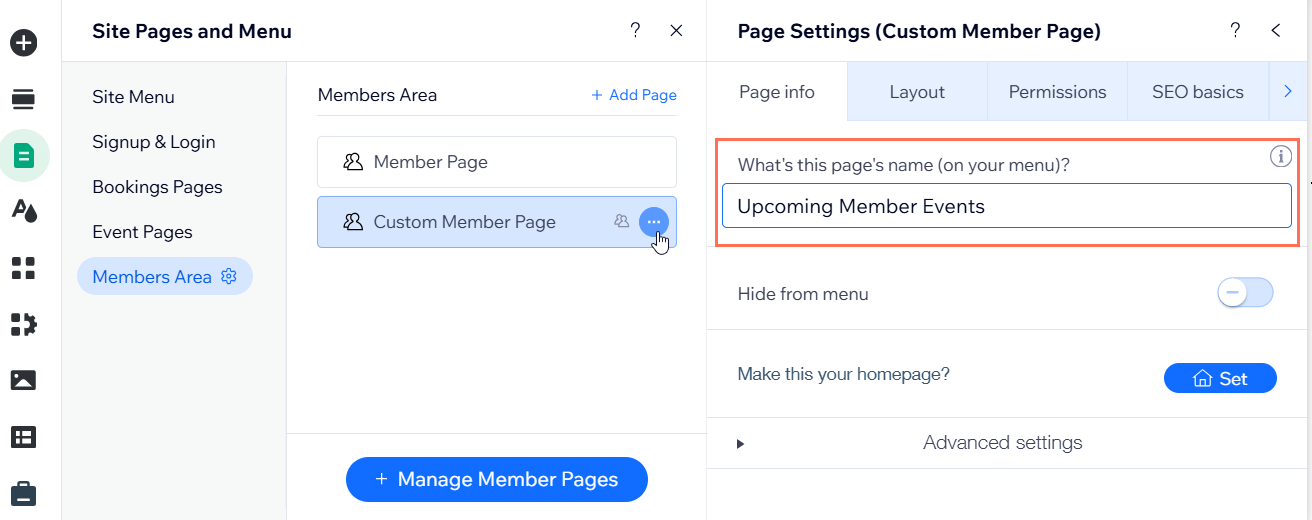
- Enter the new name under What's this page's name (on your menu)?.
- Hover over the new page and click the More Actions icon
Hiding a custom member page from the login bar menu
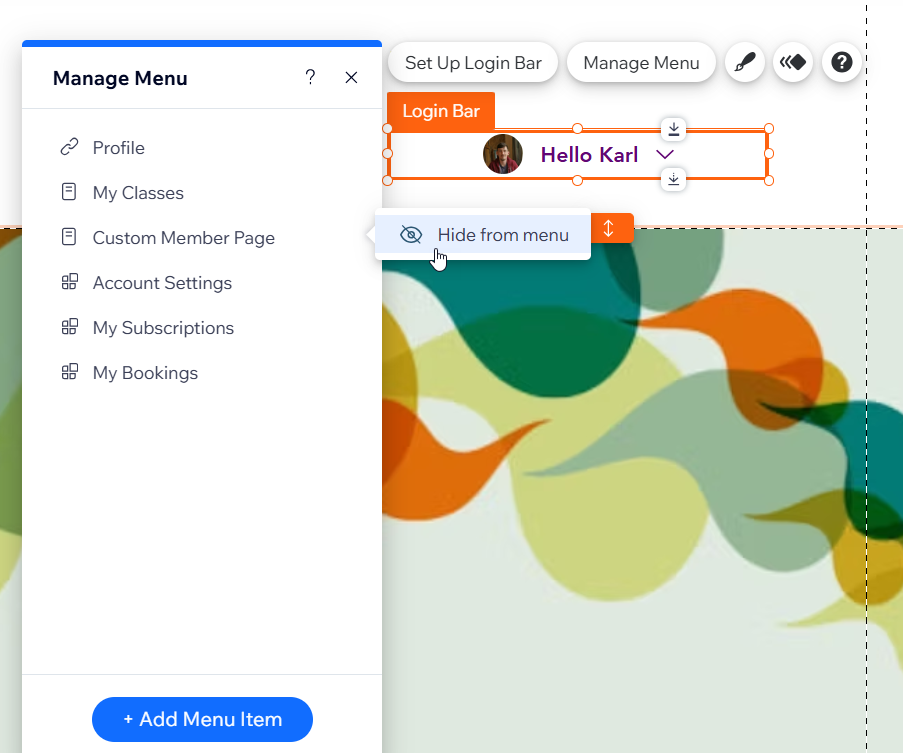
Hide a custom member page from the login bar menu if you do not want it to appear in your members’ navigation, but still want the page to stay active on your site. This is useful for private or role-specific pages that members access only through direct links or buttons on other pages.
Wix Editor
Studio Editor
Wix Harmony Editor
- Go to your editor.
- Click the login bar element.
- Click Manage Menu.
- Hover over the relevant item and click the More Actions icon
 .
- Click Hide from menu.