header-logo
Learn how to use Wix to build your site and business.
Design and manage your site using intuitive Wix features.
Manage subscriptions, plans and invoices.
Run your business and connect with members.
Learn to purchase, connect or transfer a domain to your site.
Get tools to grow your business and web presence.
Boost your visibility with SEO and marketing tools.
Get advanced features to help you work more efficiently.
Find solutions, learn about known issues or contact us.
placeholder-preview-image
Improve your skills with our courses and tutorials.
Get tips for web design, marketing and more.
Learn to increase organic site traffic from search engines.
Build a custom site using our full-stack platform.
Get matched with a specialist to help you reach your goals.
placeholder-preview-image
In this article
  • Upgrading your plan
  • Comparing Wixel plans
  • Purchasing top-up credits
  • FAQs

Wixel: Upgrading Your Wixel Account

5 min
In this article
  • Upgrading your plan
  • Comparing Wixel plans
  • Purchasing top-up credits
  • FAQs
This article refers to the new Wixel, released in December 2025. If you're unsure whether you’re using the new or previous Wixel, view more information here.
Unlock more creative possibilities by upgrading your Wixel plan. Enjoy more monthly AI credits to create, experiment, and bring your ideas to life. With eligible plans, you can also get a free Wix website plan and domain - giving you everything you need to level up your brand or business.

Upgrading your plan

Ready to get started? Follow these steps to upgrade your Wixel plan today. You can choose if you want to be billed monthly or yearly.
Note:
All prices shown for Wixel plans do not include VAT (Value Added Tax). The actual VAT amount depends on the billing address you provide. You’ll see the exact total price (including any required taxes) on the payment page before you complete your purchase.

To upgrade to a Wixel plan:

  1. Go to Wixel.
  2. Log in to your Wixel account.
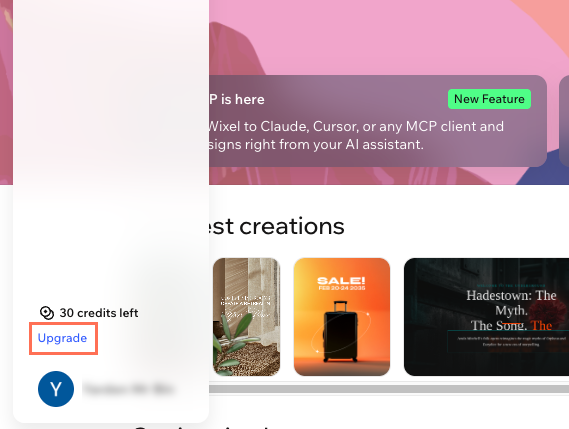
  3. Click Upgrade at the top right.
  4. Select how you want to be billed:
    • Monthly: You will be billed once monthly.
    • Yearly: You will be billed once annually, at a discounted price.
  5. Select the plan you want to purchase. 
  6. Enter your payment method details and click Submit Purchase.
  7. Click Go Create to start creating.
A screenshot of clicking the Upgrade button in Wixel.

Comparing Wixel plans

Every Wixel plan gives you full access to professionally-designed templates, design elements and photos, cloud storage, and more. Take a look at what each plan includes below to find the best fit for your creative goals. View a detailed breakdown of Wixel plans.
The number of designs shown in each plan are estimates based on standard models and average request complexity. They are examples only and demonstrate what you could create if you used all of your credits on that feature alone. For example, on the Max plan you could generate up to 165 images if you only create images. Learn more about AI credits.

Purchasing top-up credits

Top-up credits are booster AI credits you can purchase to keep creating with Wixel's AI features after you use up your monthly credit allowance. They can be purchased several times per account. 
Wixel always deducts credits from your monthly plan first, and then from your top-up credits when your regular credits run out.
Important:
  • Top-up credits are only available if you are on the Max plan.
  • Any unused top-up credits will expire 2 years after purchase.

To purchase top-up credits:

  1. Go to Wixel.
  2. Log in to your Wixel account.
  3. Click Add Credits at the top of the page.
  4. Enter your payment method details and click Submit Purchase.
  5. Click Go Create to continue creating.
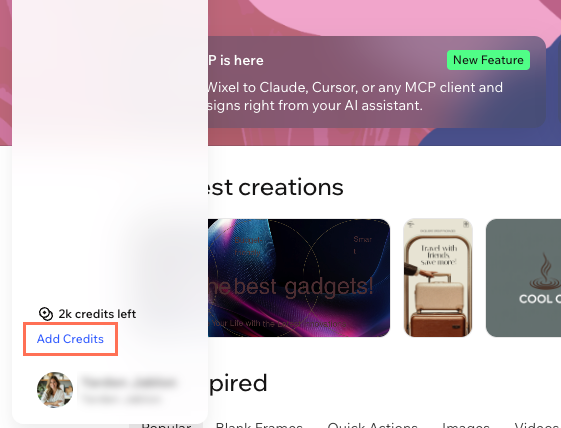
A screenshot of the Add Credits button in Wixel.

FAQs

Click a question to learn more about Wixel plans.

Helpmate

Hello

Need a bit more guidance?
Summary of this article
Unlock personalized helpLog in to get the most out of Helpmate.