


Wixel: Remixing Your Design
4 min
In this article
- Remixing a design
- FAQs
Important:
This article refers to the new Wixel, released in December 2025. If you're unsure whether you’re using the new or previous Wixel, view more information here.
Remixing your design helps you turn one design into many related designs without starting from scratch. It lets you keep the same overall look and feel, but changes the format according to your goal. For example, if you create a logo, you can remix that design into a product mockup image or a promo video for social media using the same branding.
Note:
Any actions that involve generating and editing designs with AI use AI credits.
Remixing a design
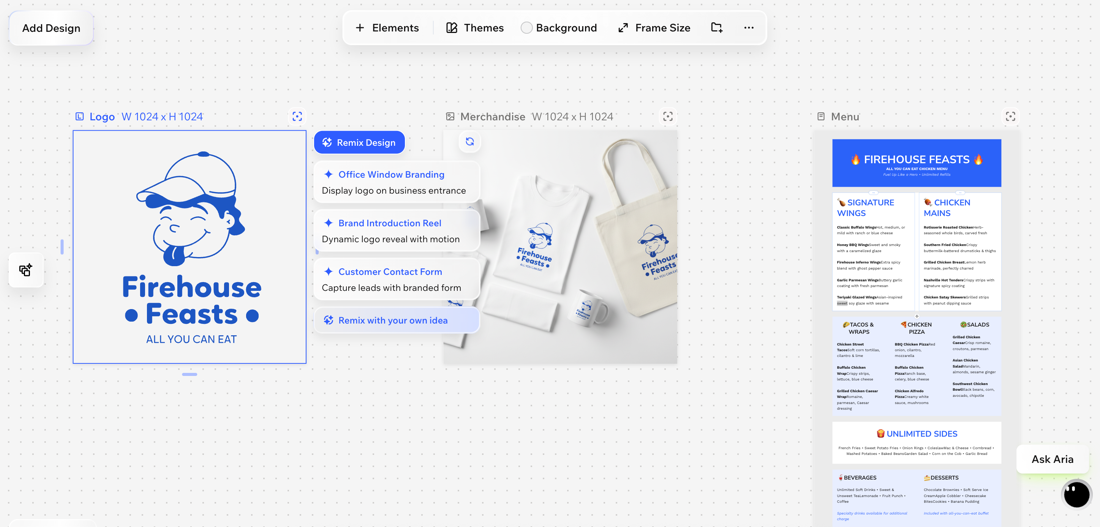
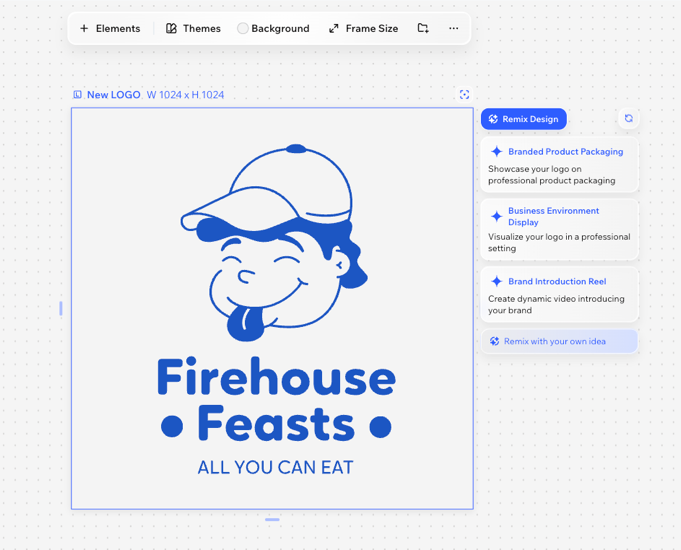
Remix a design by choosing a suggested idea or describe your vision. Aria will generate the design for you, which you can then continue to refine.
To remix a design:
Desktop browser
Wixel app
- Go to your project in Wixel.
- Select the relevant design in your project.
- Click the Remix design icon
 at the top of the design.
 - Choose what to do:
- Select an option from the generated suggestions.
Tip: Click the More suggestions icon to get new ideas.
 - Describe what you want:
- Choose a design type under Remix with your own idea (e.g. Image, Video).
- In the chat with Aria, describe what you want the new design to focus on. For example, "Create a product mockup image that shows this logo on a coffee cup" or "Create an Instagram post using this logo to promote a weekend sale".
- Click Remix Design.
- Select an option from the generated suggestions.
- (Optional) When the new design is generated, continue editing it using the tools in the workspace.
Tip:
You can also remix a design directly from the chat with Aria by selecting a design and clicking the Remix icon  in the chat.
in the chat.FAQs
Click a question below to learn more about this.
Does remixing my design change the original?
What types of designs can I create when remixing my design?
Can I edit a remixed design like any other asset?
