


Wixel: Collaborating on a Project
- Inviting and managing collaborators
- Working with comments
- Leaving a project
- FAQs
Invite people to collaborate on your Wixel project. Collaborators can edit your project's assets alongside you, leave comments on the canvas, and see each other's changes in real time.

Inviting and managing collaborators
Invite someone to your project by entering their email. They'll get an email invitation and can start editing the project once they accept. Collaborators have access to your whole project, not just a specific asset.
The Who has access? window shows the project owner, active collaborators, and any pending invites.
To invite and manage collaborators:
Click your project name at the top.
Click Invite to project.
Choose what to do:
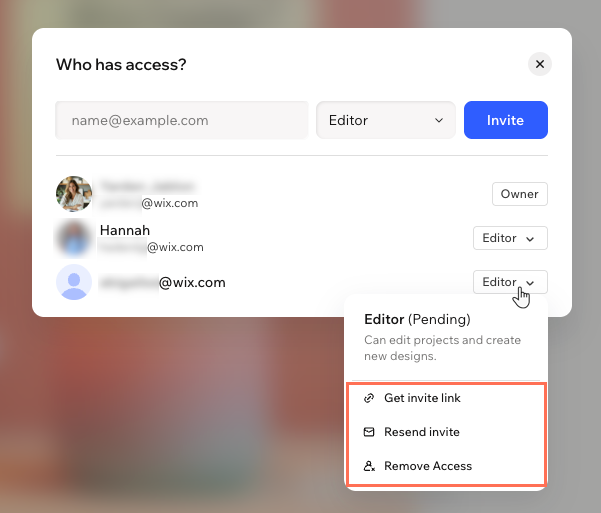
Once collaborators join, you can see who's working on a project with you. Their avatars appear at the top of the project, and their cursors move on the canvas in real time. Hover over an avatar to see who it is and which asset they're editing.
Working with comments
Leave a comment to give feedback, ask a question, or flag something that needs a change in a project or specific asset.
To work with comments:
Click the Comments icon
 at the bottom.
Choose what to do:
 to add an image from your computer.
 (or enter @) to select a collaborator's name to mention in your reply.
  at the top of the comment.
 at the top of the comment and click Edit or Delete. You can only edit and delete your own comments.
 at the top of a comment thread and click Copy link.
 on a comment to send the comment to the chat and have it handled.
Leaving a project
If you were invited to collaborate on a Wixel project, you can leave it at any time.
To leave a project:
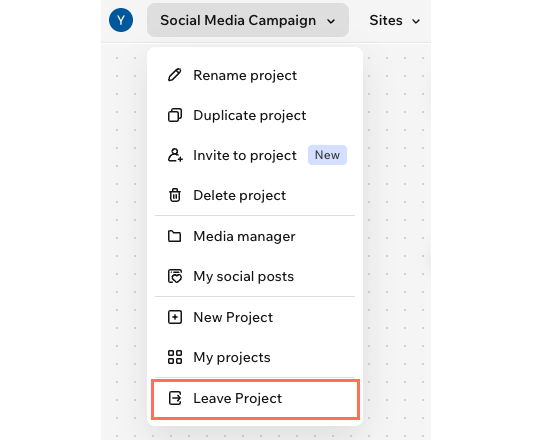
Click the project name at the top of the screen.
Click Leave Project.
Click Leave Project in the window to confirm.
FAQs
Click a question to learn more about inviting collaborators.
