
Wix Studio: Managing Your Client Intake Forms
5 min
Manage your
client intake forms directly from your workspace. Search and filter forms, review submitted responses and download completed forms, all from one place. This helps you stay organized, move faster, and keep each project's details close at hand.
Viewing and filtering your intake forms
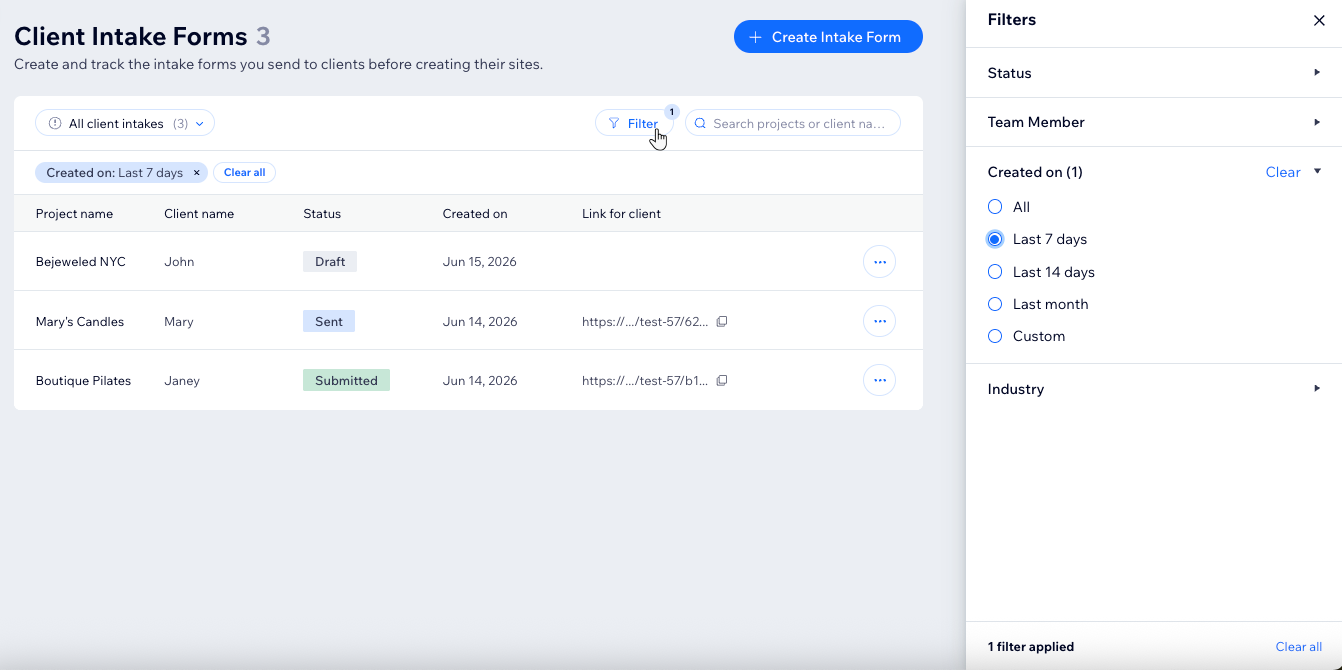
The Client Intakes page helps you keep track of forms you've created and sent. You can search for a specific project or client, or filter the list by status to find the forms you need faster.
To view and filter your intake forms:
- Go to Client Intakes in your Wix Studio workspace.
- Choose how you want to find a form:
- Search for a form: Enter the project name or client name in the search bar.
- Filter the list: Click Filter and select the relevant status (e.g. 'Draft', 'Sent'), team member, creation date or industry.
- View all forms: Click the All client intakes dropdown to review the full list.
Save your filtered view for next time:
Click the
All client intakes dropdown at the top left, then select
+ Save as new view.
Editing the questions in a client intake form
Once you create a client intake form, it's saved as a draft until you're ready to send it. This means you have all the time you need to gather more info, finalize the form's questions and fill in answers on behalf of your client.
Note:
This option is only available for intake forms with the 'Draft' or 'Sent' status.
To edit the questions in an existing form:
- Go to Client Intakes in your Wix Studio workspace.
- Click the relevant form to open it.
- Update the form as needed. For example, you can:
- Edit existing questions or update their order.
- Add new questions or remove irrelevant questions.
- Fill in answers for your client.
- Update the form settings.
- (Optional) Click Publish & Share to send the form to your client.
Managing your client intake forms
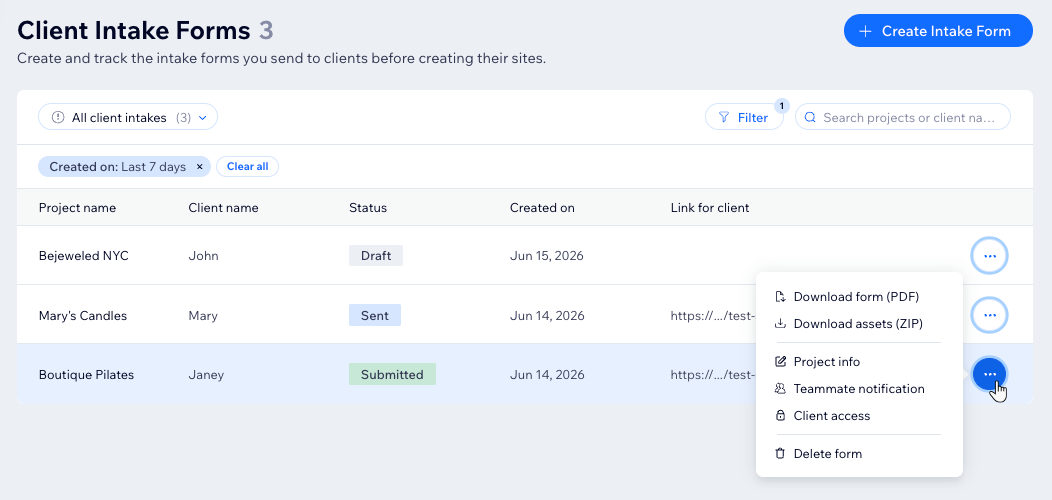
Manage your forms from the Client Intakes page in your workspace. From there, you can review a form, update specific settings, download submitted forms and assets, or delete a form.
To manage your client intake forms:
- Go to Client Intakes in your Wix Studio workspace.
- Click the More Actions icon
 next to the relevant form.
- Choose what to do next:
Add or remove clients
Add or remove teammates
 next to the relevant teammate.
Edit the project or client name
Download the form or its assets
Deleting an intake form
Delete a client intake form if you no longer need it in your workspace. Keep in mind that deleting a form permanently removes it, including any responses, and you can't recover it later.
To delete an intake form:
- Go to Client Intakes in your Wix Studio workspace.
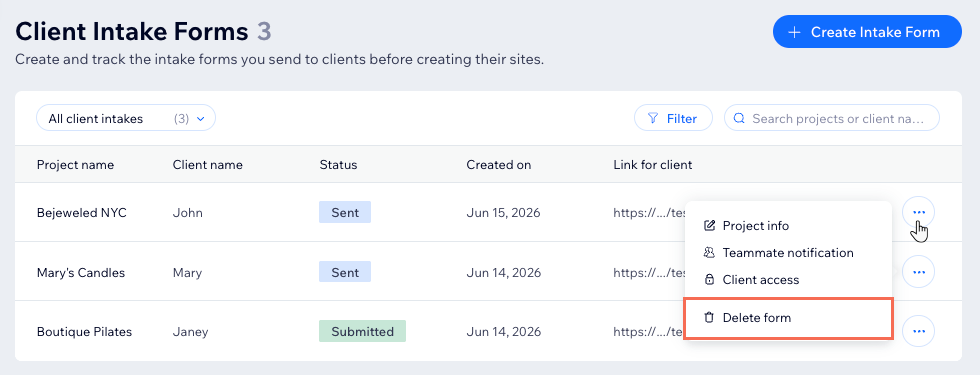
- Click the More Actions icon next to the relevant form.
- Select Delete form.
FAQs
Click a question below to learn more.
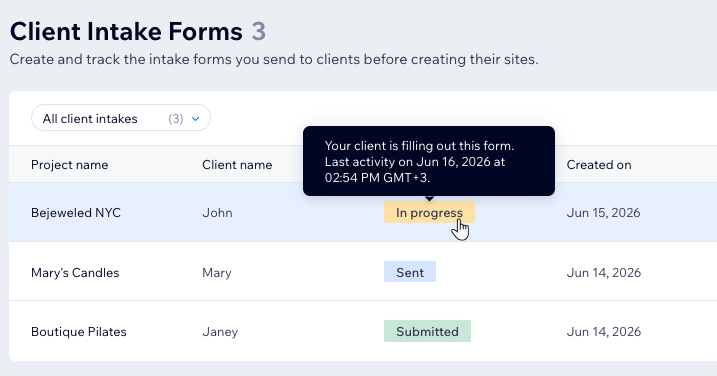
What do the different form statuses mean?
Why don't I see download options for a form?
Can I edit a client intake form after sending it?
Can I recover a deleted client intake form?