


Wix Stores: Buying Wholesale Products
In this article
- Step 1 | Purchase Alibaba products
- Step 2 | (Optional) Add Alibaba products to your store
- FAQs
Important:
This feature is not yet available for all users.
Make bulk purchases from Alibaba right in the Wix dashboard and enjoy wholesale savings. After receiving your items, you can sell the products in your online store or keep them for your own use.
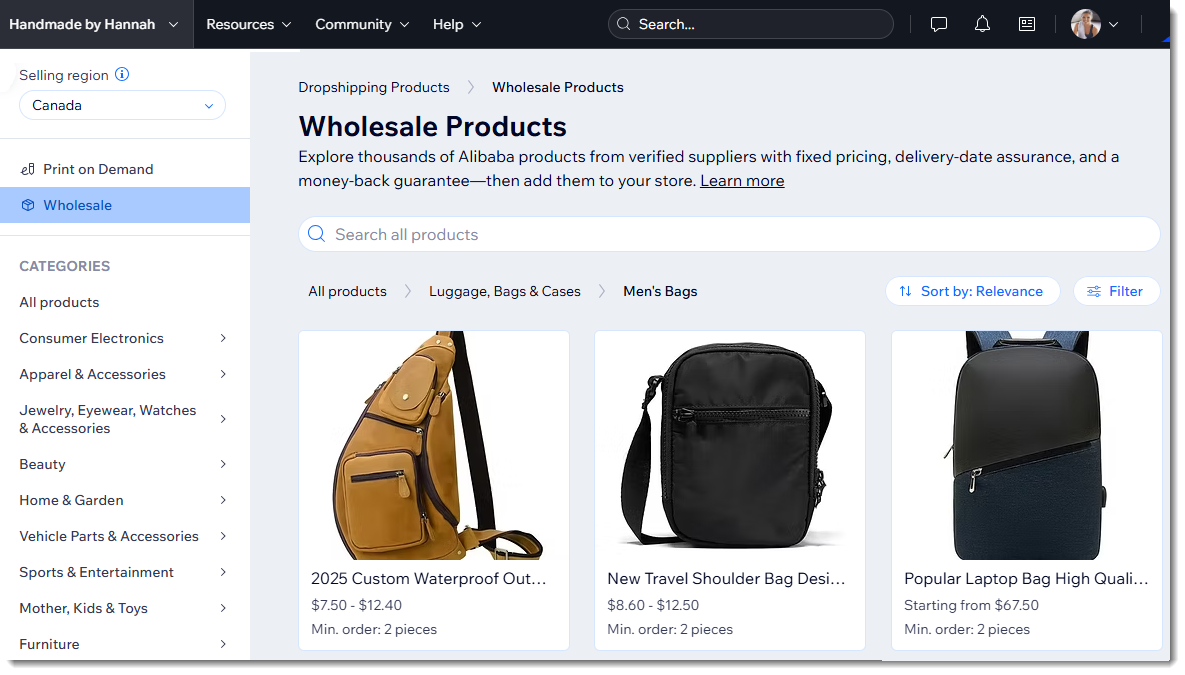
To make it easier to find the right products, we curate the Alibaba products you see in Wix. You can browse items from reputable sellers with higher ratings, and we order them so that products most relevant to your business appear first.
Step 1 | Purchase Alibaba products
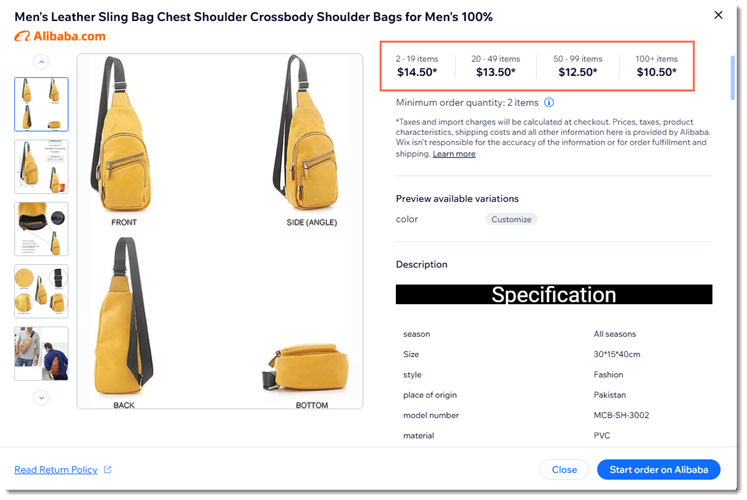
Start searching for the products you're interested in buying. Click any product to view additional details. Pricing options per quantity are displayed at the top. When you're ready, click
Start order on Alibaba to purchase products.
Important:
All product prices, shipping, and tax rates are set by Alibaba, not Wix.
To purchase Alibaba products:
- Go to the Find Products to Sell tab in your Wix dashboard.
- Scroll down to the Alibaba section and click Explore Products.
- Click a product to view more details.
- Click Start order on Alibaba.
- Complete your order and check out.
Step 2 | (Optional) Add Alibaba products to your store
You can now import products from the Alibaba site right to your Wix store. They'll be added with all the Alibaba images, product descriptions, pricing, and more. Once a product is in the Wix dashboard, you can make any necessary edits so that it fits your store's branding and vibe.
Tip:
You can also add the products to your Wix store manually.
To import products from Alibaba to Wix:
- On the Alibaba site, go to My stores at the top right.
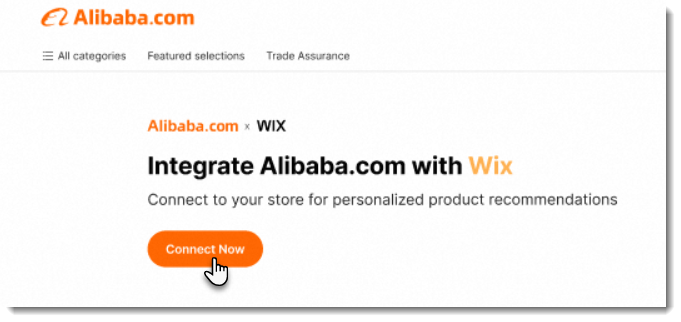
- Click Connect Now.
Tip: If your store is already connected, skip to step 4.
- Log in to your Wix account.
- Select Wix.
- Click Selling product from Alibaba on the left.
- Select the checkboxes next to the products you want to import.
- Click Next.
- Click Next.
- Review and edit the imported products in the Wix dashboard.
Note: Products are hidden by default. - When you're ready to start selling, unhide your products.
FAQs
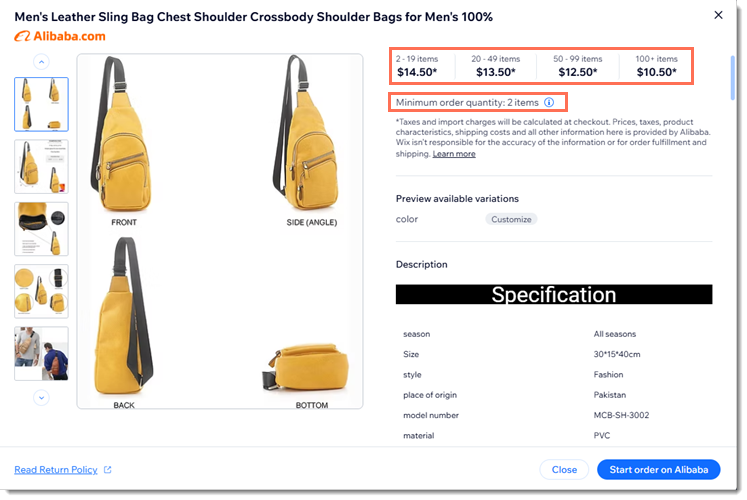
How does pricing work on Alibaba?
What is the Alibaba guarantee?