
Wix Restaurants: Displaying Your Menus on Multiple Site Pages
6 min
Important:
Make sure you update the Menus app to the latest version in your editor.
All your published menus are initially displayed on a single page with tabs separating them. You can create individual menu pages to highlight specific offerings, such as showcasing today's specials on the homepage or featuring your new seasonal menu on a separate page.
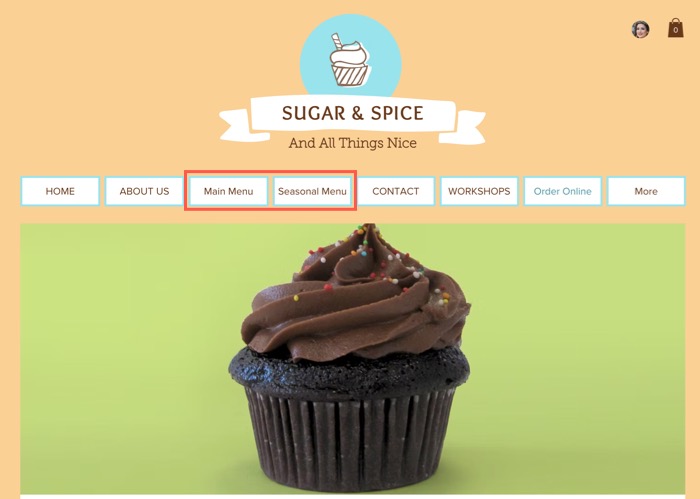
Creating an additional menu page on your site
Highlight a specific menu by creating a dedicated page for it. This helps customers find featured offerings, such as seasonal specials or exclusive items.
Wix Editor
Studio Editor
Wix Harmony Editor
- Create a new menu page:
- Go to your editor.
- Go to the Menus page:
- Click Pages & Menu
 on the left side of the editor.
- Click Restaurant Pages page.
- Click your Menu page.
- Click Pages & Menu
- Click the Menus (New) element on your page.
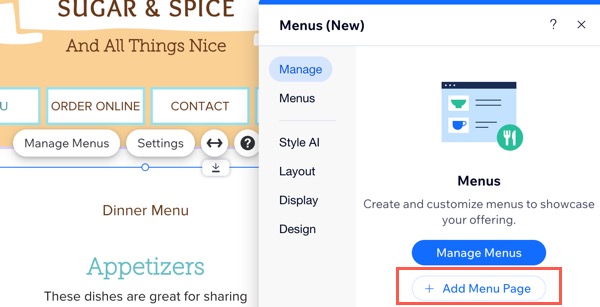
- Click Settings.
- Click +Add Menu Page from the Manage tab.
- Edit the new menu page:
- Rename your new page under What's this page's name (on your menu)?.
- Click your menu on the new page.
- Click Settings.
- Click the Menus tab.
- Select Specific menus under Which menus should be displayed and in what order?.
- Select the checkbox(es) next to the relevant menu(s).
- (Optional) Drag and drop to reorder the menus as needed.
Adding your menu to an existing page
Showcase your menu on any site page by adding the Restaurants Menus widget. This allows you to integrate your menu seamlessly into relevant sections of your site, making it more visible and accessible to customers.
Note:
Currently, adding your menu to an existing site page is only available in the Wix Editor and Wix Harmony Editor.
To add your menu to an existing page:
Wix Editor
Wix Harmony Editor
Go to the page where you want to add your menu.
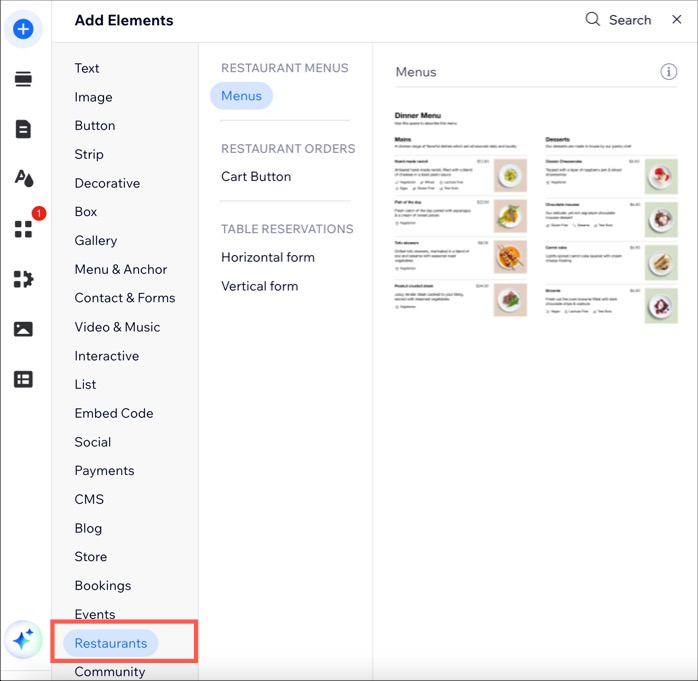
Click Add Elements on the left side of the editor.
Click Restaurants.
Drag the Menus element onto your page.
(Optional) Choose which menu(s) to display:
Click the new menus element on your page.
Click Settings.
Click the Menus tab.
Select Specific menus under Which menus should be displayed and in what order?.
Select the checkbox(es) next to the relevant menu(s).
(Optional) Drag and drop to reorder the menus as needed.
FAQs
Click a question below to learn more.
I added my menu to an existing page, will the page's SEO settings change?
How can I access my menu details?

How can I choose a specific menu to display?

Can I duplicate a menu page?
 next to your menu page.