


Wix POS Register: Troubleshooting Your Tablet
In this article
- Updating software
- Troubleshooting error messages
Important:
This article is about the
Wix POS Register for brick-and-mortar businesses.
If you are experiencing issues with the Wix POS Register, check out our solutions below.
Updating software
Most errors on the Wix POS Register are caused by an outdated software version. Before trying other troubleshooting solutions, we recommend checking for updates and updating to the latest version.
To update the Wix POS Register software:
- (In your POS tablet) Tap the Menu icon at the bottom left.
- Tap Settings.
- Scroll down and tap App & Tablet.
- Tap Check for Updates.
- If an update is available, update your software.
Troubleshooting error messages
There are a number of error messages that may appear while using your tablet. Check the table below to learn how to resolve the specific error you see.
To troubleshoot error messages:
| Error | Solution |
|---|---|
Sync failures: Products, Sales,
Customers and Catalog

|
Solutions:
* Tap
Refresh to try again.
* If the
Refresh button is missing, pull the screen downwards to refresh.
If tablet is still not working:
1. Tap
Settings.
2. Tap
App and Tablet settings.
3. Clear catalog cache.
|
Internet issues

|
Solution:
To verify that your store's WiFi network is working tap
Open Internet Settings in the POS pop-up and check that the tablet is connected to the internet.
|
Fetching Your Data...

|
Solution:
Wait a few minutes for the app to load your store's information.
|
POS App Crashed

|
Solutions:
* Tap
Restart POS App button.
* Check for updates. Install if available.
* Restart the tablet manually.
|
Tip:
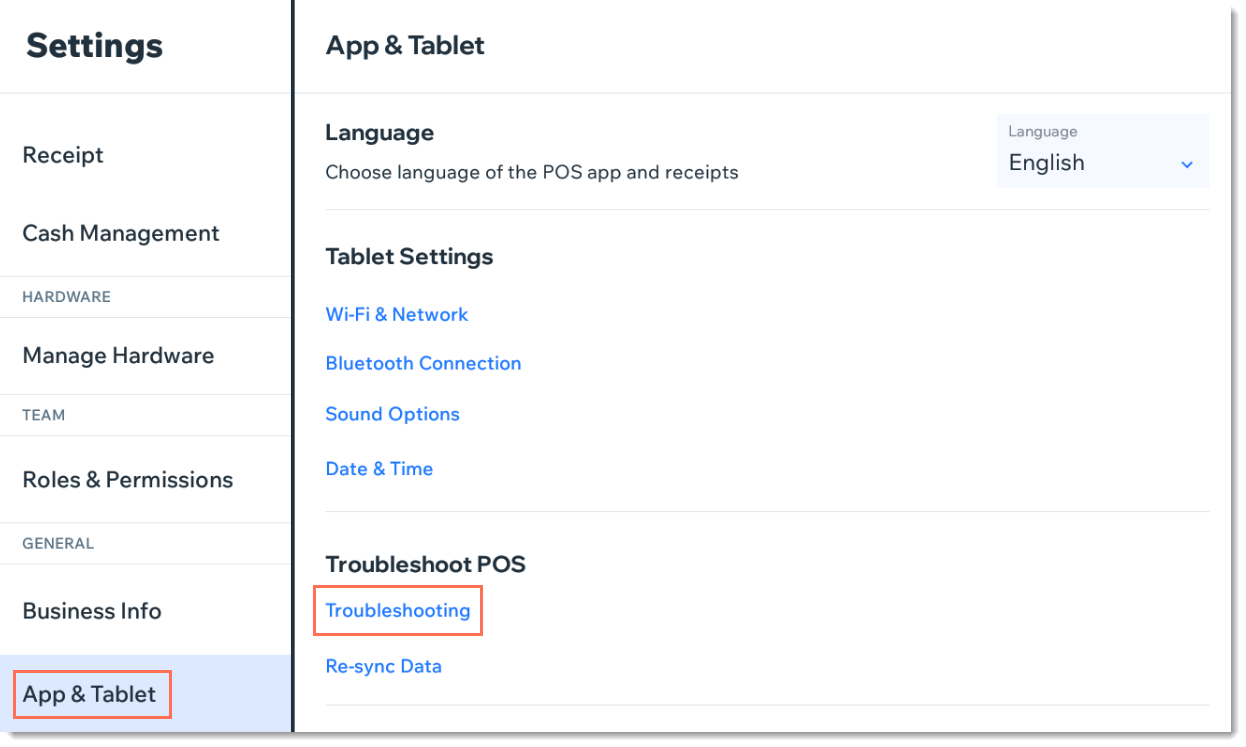
You can also access troubleshooting help and information in the tablet. Tap the Menu icon
 at the bottom left,then tap
Settings. Scroll down to
App & Tablet and select
Troubleshooting.
at the bottom left,then tap
Settings. Scroll down to
App & Tablet and select
Troubleshooting.
at the bottom left,then tap
Settings. Scroll down to
App & Tablet and select
Troubleshooting.