


header-logo
Getting started with WixBuild your website and business with Wix. Try using our AI tools to create your website, customize templates, or hire professionals to build or enhance your online presence.
Creating a websiteRead how to use the Wix Editor and manage content on your site. Discover how to protect your visitors' privacy and make your site accessible.
Account & billingReview your account settings, manage your subscriptions and plans and understand your invoices.
Using the Wix mobile appsUse our mobile apps to run your business efficiently on the go and set up a dedicated app for your site members to stay in touch.
Connecting a domainFollow our step-by step guides to learn how to purchase, connect or transfer a domain for your site, and find out how to keep your site’s data secure.
Managing your businessGet tools to grow your business and web presence. Find the right tools for your specific needs, set up online payments and keep track of your site's analytics.
Promoting your siteLearn to make your site more visible promoting it on search engines, sending emails and running paid ads. Improve your online presence with practical tips.
Studio, Partners & EnterpriseGet the most out of your Studio or Enterprise account with advanced features that'll help you work more efficiently.
Need more help?Find solutions for site performance and technical issues, learn about issues we’re working to fix or contact us for help.
placeholder-preview-image
Wix LearnImprove your skills with our courses and tutorials.
Wix BlogGet tips for web design, marketing and more.
SEO Learning HubLearn to increase organic site traffic from search engines.
Website developmentBuild a custom site using our full-stack platform.
Hire a ProfessionalGet matched with a specialist to help you reach your goals.
placeholder-preview-image

Wix POS Register: Creating Product Categories

Important:
  • This article is about the Wix POS Register for brick & mortar businesses. 
  • For info on using POS on a mobile device, click here.
Using product categories, you can organize your store products to help you locate them more quickly at your point of sale.
Note:
Product categories were previously called product collections.
All your products are automatically added to the "All Products" category. You can also add products to other categories so that they appear in more than one category. For example, if you have a pet shop, you can create a "Dog" category and a "Cat" category, that contain dog and cat food respectively. You can also create a general "Pet Food" category that includes the same products that are in the other categories. 
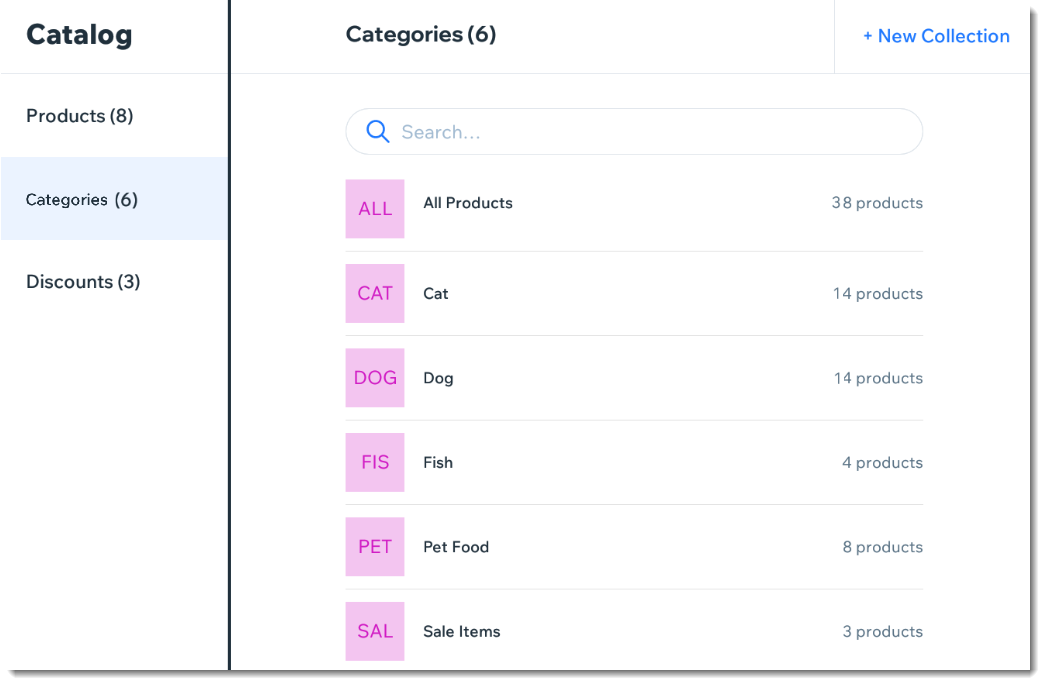
Screenshot of the Categories page in the Wix Retail POS tablet
Note:
Any product categories you create on the POS tablet also appear in your dashboard on desktop and vice versa. You can use categories in your live site to display different types of products on different pages.

To create a product category:

  1. Open the POS tablet. 
  2. Tap the Menu icon  at the bottom left. 
  3. Tap Catalog.
  4. Tap Categories
  5. Tap + New Category.
  6. Enter a name for your category and tap Save.
  7. Add products to your new category:
    1. Tap Add Products.
    2. Select the checkboxes next to the products you want to add.
      Note: You can use the search bar to find specific products. 
    3. Tap Add
Notes:
  • To delete a product category, select the category and tap Delete at the top right. Deleting a category does not delete the products.
  • To remove a product from a category, tap the Remove iconnext to the product.

Helpmate

Hello

Need a bit more guidance?
Unlock personalized helpLog in to get the most out of Helpmate.
