With the Wix POS Go, you can sell physical gift cards, check card balances, and accept gift cards as payment — all from the device itself.
Step 1 | Order physical gift cards
Before you can sell gift cards at your point of sale, you'll need to order your physical cards. Choose the ordering method that works for you.
Order gift cards in the Wix dashboard (US merchants)
- Go to gift card templates in your site's dashboard.
- Hover over a template and click Customize.
- Customize your gift card:
- Click Customize.
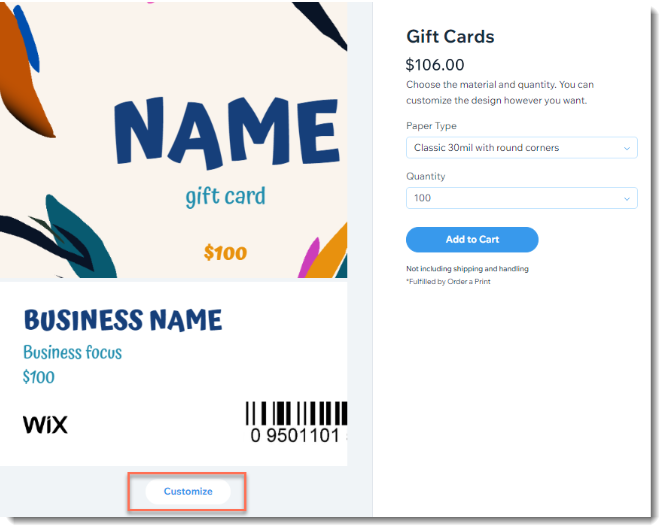
- Add, edit, or delete any of the available elements.
Tip: To switch to a solid color background, select the background image and set the opacity to 0%, then click Change Background to select a background color. - Click Switch to Back at the bottom to design the back of the card.
- Click Done.
- Click the Paper Type dropdown and select an option.
- Click the Quantity dropdown and select the number of cards you want to purchase.
- Click Add to Cart, then click Continue to Checkout.
- Enter your shipping details and click Save & Continue.
- Add your payment details and click Submit Purchase.
Order gift cards in the Wix dashboard (UK merchants)
- Go to gift card templates in your site's dashboard.
- Hover over a template and click Customize.
- Design your gift card:
- Click Customize.
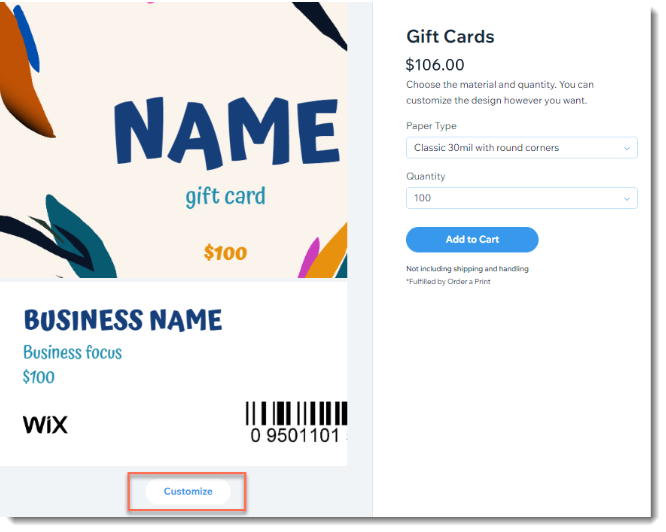
- Add, edit, or remove any of the available elements.
Tip: To switch to a solid color background, select the background image and set the opacity to 0%, then click Change Background to select a background color. - Click Switch to Back at the bottom to design the reverse side of the card.
- Click Done.
- Click the Paper Type dropdown and select an option.
- Click the Quantity dropdown.
Note: The quantity will be 1. You can select the actual quantity in a later step. - Click Add to Cart, then click Continue to Checkout.
Note: You'll be directed to purchase the gift cards for £0. - Enter the required details and click Submit Purchase.
- Go to the email you received and download your gift card design file.
- In the email, click Order Printed Gift Card.
- Upload the gift card design, enter the required details and complete your purchase.
To order through eCard Systems:
When ordering physical gift cards through the eCard website, you can choose between quick cards, ready-to-go designs with personalized text, or custom cards.
All gift cards are manufactured using a 30 mil litho-quality PVC core with full-color printing on both sides and finished in your choice of gloss or satin matte laminate. They include a durable hi-co magnetic stripe, encoding, and numbering to work seamlessly with your POS.
Notes:
- eCard Systems will reach out before printing to get your approval on the design.
- Select Use Our Design Service if you'd like a professionally designed card.
To order gift cards through eCard Systems:
- Go to the gift card order page.
- Click Get Started under Quick Cards.
- Choose a design option:
- Ready-made design:
- Customize the front by double-clicking text boxes and entering your text.
- Use the arrows under Choose your background to browse and select a background.
- Click Next at the top right and customize the back of the card.
- Click Next.
- Upload your own design:
- Click Upload My Own Artwork.
- Click Upload Artwork and upload your front image.
- Click Next at the top right.
- Customize the back, then click Next.
- Choose a Satin or Gloss finish.
- Create a custom design:
- Personalize the front of your card with the available tools:
- Upload your own artwork: Click Upload Artwork. You can resize and drag your images across the canvas.
- When ordering physical gift cards through the eCard website, you can choose between quick cards, ready-to-go designs with personalized text, or custom Cards.
- Change background: Click the Background color dropdown under your design to select a pre-set background color.
- Organize layers: Change the order of your design layers by scrolling down to the Layers section. Drag and drop to change the order of the layers, delete them, or lock them so they stay in place as you work.
- Click Next at the top right.
- Design the back of the card by double-clicking textboxes and entering your text.
- Click Next.
- Choose between a Satin or Gloss finish.
- Under Choose your quantity, select the number of cards to print.
- Click Add to Cart and complete the order.
To use your own external gift cards:
You can also sell gift cards sourced from another provider. To work with your POS, each card must have a unique code that is between 8 and 16 characters long (letters or numbers).
Step 2 | Enable gift cards in your dashboard
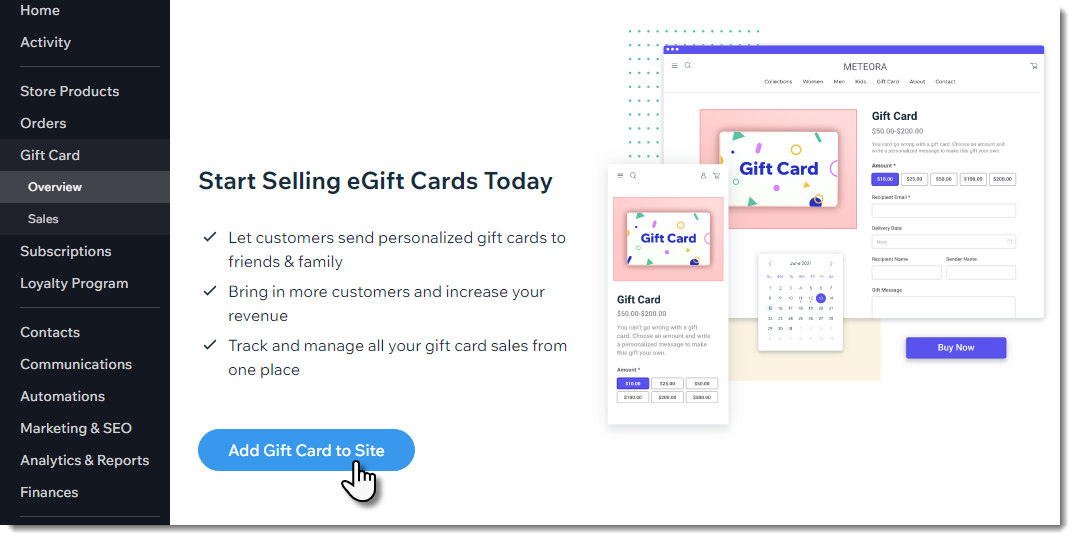
Before you can start selling gift cards at your point of sale, go to your Wix dashboard and enable gift cards for your site.
To enable gift cards:
- Go to Gift Cards in your site's dashboard.
- Click Add Gift Card to Site.
Step 3 | Sell a physical gift card
Once your cards have arrived and gift cards are enabled, you're ready to start selling.
To sell a physical gift card:
- On your POS Go, go to the Checkout tab.
- Tap Issue a physical gift card.
- Scan the barcode on the card or enter the card code manually, then tap Next.
- Enter the gift card value.
- Tap Add to Cart.
- Complete checkout.
Step 4 | Check a gift card balance
You can look up the remaining balance on any gift card — physical or virtual — directly from your POS Go.
To check a gift card balance:
- On your POS Go, go to the Checkout tab.
- Tap Check gift card balance.
- Scan the barcode on the card or enter the card code manually, then tap Next.
- The gift card balance appears on the screen.
Step 5 | Pay with a gift card
Customers can pay for their purchase using a physical or virtual gift card at checkout.
To pay with a gift card:
- Add items to the cart and tap the total to proceed to payment.
- On the payment screen, select Gift Card as the payment method.
- Scan the barcode on the card or enter the card code manually, then tap Next.
- The gift card balance is applied to the order:
- If the card covers the full amount, the transaction completes.
- If there is a remaining balance, select an additional payment method to cover it.
- Complete the transaction.
FAQs
What are the minimum and maximum gift card values?
You can set a gift card to any amount between $1 and $1,000.
What are the file requirements for ordering gift cards through the dashboard?
Files must be no larger than 50MB with a minimum resolution of 300dpi. Accepted formats: PNG, JPEG, TIFF, PDF, and Adobe files.
How long does it take to receive my gift cards?
Production takes around 15 days, plus 3–7 business days for shipping.
What is the refund policy for gift card orders?
Gift card print orders are non-refundable. If your cards arrive damaged, report it within 7 days of receiving your order.
Can customers use physical gift cards for online purchases?
Yes — customers can redeem physical gift cards on your website using the card code printed on the card.
Can customers use a coupon when buying a gift card?
No, coupons cannot be applied to gift card purchases.
Is there a limit on how many gift cards I can sell in one transaction?
You can sell up to 10 gift cards in a single order.
Can I use a gift card for a split payment?
Gift cards cannot be used as part of a split payment on POS Go. To split a payment, use two other payment methods instead.