


Wix Mobile Apps: Managing Your App's Screens
In this article
- Adding new screens to your app
- Renaming a screen
- Deleting a screen
Similar to how your site is made up of pages, your member app (e.g. Spaces by Wix, Fit by Wix app) is made up of screens. Each screen in your app serves a unique function, allowing your app members to interact with you and your business.
Note:
- Your screens also make up your navigation menu. Learn how to customize your navigation menu by reordering, adding, or removing screens.
- Control who can view each screen in your member apps by setting screen permissions. Choose to show a locked message or hide screens from members without access.
Adding new screens to your app
Your app comes with a few default screens depending on what business apps you have on your site. You can add additional screens to expand your app's functionality. You can choose to include or exclude these screens from your navigation menu.
Dashboard
Wix app
Wix Studio app
- Go to Mobile App in your site's dashboard.
- Click the relevant tab (e.g. Spaces by Wix app, Your own mobile app).
- Click Edit Mobile App.
- Click Screens on the left.
- Choose where to add the new screen:
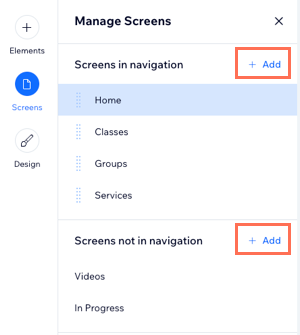
- Screens in navigation: Click + Add next to Screens in navigation to add the new screen to the navigation menu.
- Screens not in navigation: Click + Add next to Screens not in navigation to add the new screen and keep it hidden from the menu. You can add it to your app's menu later, if needed.
- Type a name for the screen and press Enter on your keyboard.
- Click Save & Publish at the top right.
Tip:
To reorder screens that appear in the navigation menu, click and drag the screens up or down the list.
Renaming a screen
You can edit the name of a screen to change how it appears on your navigation menu.
Dashboard
Wix app
Wix Studio app
- Go to Mobile App in your site's dashboard.
- Click the relevant tab (e.g. Spaces by Wix app, Your own mobile app).
- Click Edit Mobile App.
- Click Screens on the left.
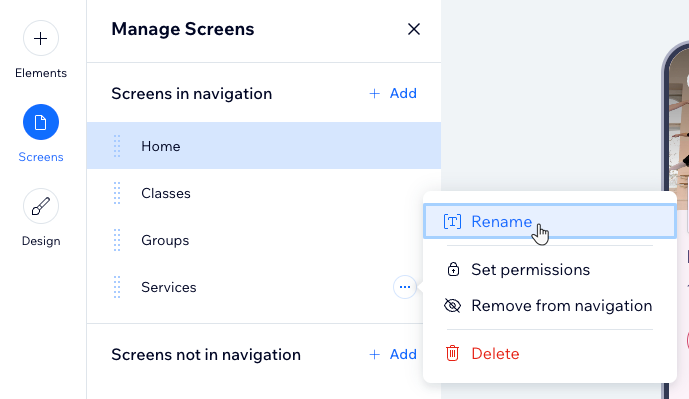
- Hover over the screen you want to rename and click the More Actions icon
 .
. - Select Rename.
- Type a name for the screen and press Enter on your keyboard.
- Click Save & Publish at the top right.
Deleting a screen
Remove screens from your app if you no longer need them.
Tip:
Deleting a screen also deletes all elements on the screen. If you prefer not to delete the screen entirely, you can
hide it from your navigation menu.
Dashboard
Wix app
Wix Studio app
- Go to Mobile App in your site's dashboard.
- Click the relevant tab (e.g. Spaces by Wix app, Your own mobile app).
- Click Edit Mobile App.
- Click Screens on the left.
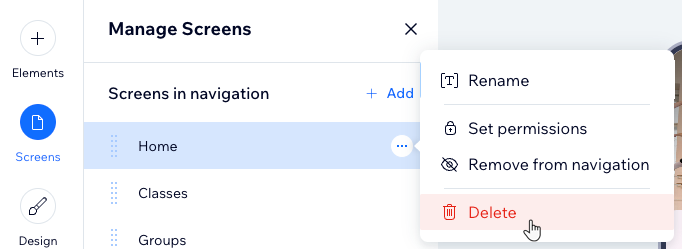
- Hover over the screen you want to remove and click the More Actions icon .
- Click Delete.
- Click Delete to confirm.
