


Wix Mobile Apps: Adding Restaurants Widgets on the Wix Member Apps
In this article
- Displaying your Restaurants widgets
- FAQs
Give your diners a quick way to order food or book a table right from your member app (
Spaces by Wix or
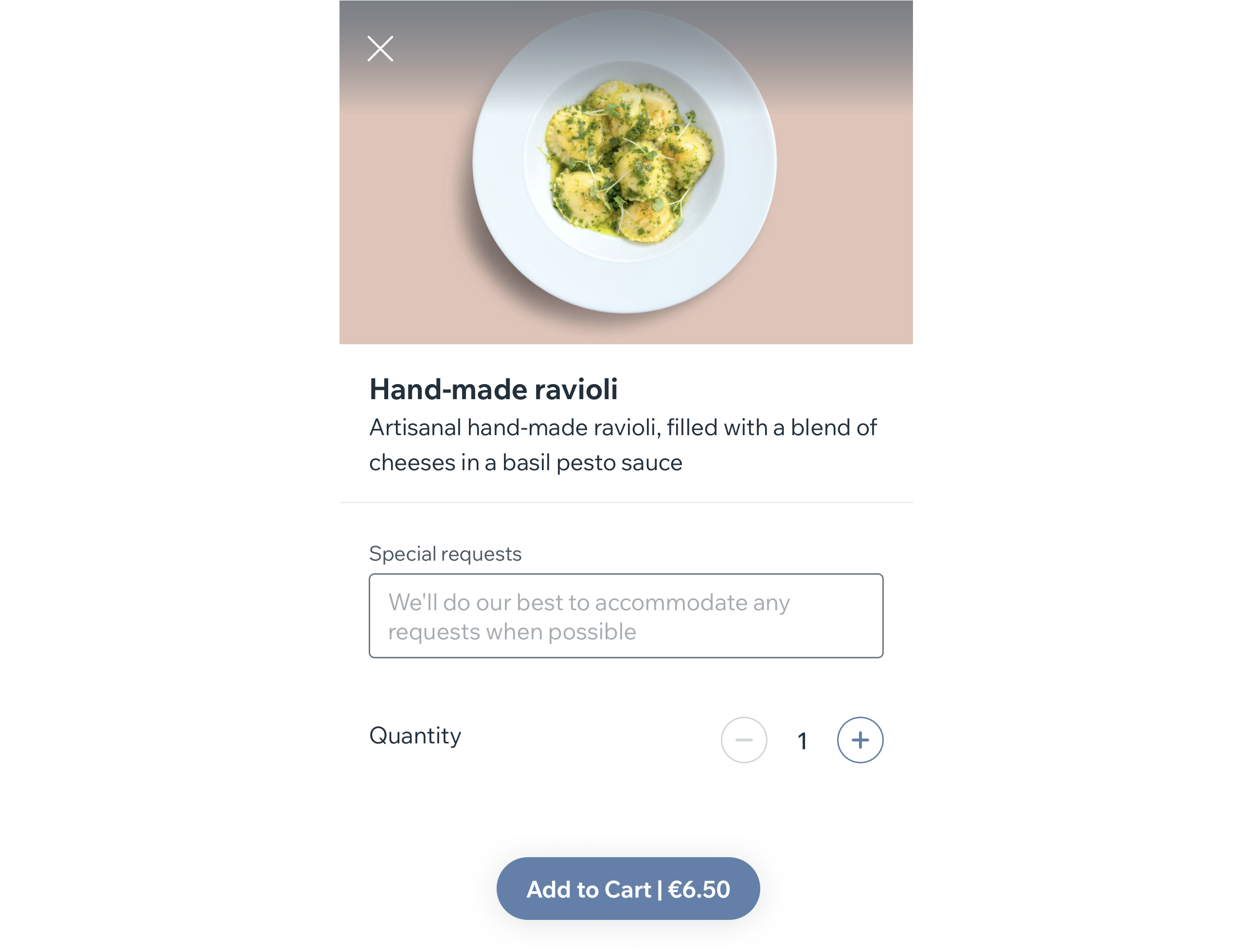
your own app). Add restaurant orders and table reservations widgets so customers can place orders, reserve a table, and stay connected to your restaurant from their phone.
Displaying your Restaurants widgets
Depending on the Restaurants app(s) you're using, you can add widgets that let customers order from your menu, as well as reserve a table. Choose a title for the widget that fits your tone and voice, decide where to place the widget, and control whether it appears on Android, iOS, or both.
Note:
While you can add the
Restaurant orders and
Table reservations elements from desktop, you edit their appearance from the Wix mobile app (see the Wix app tab).
To display your Restaurants widgets:
Desktop
Wix app
- Go to Mobile App in your site's dashboard.
- Click the relevant tab (e.g. Spaces by Wix app, Your own mobile app).
- Click Edit Mobile App.
- Click the Screen dropdown at the top and choose the screen you want to edit.
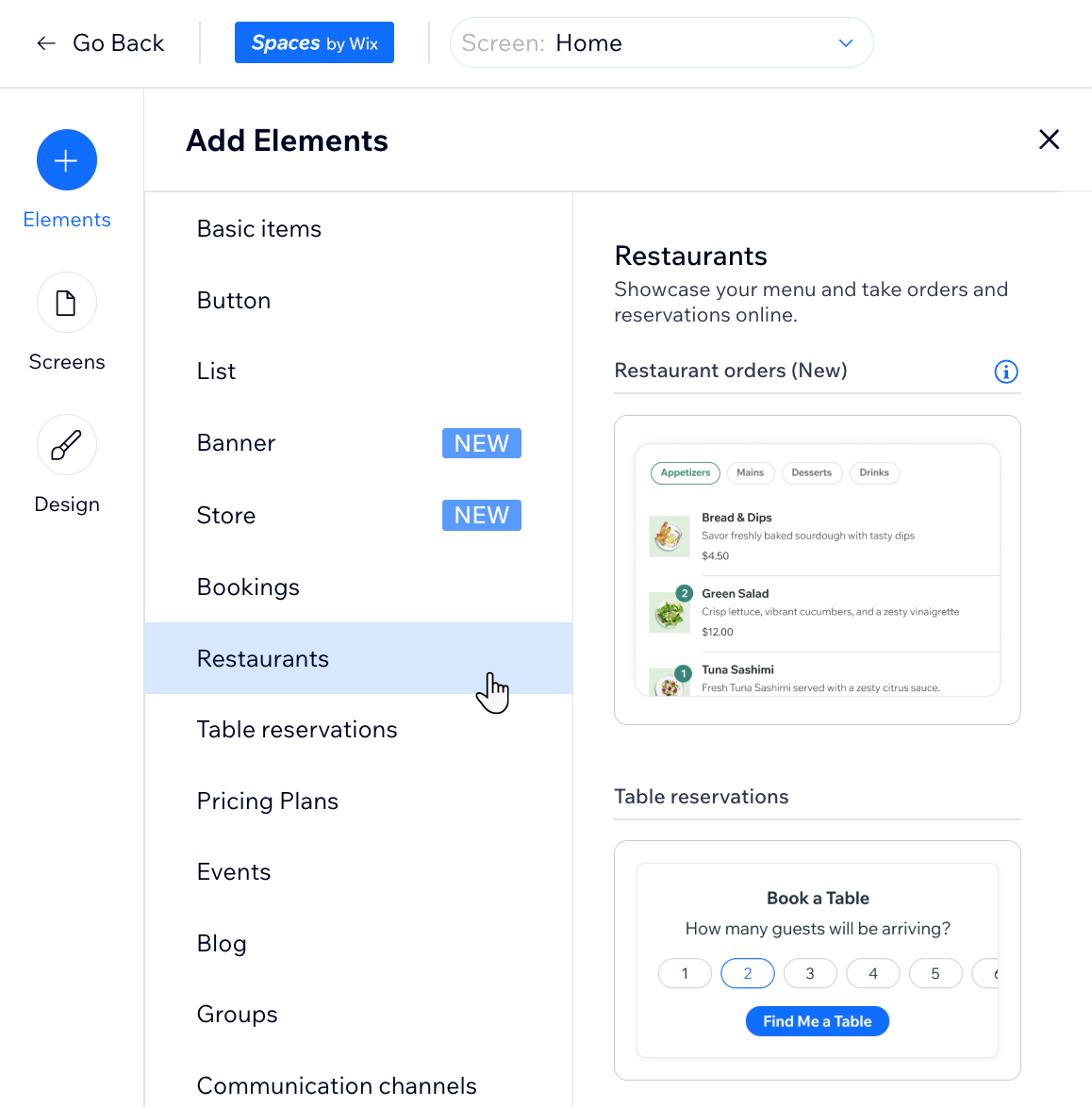
- Click Elements on the left.
- Select the Restaurants category under Add Elements.
- Click the element you want to add: Restaurant orders or Table reservations.
- Edit the element on the right panel of your screen. Note: The details you can edit depend on the element you add.
- (Optional) Move the element up or down on your screen:
- Click the element you just added.
- Click the Move Up
 or Move Down
  icon.
icon.
- Choose what to do next:
- Customize the element: Go to the Wix mobile app to change the element's title, margins, visibility (i.e. iOS, Android or both) and more.
- Publish without customizing the element: Click Publish at the top right.
FAQs
Click a question below to learn more.
Can I move widgets from one screen to another?
 at the top right of the element.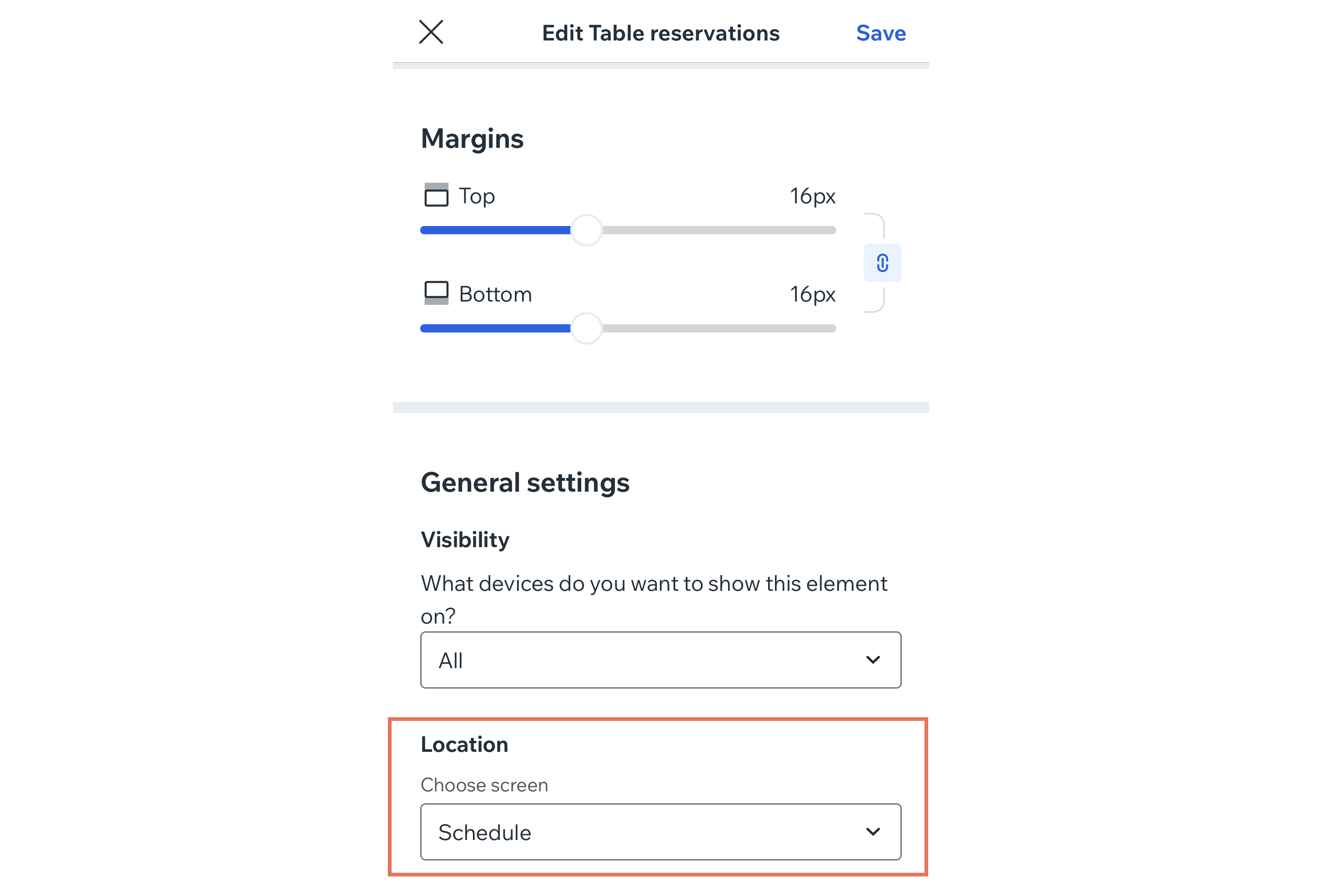
How do I customize an existing widget?
 at the bottom.
Can I delete a widget?

How do I add the same widget to 2 different screens?
How can I change the order of my widgets?
