


Wix Meetings: Syncing Personal Calendars with Wix Meetings
In this article
- Syncing your Google Calendar
- Syncing your Apple Calendar
- Syncing your Microsoft Calendar
- Understanding calendar invites
Sync your personal calendar with Wix Meetings to keep your schedule organized and up to date. When you connect a Google, Microsoft (Outlook or Office 365), or Apple calendar, your availability updates automatically to help prevent double bookings.
Times marked as unavailable in your calendar are blocked off, so teammates and clients can easily see when they can’t schedule with you. This shared view makes it easier to plan ahead and coordinate with your team.
Before you begin:
- Make sure to upgrade your site to sync your personal calendar with Wix Meetings.
- You can sync only one personal calendar at a time. To switch calendars, unsync your current calendar, then connect a different one.
- When you sync your personal calendar with Wix, busy times from the calendar block off your availability in both Wix Meetings and Wix Bookings. This keeps everything in sync, so you won't get booking requests during times you're already busy.
Syncing your Google Calendar
Sync your Google Calendar with Wix to have your customers’ meetings appear automatically in your Google Calendar.
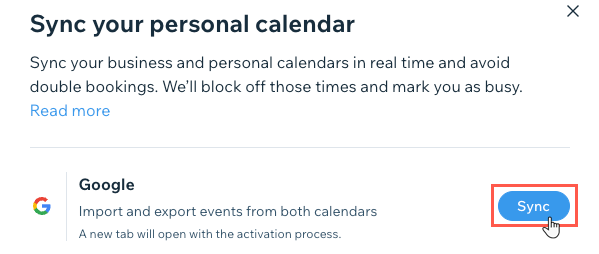
To sync your Google Calendar:
- Go to Wix Meetings in your site's dashboard.
- Click Manage.
- Click Sync personal calendar.
- Click Sync next to Google Calendar.
- (If necessary) Select the Google account you want to connect, then click Allow.
Syncing your Apple Calendar
When you sync Wix Meetings with your Apple Calendar (iCal), you can view your personal meetings and business sessions in one place. You can choose to import upcoming meetings from Apple Calendar to Wix.
Apple requires you to create a specific kind of password to sync your Wix calendar with your Apple calendar.
What is an app-specific password?
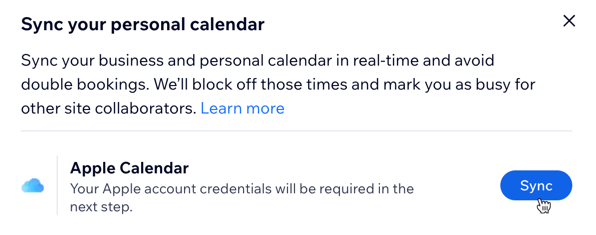
To sync your Apple Calendar:
- Go to Wix Meetings in your site's dashboard.
- Click Manage.
- Click Sync personal calendar.
- Click Sync next to Apple Calendar.
- Choose what to do next:
- Click Generate app-specific password, then follow the prompts to generate a new password. Then copy the password, return to the Wix window, and paste it into the field where prompted.
- Click I already have one and sign in.
- Click Sync.
Syncing your Microsoft Calendar
Sync your Microsoft calendar (Outlook or Office365) with Wix Meetings to view your meetings in one place.
To sync your Microsoft Calendar:
- Go to Wix Meetings in your site's dashboard.
- Click Manage.
- Click Sync personal calendar.
- Click Sync next to Outlook or Office365.
- Log in with your Microsoft account details.
- Click Yes to grant Wix access to your personal calendar.
Understanding calendar invites
When you sync your personal calendar with Wix Meetings, your meeting confirmations include a calendar invite. This lets you add Wix Meetings to your personal calendar and keep details in sync between you and your clients.
Each calendar invite includes:
- An invite sent to both you and your client.
- Adds you and your client as participants.
- Synced response status, so accept and decline updates appear for both sides.
- Key meeting details, such as the title, location, video conferencing link and passcode (if relevant).
- Links your client can use to reschedule or cancel.
