


Wix Harmony Editor: Pinning Elements to the Screen
This article refers to the new Wix Harmony Editor, released in January 2026. If you're unsure whether you’re using the Wix Harmony Editor or the Wix Editor,
view more information here.
Pinning an element keeps it visible as visitors scroll, which is great for features like social icons, menus, or ways to contact you. You can set the exact spot by choosing a side or corner, then adjusting the horizontal and vertical distance from the screen edge.
Most elements in your editor can be pinned and easily repositioned whenever you need. You can unpin elements at any time if you change your mind.
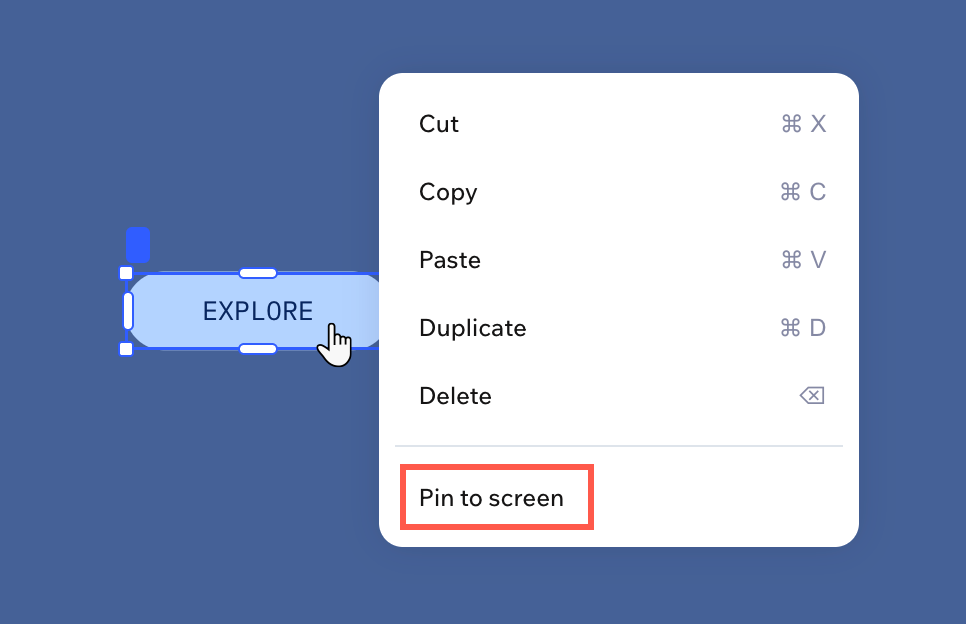
To pin or unpin an element:
- Go to your editor.
- Right-click the relevant element.
- Choose what you want to do next:
Pin an element to the screen
Customize the settings of a pinned element
Unpin an element
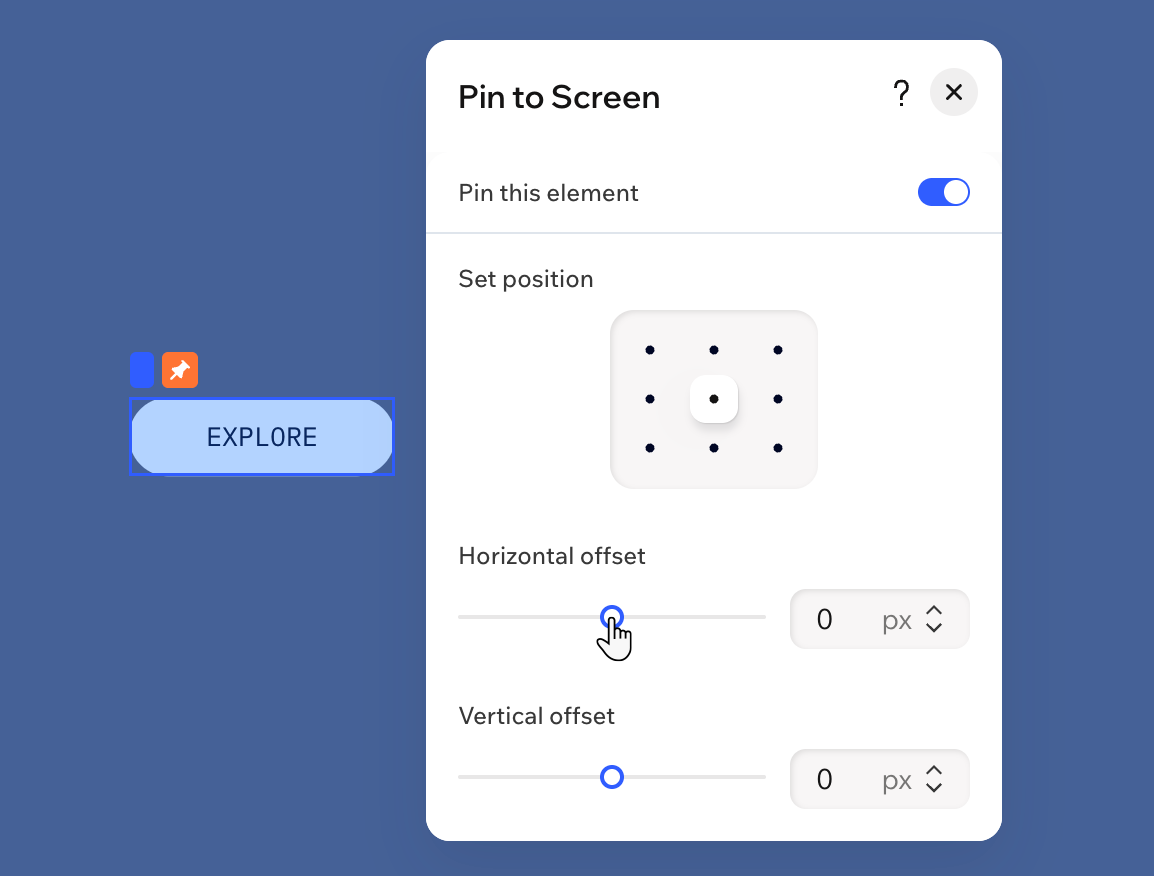
Tips:
- Preview your site to check how the pinned element appears, making sure it's not covering important content.
- You can perform these actions from the Layers panel too.
