


Wix Harmony Editor: Creating a Site from Wixel
In this article
- Creating a site from Wixel
- FAQs
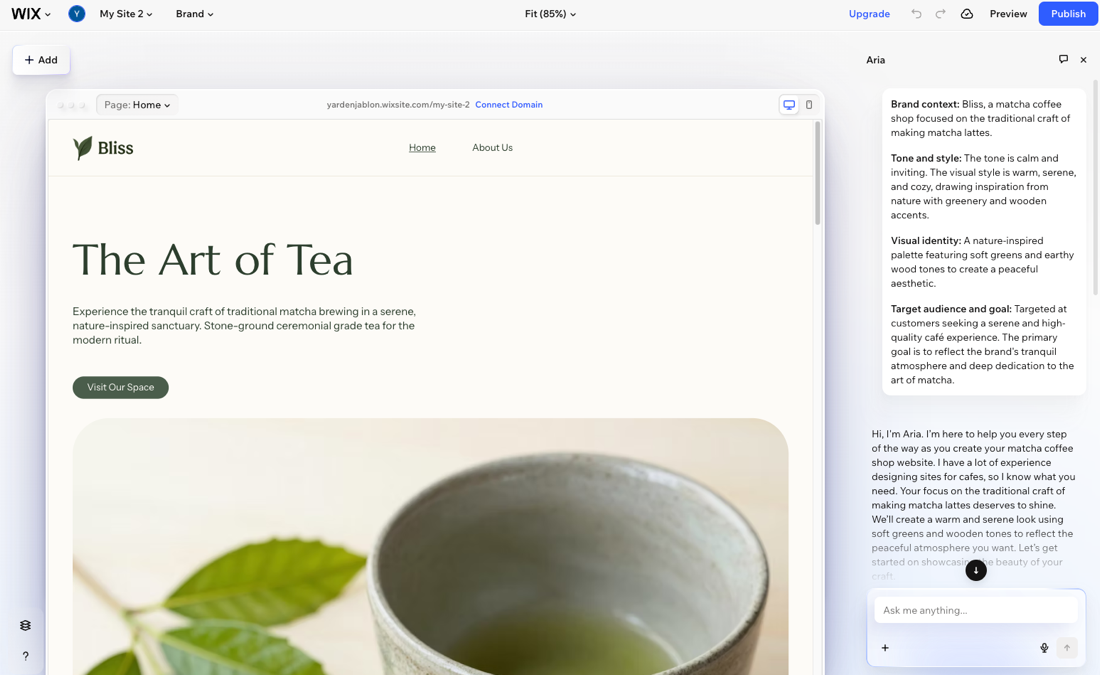
Wixel helps you bring your ideas to life through images, logos, videos, documents, and other creative assets. When you're ready to build a website, Aria can turn your Wixel project or brand into a custom-made
Wix Harmony site, shaped by your content, media, and brand details.
Creating a site from Wixel
Tip:
Connect a brand to the project to get a branded website.
To create a site from Wixel:
- Go to Wixel.
- Choose from where to create a site:
From a project
From a brand
3. Ask Aria to create a website (e.g. "Create a website for my bakery").
4. Click
Review website prompt in the chat.
Tip: Make sure you have enough details in the chat for Aria to generate a prompt. If the chat does not contain enough information, you’ll get a generic response instead of a website prompt.
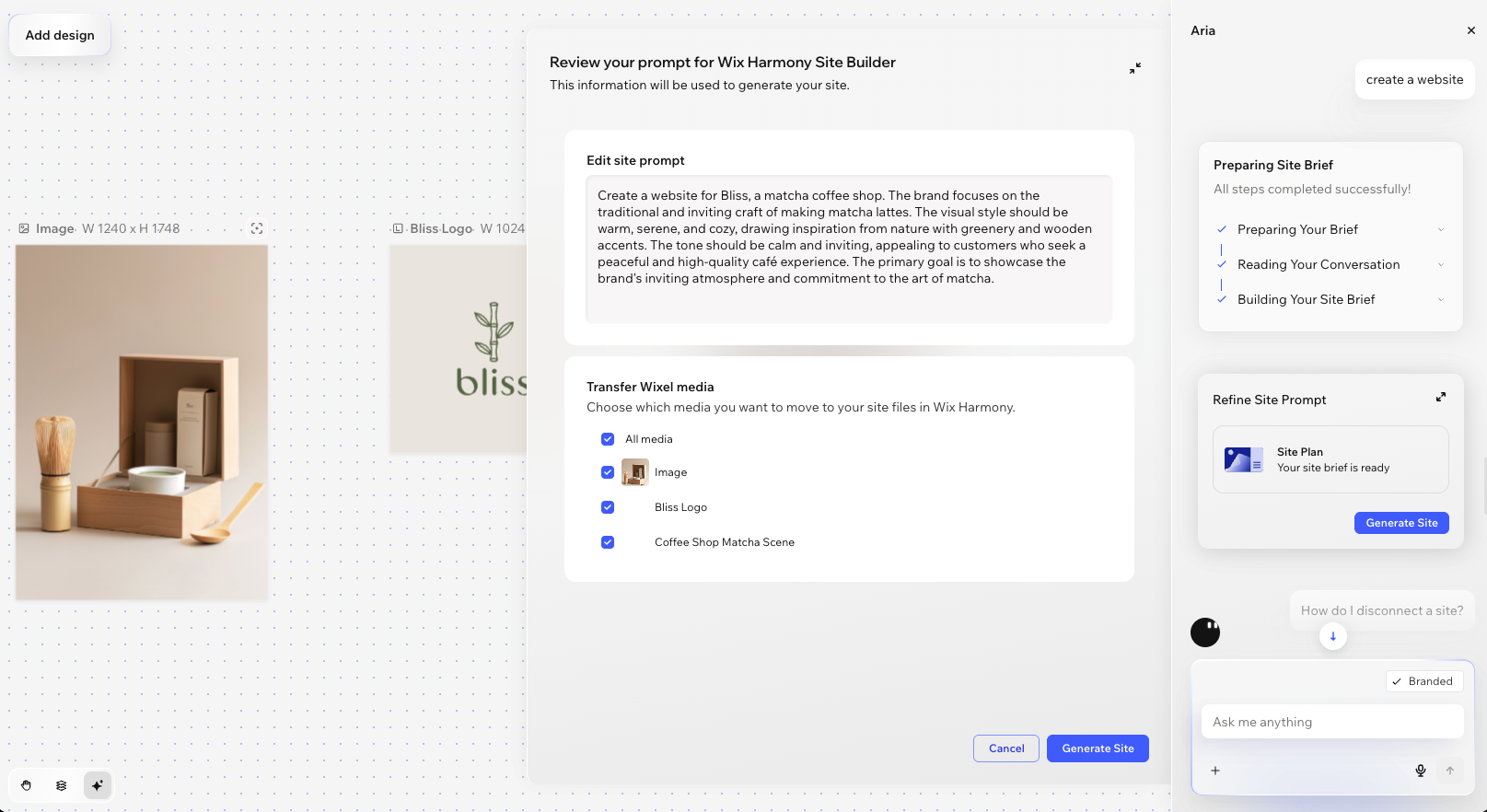
5. Review the prompt in the side panel:
Tip: Make sure you have enough details in the chat for Aria to generate a prompt. If the chat does not contain enough information, you’ll get a generic response instead of a website prompt.
5. Review the prompt in the side panel:
- Edit site prompt: Edit the text Aria uses to create your site's design and content direction.
- Transfer Wixel media: Select the images and logos you want to copy over to your site's Media Manager.
6. Click
Generate Site.
Tip: The Wix Harmony Editor opens in a new tab and your site starts generating there. You can keep working with Aria in the editor to make adjustments and consult on design.
Tip: The Wix Harmony Editor opens in a new tab and your site starts generating there. You can keep working with Aria in the editor to make adjustments and consult on design.
What's next?
Customize your new site in the Wix Harmony Editor and get ready to go live. If you're new to the editor, the following articles can help you to get started:
FAQs
Click a question below to learn more about creating sites from Wixel.
Are there other ways to create a site from Wixel?
Can I create more than one site per project or brand?
What happens if I transfer my site to another user?
What happens if I delete a Wixel project or connected site?
Does creating a site use AI credits?
Can I connect an existing site to a Wixel project?
Can I create a site from the Wixel app?
