


Wix Harmony Editor: Creating a Site from ChatGPT
In this article
- Connecting ChatGPT to Wix
- Creating a Wix Harmony site using ChatGPT
- FAQs
Turn any idea into a live site without leaving your ChatGPT conversation. When you connect the Wix app to ChatGPT, you can describe the site you want, brainstorm your ideas and once you're ready - let AI create a Wix Harmony site for you.
Use this option when you want to chat through ideas for your site and, when you are ready, tag @wix to quickly turn them into a full draft you can then fine-tune in the Wix Harmony Editor with
Aria by your side.
Connecting ChatGPT to Wix
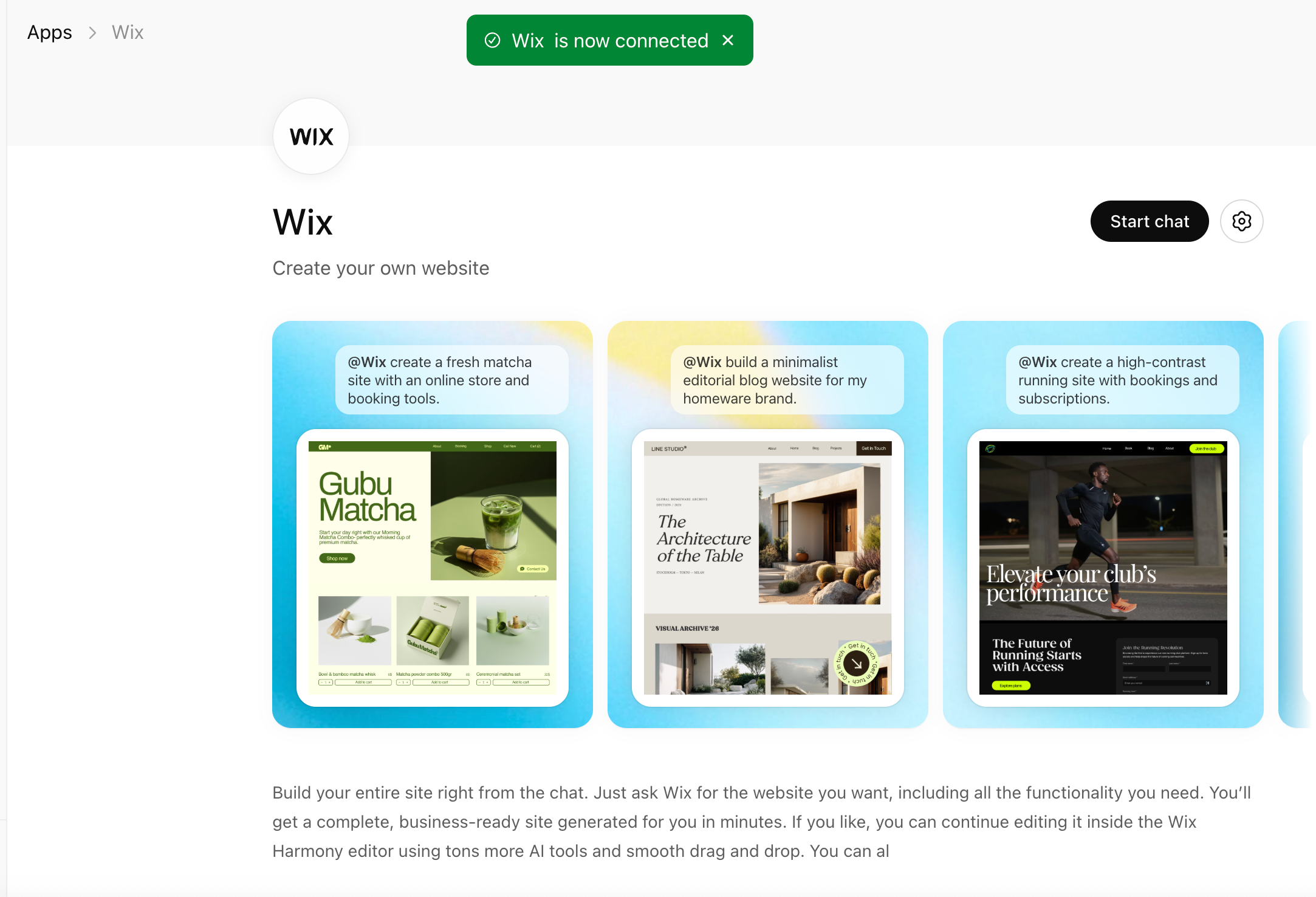
Before creating sites through ChatGPT, you need to connect the Wix app and your Wix account. This lets ChatGPT talk to your account safely and create sites for you. You only need to set this up once, and then you are ready to start building Wix Harmony sites directly from your conversations.
To connect the Wix app:
- Go to ChatGPT and log in to your account.
- Click Apps on the left.
- Search for the Wix app and click Connect.
- (In the popup) Click Connect Wix.
Tip: If you're not already logged in, you'll be taken to log in to your Wix account. - Review the permissions given to ChatGPT and click Allow.
- (Optional) Click Start chat to begin creating your site.
Creating a Wix Harmony site using ChatGPT
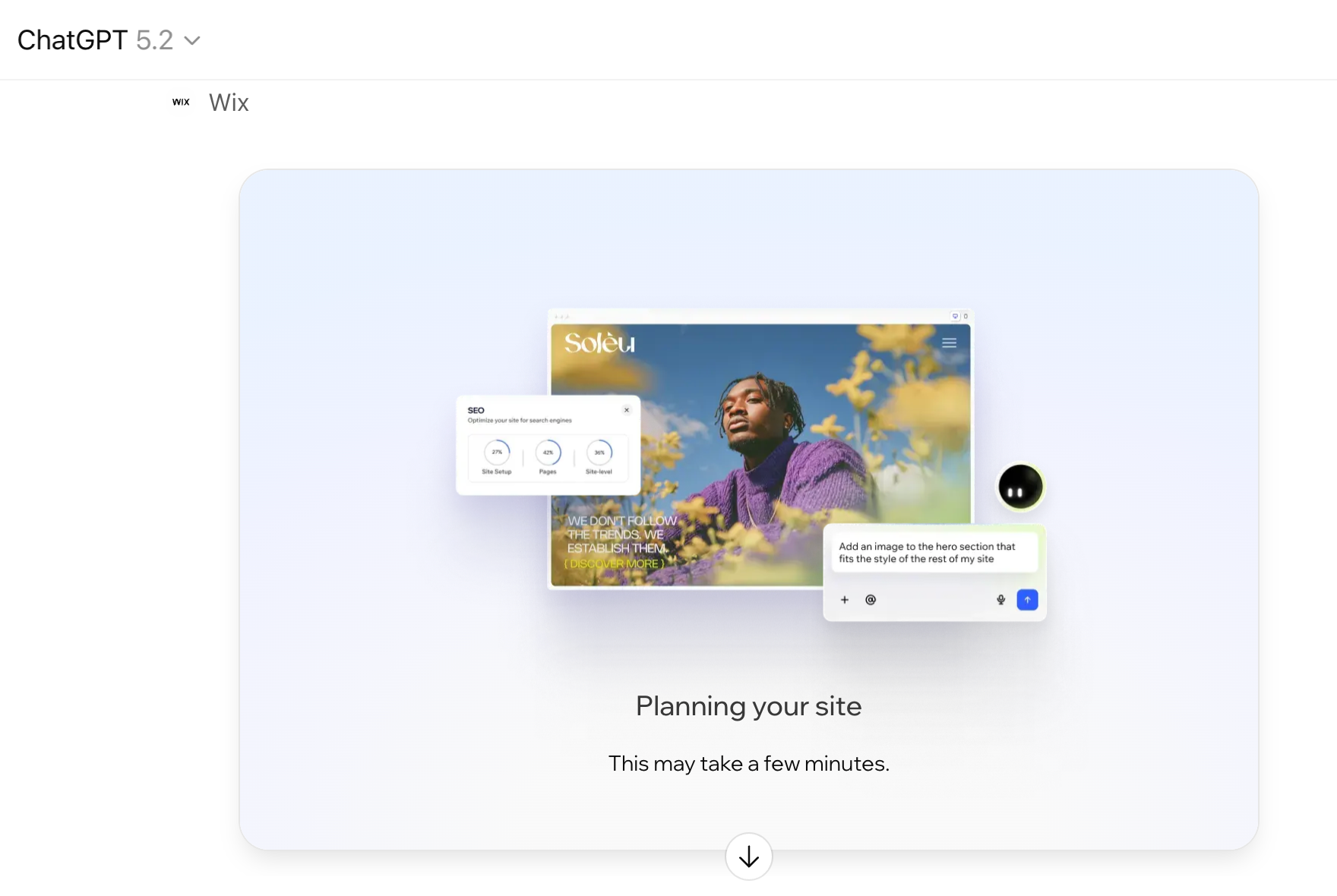
Once the Wix app is connected, you can create a new site by describing what you have in mind in the chat. Tag @wix and share the goals for your site – AI will do the rest for you. For example, you can ask @wix to create “a modern portfolio site with a home page, projects gallery and contact page”, and AI generates the site based on your prompt so you can jump straight into editing.
Before you begin:
Make sure you're logged into your Wix account. This is important for ChatGPT to get access to create your site in your account.
To create a Wix Harmony site using ChatGPT:
- Go to ChatGPT.
- Write a prompt that includes "@wix" and details of the site you want to create.
Important: Make sure to tag @wix in order to activate the app. - Review the chat's response about the planned site and decide how to proceed:
- Continue to create the site: Click Create Site.
- Refine your idea first: Write another message to refine the site's description and requirements before it's created by AI.

- Once your site is ready, decide what to do next:
- Preview: Scroll through the preview of your site inside the chat. You can click the View fullscreen icon
 to see a full-page version.
 - Edit Site: Access the Wix Harmony Editor and start customizing your new site.
Tip: Wix Harmony includes Aria, your smart AI design partner. Aria can continue making adjustments and consult on anything you need. - Open in New Tab: See your live site in a new browser tab.
- Preview: Scroll through the preview of your site inside the chat. You can click the View fullscreen icon

What's next?
Customize your new site in the Wix Harmony Editor and get ready to go live. If you're new to the editor, the following articles can help you to get started:
FAQs
Click a question below to learn more.
Where can I find the site that ChatGPT created in my Wix account?
Can I get AI assistance inside the editor after creating my site?
Why isn't ChatGPT generating my site?
 and select Reconnect.
