


Wix Harmony Editor: Applying a Glass Effect
In this article
- Applying a glass effect
- FAQs
This article refers to the new Wix Harmony Editor, released in January 2026. If you're unsure whether you’re using the Wix Harmony Editor or the Wix Editor,
view more information here.
Apply a frosted glass effect to boxes and headers for a sleek, layered look that helps important content stand out from the background. You can also adjust the intensity to get the style that works best for your design.
Good to know:
Glass effect is currently only available to add to headers and boxes.
Learn about customizing your site's header and
adding and customizing boxes.
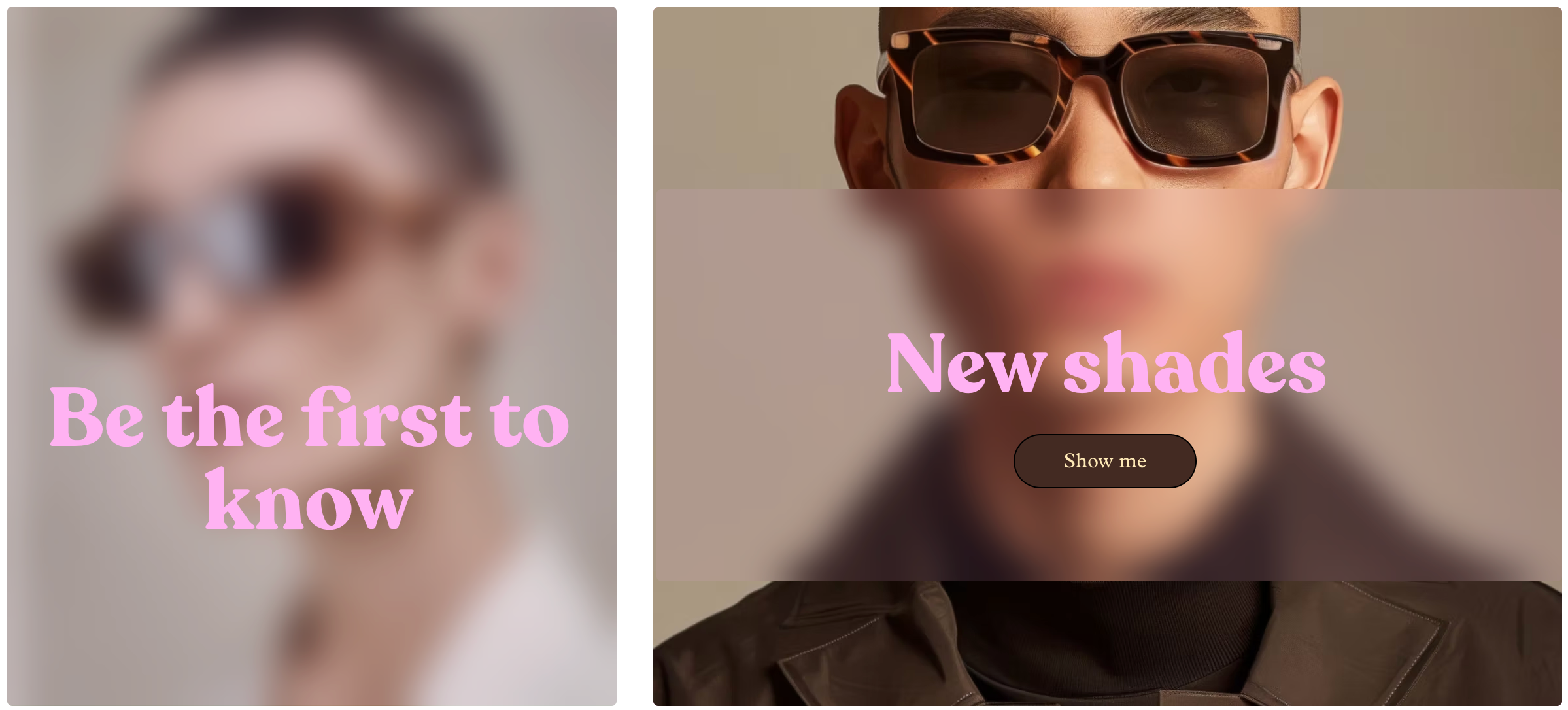
Applying a glass effect
Enable the glass effect from the action bar, then adjust the intensity to get the look you want.
To apply a glass effect:
- Go to your editor.
- Click the relevant box or header.
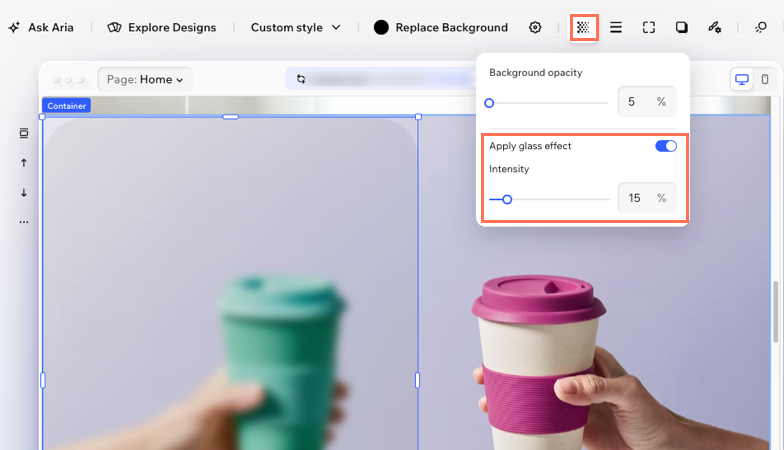
- Click the Opacity icon
 on the action bar.
 - Enable the Apply glass effect toggle.
- Drag the Intensity slider to make the effect stronger or softer.
Tip: Enter a value in the % box if you want to set an exact intensity.
FAQs
Click a question below to learn more about using the glass effect in Wix Harmony.
Why can't I see the Apply glass effect toggle?
What is the difference between background opacity and intensity?
Does the glass effect work better with some backgrounds?
Can I change the glass effect after I add it?
