


Wix Harmony Editor: Adding Media to Your Site
In this article
- Uploading your own media
- Adding free media
- Purchasing media
Bring your ideas to life and make your content shine by adding beautiful media to your site. Upload your own media, choose from thousands of free media files, or purchase media files from Shutterstock.
Explore different types of media, like images, videos, and vector art, to make your site feel unique and engaging. With so many options, it’s easy to showcase your ideas and create a memorable experience for your visitors.
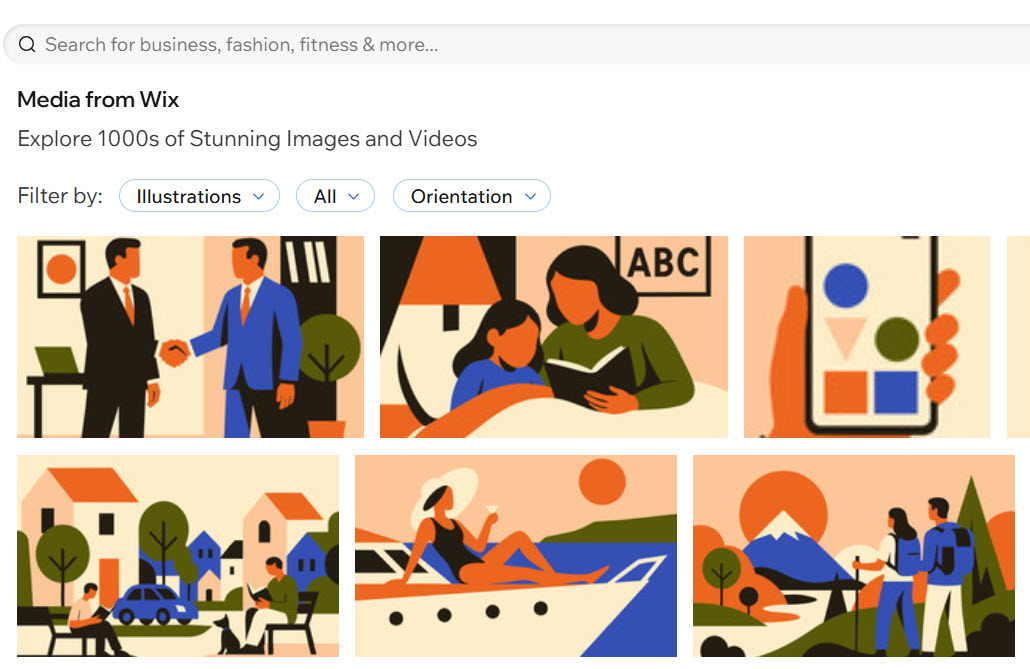
Can't find what you're looking for?
Create unique images tailored to your needs with the
Wix AI Image Generator. Generate custom visuals by simply describing what you want, making it easy to design personalized content in seconds.
Uploading your own media
Upload media straight from the e
ditor. You can upload media from your computer, social networks, other Wix sites or a URL. Once you've uploaded a media file to the Media Manager, you can use it anywhere on the site.
Want to know which file types and sizes you can upload?
To upload your own media:
- Go to your editor.
- Click the Wix dropdown at the top left of the editor.
- Select Media Manager.
- Click + Upload Media.
- Choose where you want to upload media from:
Your computer
Other Wix sites
Social networks
A link (URL)
 on the left side.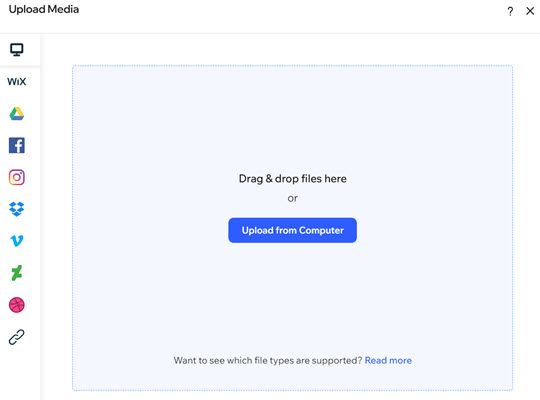
Adding free media
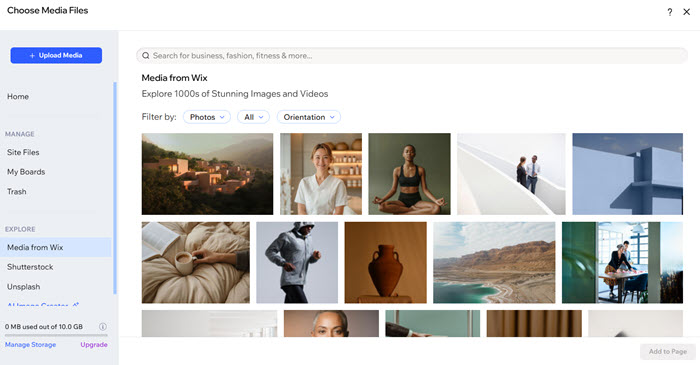
The Media Manager contains hundreds of free Wix and Unsplash media files that you can add to the site. Just click
Media from Wix or
Unsplash on the left side of the Media Manager to find the media file you want.
To add free media:
- Go to your editor.
- Click the Wix dropdown at the top left of the editor.
- Select Media Manager.
- Click the relevant tab on the left:
- Media from Wix: Free images, illustrations and patterns from the Wix library.
- Unsplash: Free stock images in high resolution.
- Browse the available images and videos to find the one you want.
Tip: Use the search bar and the filters to find media faster. - Click the desired image.
- Click Add to Page.
Notes:
- Free Wix media files are available for digital use within Wix ONLY. For more information, see the Wix Terms of Use.
- You can use Unsplash images only in accordance with the Unsplash Terms of Use and the Wix Terms of Use.
Purchasing media
Purchase media from Shutterstock. You can filter images / videos by category for easy browsing, or find media by typing keywords in the search bar. Once you submit your purchase, your media is automatically added to the Media Manager.
To purchase media:
- Go to your editor.
- Click the Wix dropdown at the top left of the editor.
- Select Media Manager.
- Click Shutterstock on the left.
- Browse the available images and videos to find the one you want.
Tip: Use the search bar and the filters to find media faster. - Click the media you want to purchase.
- Click Buy Image / Buy Video.
- Enter your payment details.
- Click Submit Purchase.
