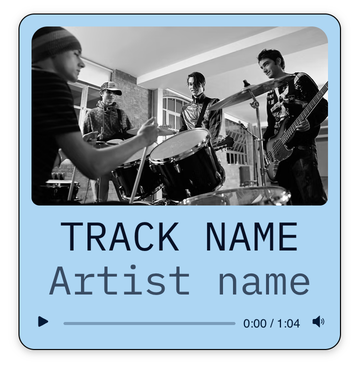
Bring your site to life with sound. Whether it's a song, a podcast episode or a welcome message, an audio player lets visitors press play without ever leaving your page.
Adding an audio player
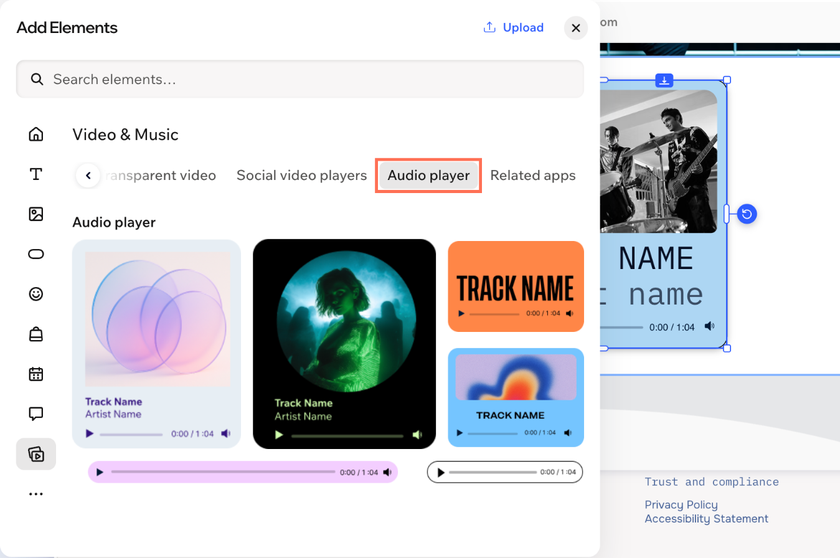
Browse the audio player designs and drag the one you like onto your page, right where you want visitors to press play.
To add an audio player:
Go to your editor.
Click + Add.
Select Elements.
Click the Video & Music icon  on the left.
Click the Audio player tab.
Drag a design onto your page.
Customizing an audio player
Make the player yours. Choose the audio, add the track details and decide what visitors see and hear, from the cover art to the volume control.
To customize an audio player:
- Go to your editor.
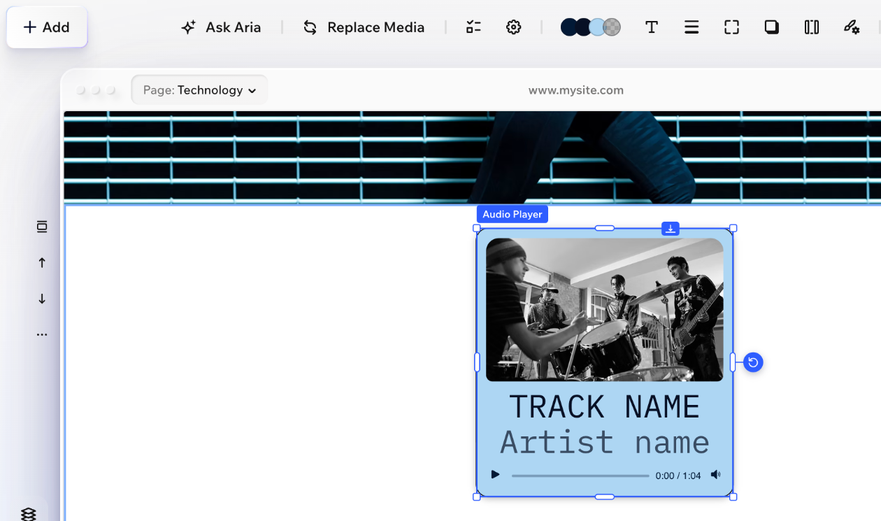
- Click the audio player on your page.
- Choose how to customize it:
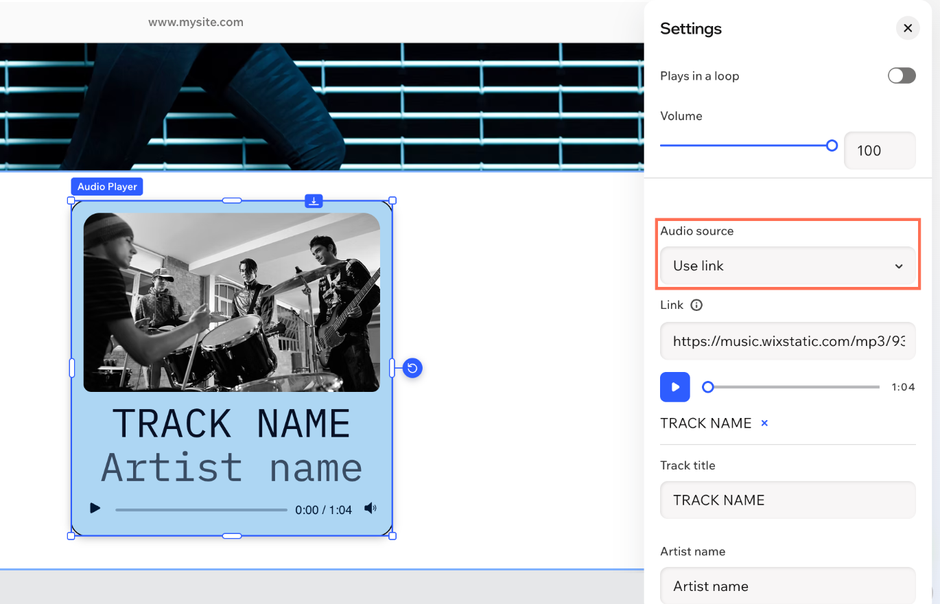
Swap in your own track by uploading a file or linking to one.
Click the Settings icon  on the action bar.
Select an option from the Audio source dropdown:
Upload file: Upload your track from your computer. Click Upload Audio, and select the relevant file in the Media Manager.
Use link: Enter the URL to your audio in the Link field. Make sure it's a direct link to an MP3, WAV or MP4 file.
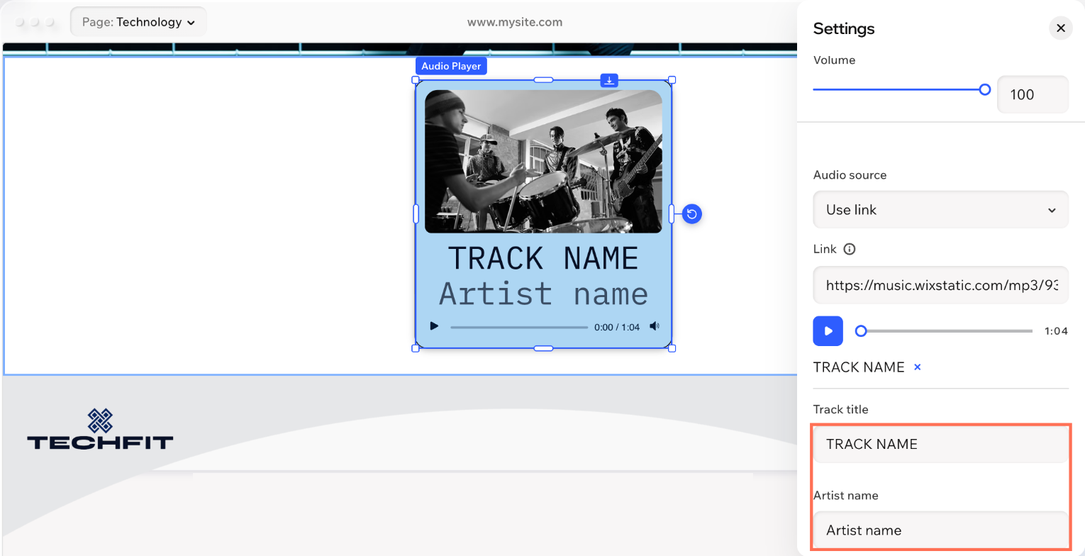
Add a track title and artist name
Tell visitors what they're listening to.
Click the Settings icon on the action bar.
Enter the title in the Track title field.
Enter the name in the Artist name field.
Note: The track title and artist name appear on the player only when Audio title and Artist name are selected in the Display elements panel  .
.
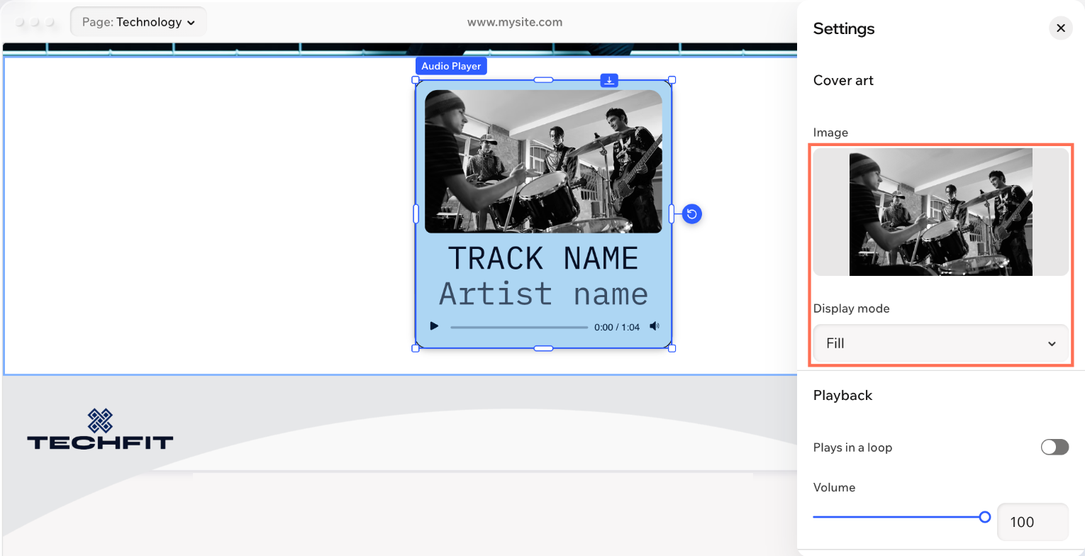
Show an image that fits your track or your brand.
Click the Settings icon on the action bar.
Replace the image under Cover art.
Select an option from the Display mode dropdown.
Note: The cover art appears on the player only when Cover art is selected in the Display elements panel .
Control how the audio plays
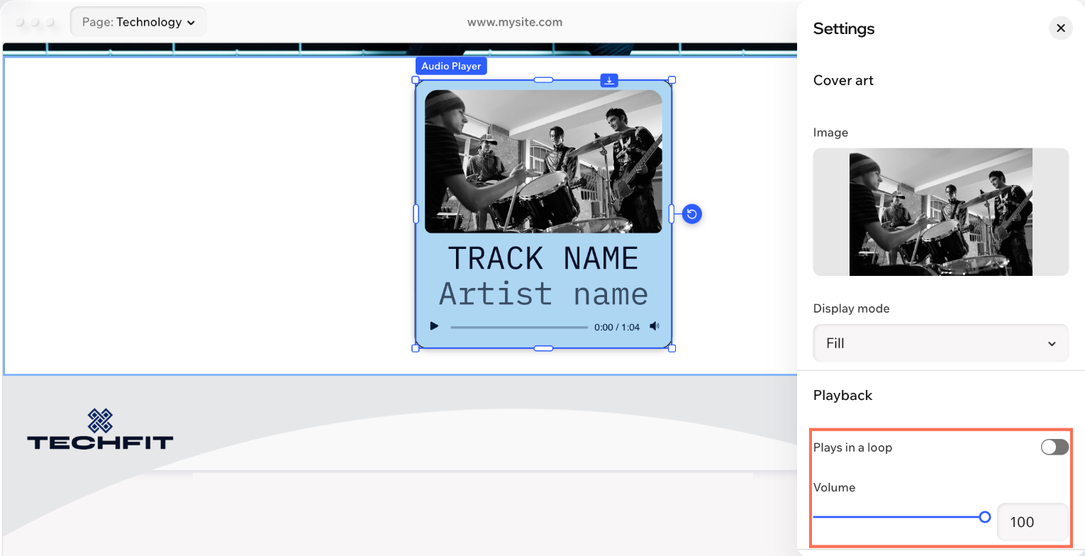
Decide whether the audio plays in a loop and how loud it plays.
Click the Settings icon on the action bar.
Adjust the options under Playback:
Choose what the player shows
Keep the player simple or show every detail, it's up to you.
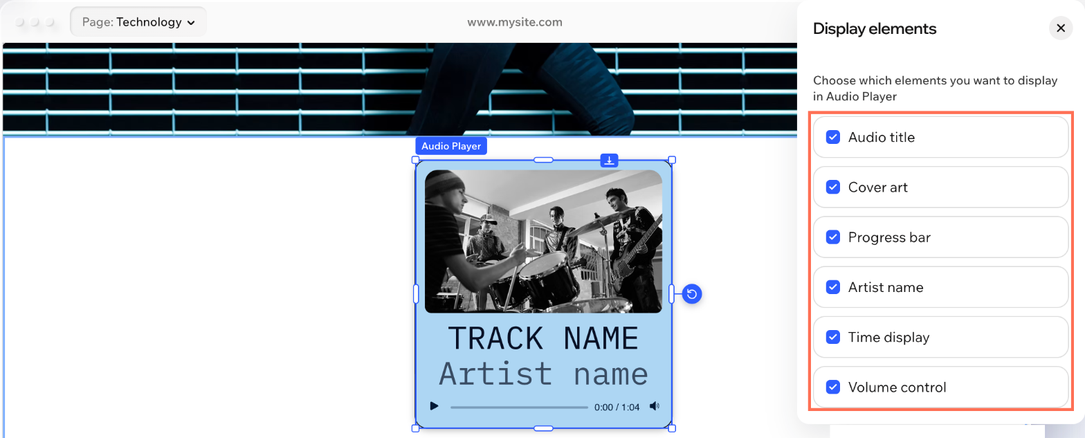
Click the Display elements icon on the action bar.
Select or deselect the checkboxes for what you want to show:
Audio title
Cover art
Progress bar
Artist name
Time display
Volume control
Designing an audio player
Make the player match your brand. Style its colors, text and borders so it blends in with the rest of your site.
To design an audio player:
Go to your editor.
Click the audio player on your page.
Click the All design options icon  on the action bar.
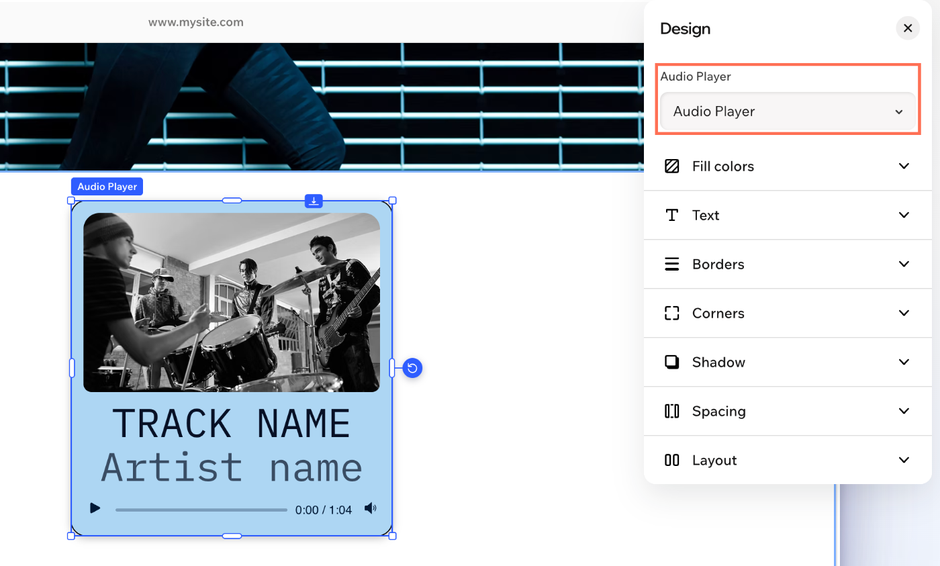
Select the part you want to design from the dropdown at the top: Audio Player, Cover art or Playback controls.
Design the audio player using the options:
Fill colors  : Change the background color of your audio player, choosing one of your brand colors or a custom color.
Text: Choose a font and format the text on your audio player (i.e. track title, artists, etc.)
Borders  : Define the borders of your audio player so it stands out, choosing a color, width and style. Click the Edit individual borders icon
  to design each side of the border.
Corners  : Make the corners of your audio player more square or round by dragging the slider under Radius. Click the Edit individual corners icon to design each corner separately.
Shadow  : Apply inner and outer shadow to give the audio player an interesting 3D effect, setting the position, blurriness, color and more.
Spacing  : Add breathing room to the content in your audio player by adding padding and spacing between the track details.
Layout: Choose how to align the content in your audio player - left, right, center or justify. You can also choose whether or not to apply your default site direction (left-to-right or right-to-left).
Design the image you chose to show next to your track using the options:
Fill colors : Adjust the opacity of the image.
Borders : Define the borders of the image so it stands out, choosing a color, width and style.
Corners : Make the corners of the image more square or round by dragging the slider under Radius. Click the Edit individual corners icon to design each corner separately.
Shadow : Apply inner and outer shadow to give the image an interesting 3D effect, setting the position, blurriness, color and more.
Effects  : Choose a blend mode for the image (i.e. the way it blends with the player's background) to create an interesting effect.
Design the player's controls (e.g. volume, play button, time display, etc.)
Choose the State you're designing for: The controls' default look (Regular) or the way they look when a visitor hovers over (Hover).
Customize the controls' design using the options:
Fill colors : Change the color of the progress bar, volume control or the time display, choosing one of your brand colors or a custom color.
Icon : Customize the play button's color and size.