


Wix Harmony Editor: Adding and Customizing a Video Player
In this article
- Adding a player
- Customizing a player
- Troubleshooting the player
- FAQs
Videos bring your site’s story to life, capturing attention and building connections with visitors. Showcase a promotional clip, boost sales with a demo, or even highlight something inspiring from your socials.
With the video player, you can upload videos straight to your site or embed them from your favourite social platforms. Add a cover image, tweak playback settings like autoplay or looping, and choose if your visitors see a control bar.
Adding a player
Choose a player from the
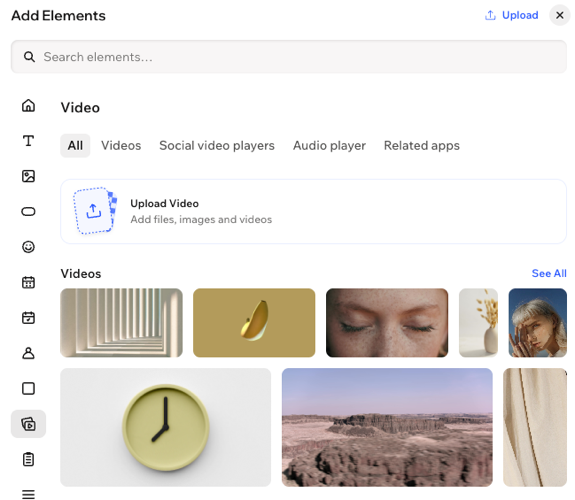
Add Elements panel and drag it onto your site. You can choose to upload a video file directly from your computer or add a social player and embed a URL from a social media platform.
To add a video:
- Go to your editor.
- Click + Add at the top left of the editor.
- Select Elements.
- Click the Video icon
 on the left.
 - Choose to upload or embed a video:
- Upload: Upload a video from your computer.
- Click Upload Video.
- Click Upload from Computer.
- Select the video you want to upload.
- Click Add to Page.
- Embed: Add a social player from your platform of choice, e.g., Facebook, Vimeo, or TikTok.
- Drag and drop the relevant player onto your page.
- Click the Replace Video on the action bar.
- Enter the video's URL.
- Upload: Upload a video from your computer.
Customizing a player
Adjust how and when your video plays, add a personal touch with custom titles or
cover images, and style the player so it it complements the rest of your site.
Note:
Available customization options vary depending on whether you upload or embed a video.
To customize a video player:
- Go to your editor.
- Click the video player element on the page.
- Choose how to customize it:
Decide how your video plays
 icon on the action bar.
Change the video
Add a cover image
 icon.
icon.Design the player
 on the action bar.
 : Define the borders of your video so it stands out, choosing a color, width and style.
  : Make the corners of the video squarer or round by dragging the Radius slider. Click the Edit individual corners icon
  to design each corner separately.
 : Apply inner and outer shadow to give the video an interesting 3D effect, setting the position, blurriness, color and more.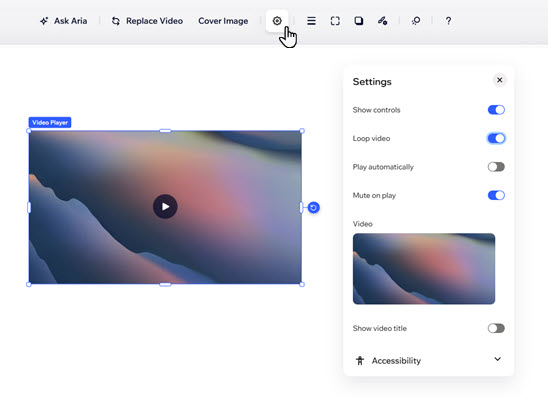
Troubleshooting the player
Even the best
designs may encounter small snags. Here are some typical issues you may face with videos and how to resolve them effectively.
Why is my video not playing on my live site?
I have set my video to autoplay, but there's no sound. Why?
FAQs
Click a question below to learn more about adding and customizing videos:
Which social media platforms can I embed videos from?
What are the recommended file formats and sizes for uploading and embedding videos?
When a video is set to autoplay, will sound still play?
Will video views on my site carry over to the video platform (e.g. YouTube)?
