


Wix Groups: Customizing Your Group Page From Your Live Site
In this article
- Changing your group image
- Customizing your group tabs
Your group page is the home base for your community, where members connect, share updates, and discover what your group is about. From your live site, you can customize the group page image and tabs. This helps you keep your group relevant while you focus on engaging your members.
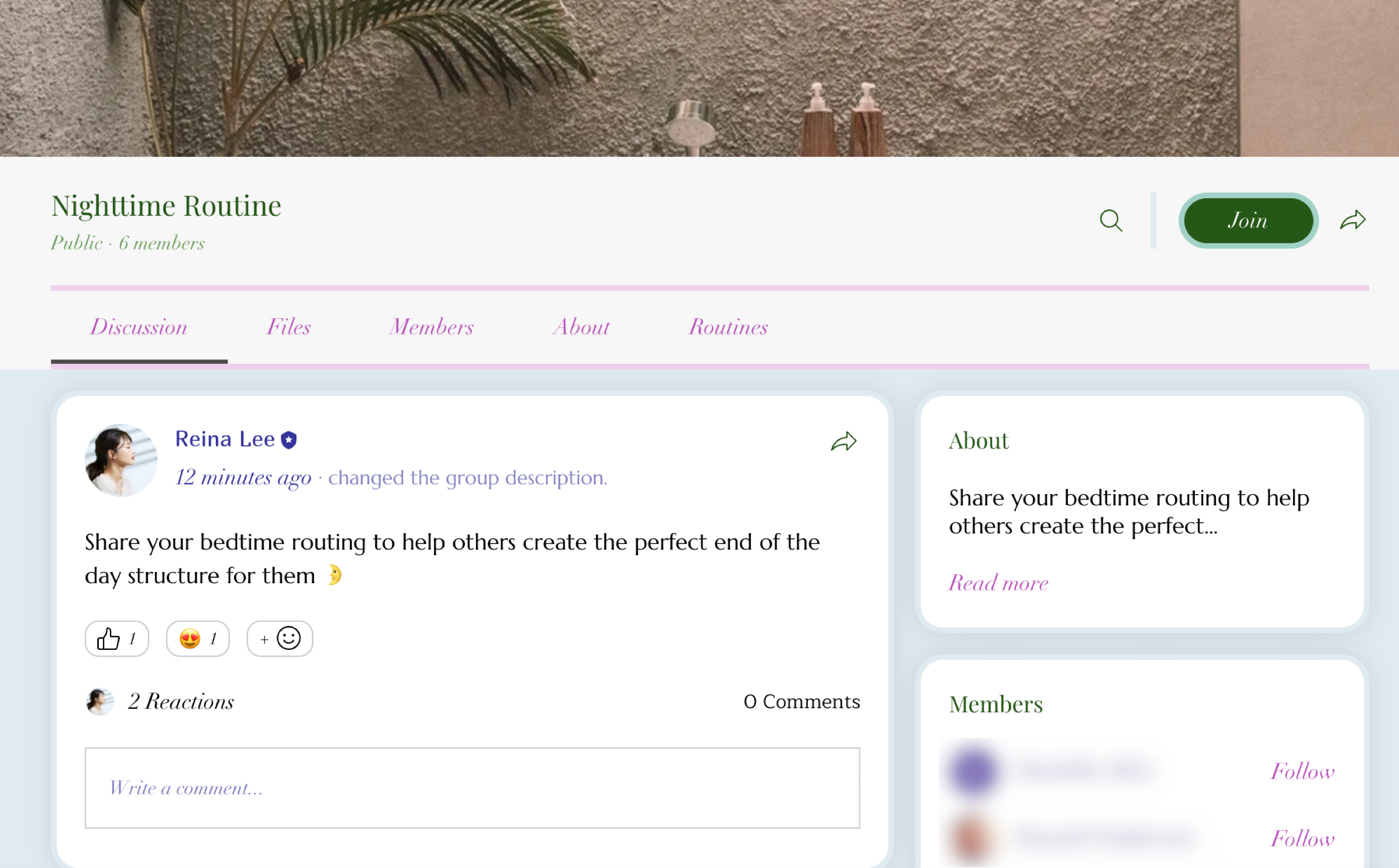
Changing your group image
From the info tab, you can update or remove the cover image at any time to keep your group looking fresh.
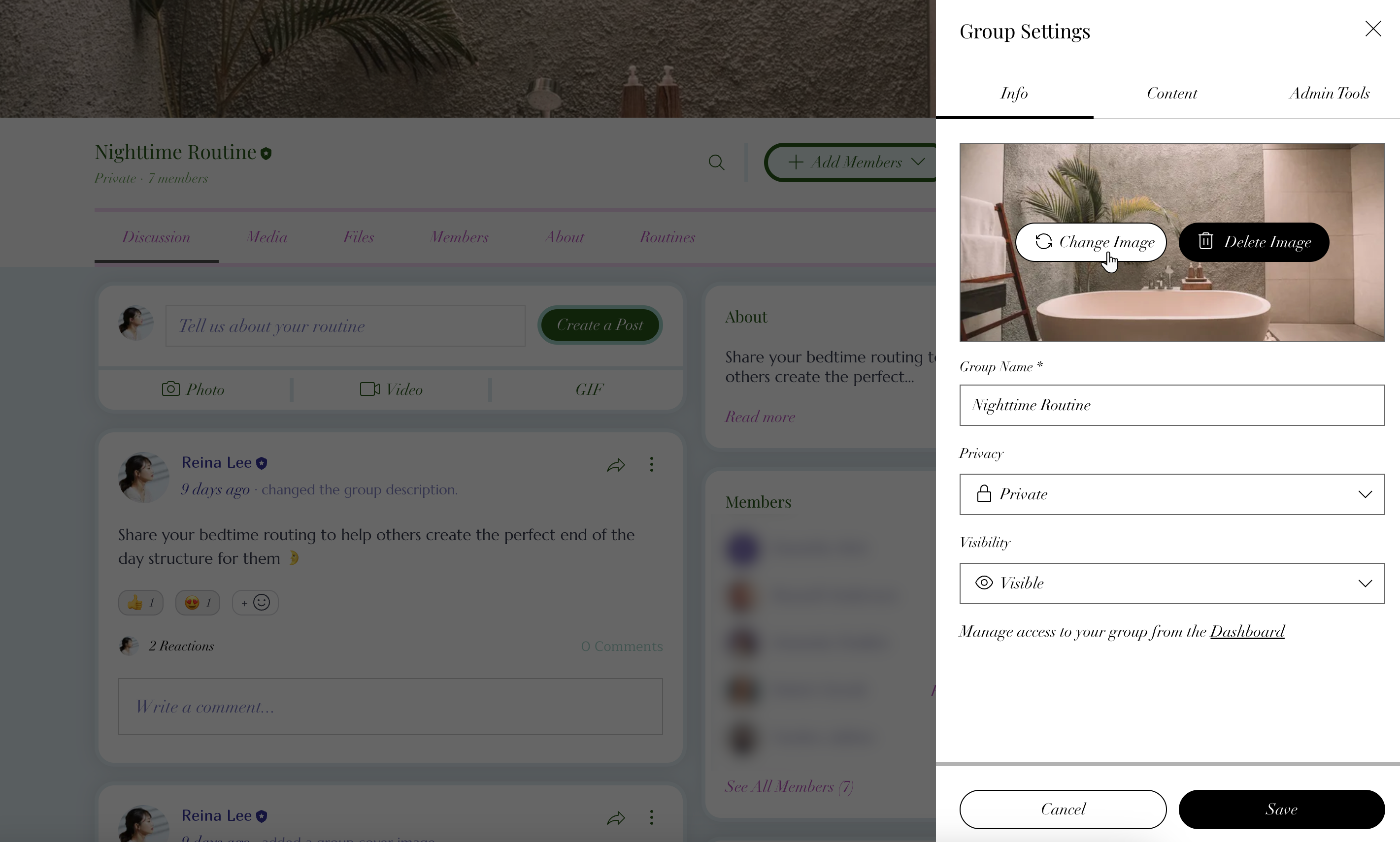
To change your group image:
- Go to your live site and log in.
- Go to the relevant group on your live site.
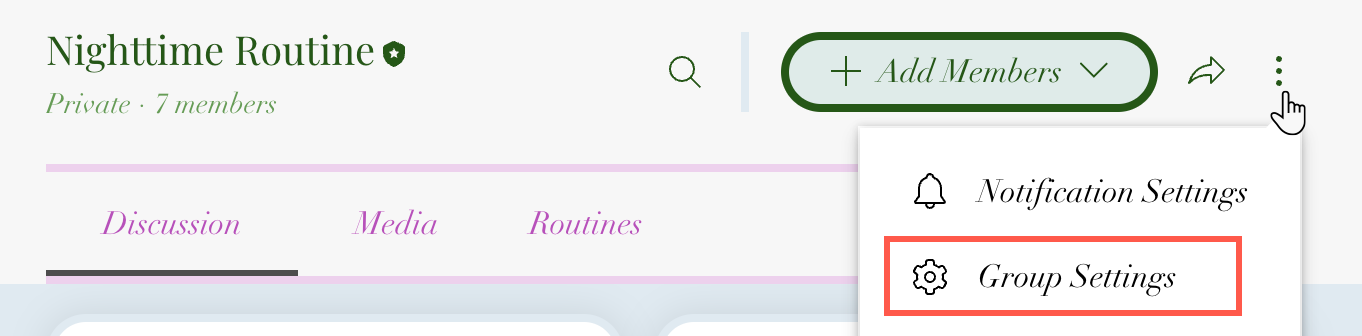
- Click the More Actions icon
 next to the group's name.
 - Click Group Settings.
- Hover on your cover image.
- Choose what you want to do next:
- Click Delete Image.
- Click Change Image and select a new image.
- Click Save.
Customizing your group tabs
From the Content tab in your group settings, you can control how tabs appear on your group page. Rename tabs to match your community, choose which tabs are visible, and reorder them so members can easily find the content that matters most.
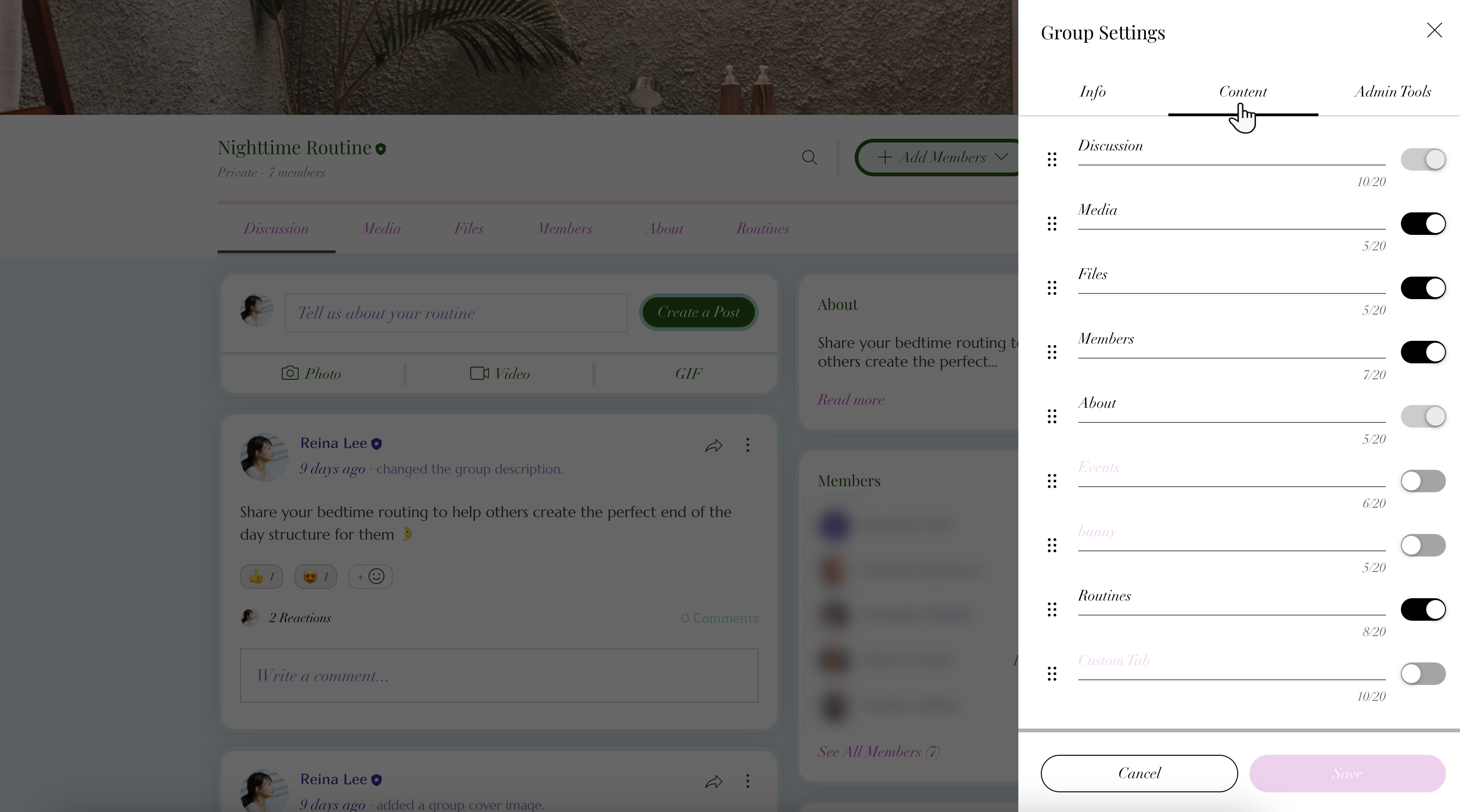
To customize your group tabs:
- Go to your live site and log in.
- Go to the relevant group on your live site.
- Click the More Actions icon next to the group's name.
- Click Group Settings.
- Select the Content section.
- Choose what you want to do next:
- Rename a tab: Click the relevant tab and enter a new name.
- Show or hide a tab: Click the toggle next to the relevant tab to show or hide it on your group page.
Note: You cannot hide the Discussion or About tabs. - Reorder tabs: Click and drag the Reorder icon
 on the tabs to reorder them.
- Click Save.
Tip:
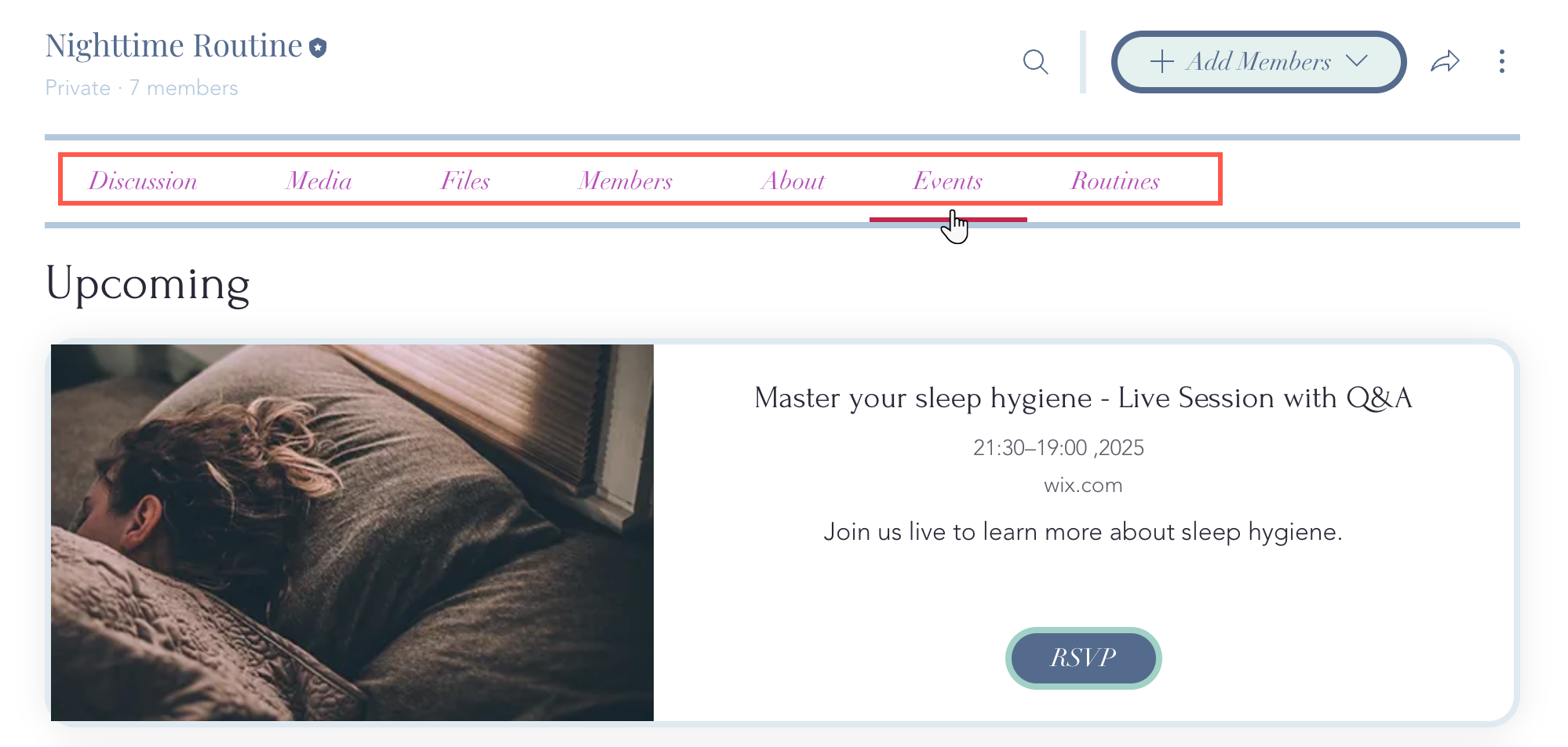
Your group’s tabs appear at the top of the group page. Some tabs always stay visible and cannot be hidden.