
Wix Forms: Using the Submissions Board to Visualize Form Responses
You can generate visuals from your form responses without leaving the submissions table. The Submissions board sits above your submissions table. Describe what you want to see, select which form fields to use, and AI generates a card showing your data as a chart, KPI numbers, a list, or another format.
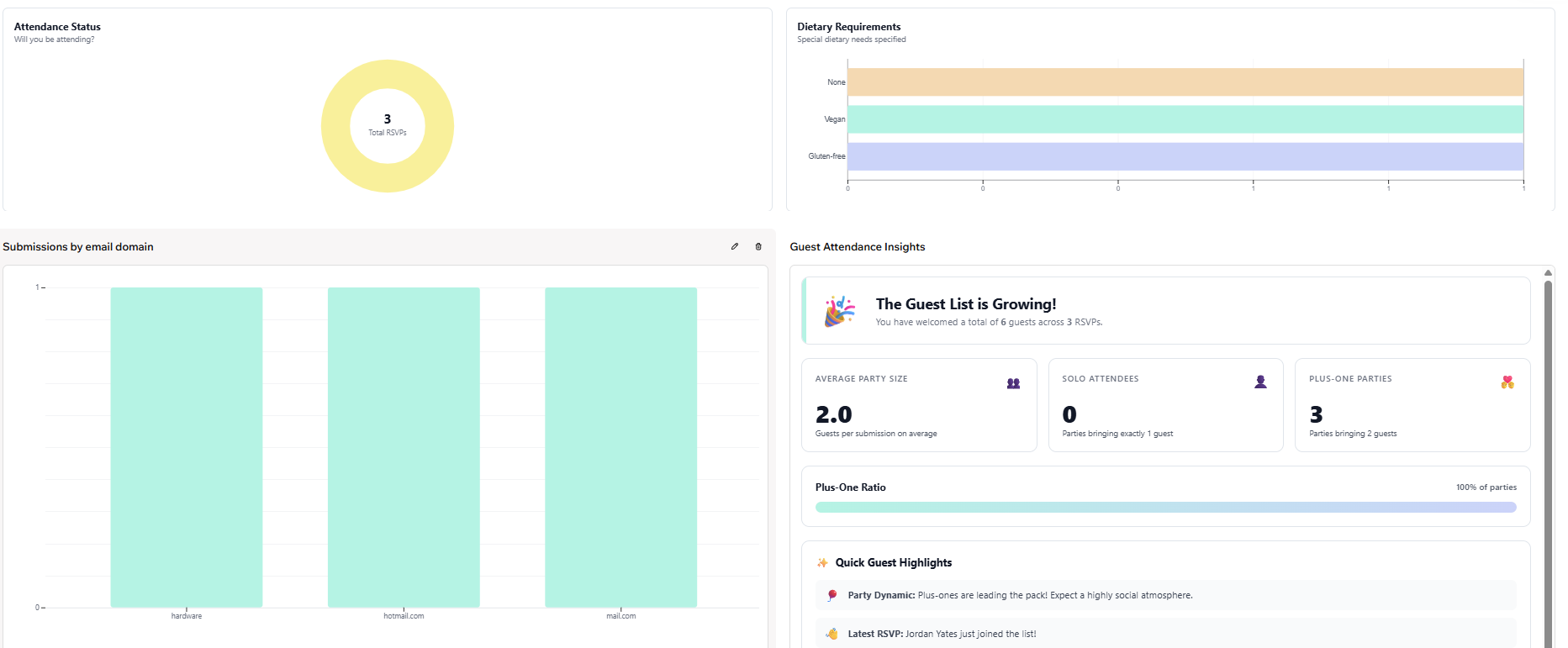
Cards are generated from the 100 most recent submissions in the Submissions tab. They don’t include submissions in Spam or Trash, and they don’t reflect any filters, search terms, or date ranges applied to your submissions table.
Adding a card to your Submissions board
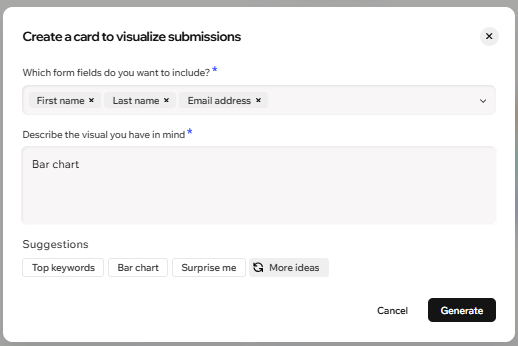
Each card is generated from a prompt you write and the form fields you select. While a card is generating, you can't add or edit other cards, so you work on one card at a time.
To add a card:
Go to Forms & Submissions in your site's dashboard.
Click Edit next to the relevant form.
Click the Submissions tab at the top of the form builder.
Click Add Card.
Click the Which form fields you want to include dropdown and select your chosen fields.
Enter a description of the visual you have in mind in the Describe the visual you have in mind field.
Click Generate.
You can collapse the entire Submissions board by clicking the collapse control above the submissions table.
Managing your cards
You can change a card's prompt and fields at any time, or remove a card you no longer need.
To edit a card:
Go to Forms & Submissions in your site's dashboard.
Click Edit next to the relevant form.
Click the Submissions tab at the top of the form builder.
Hover over the card you want to edit.
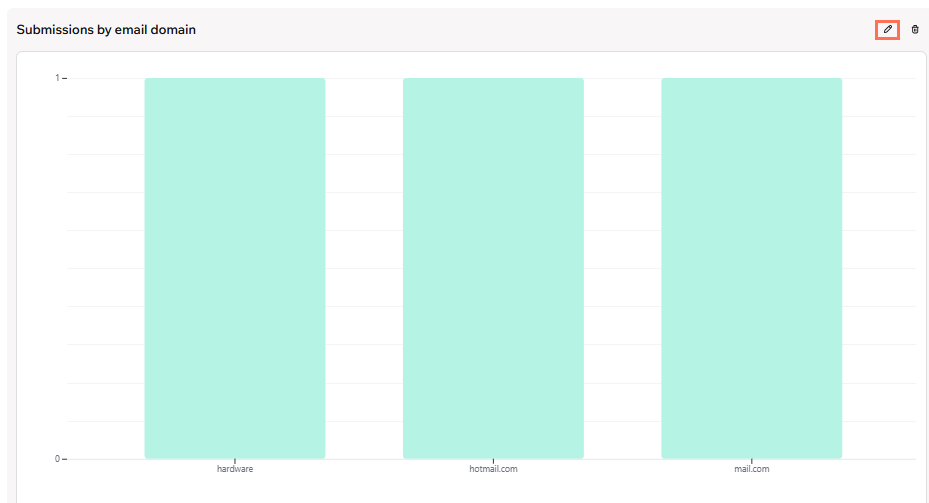
Click the Edit icon .
Enter your updates.
Click Generate.
 .
To delete a card:
Go to Forms & Submissions in your site's dashboard.
Click Edit next to the relevant form.
Click the Submissions tab at the top of the form builder.
Hover over the card you want to edit.
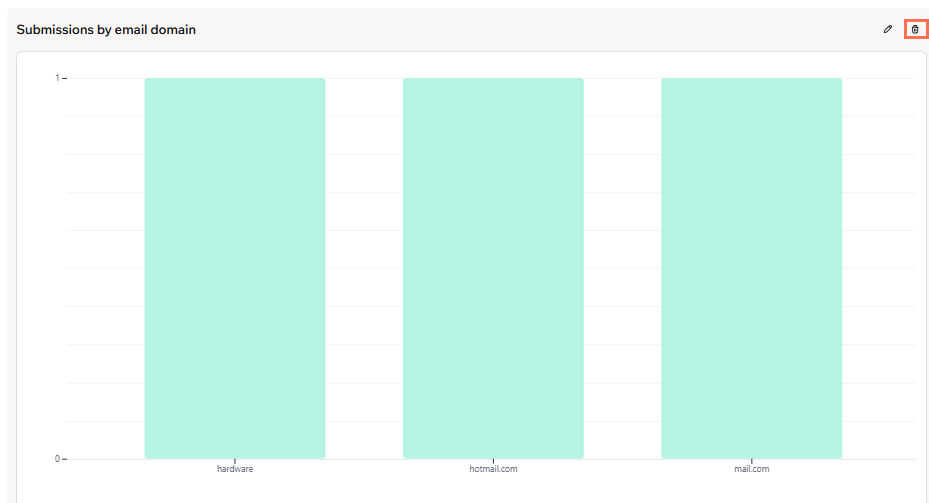
Click the Delete icon .
Click Delete.
Click Delete again to confirm.
 .
FAQs
Click a question below to learn more about the Submissions board.