


Using Wix Event Manager
In this article
- Step 1 | Scan your site and select events to track
- Step 2 | Add a Google Ads conversion to an event
- Step 3 | Apply your tracking
- FAQs
Wix Event Manager helps you track site activity and set up Google Ads conversions without writing custom code. It is designed for site owners who want a Wix-native way to detect trackable events, choose what to track, and apply conversion tracking across connected marketing tools.
You can use Event Manager if your site has a Premium plan, a connected personal domain, and either Google Tag, Google Tag Manager or Meta Pixel & CAPI connected through Marketing Integrations. For many businesses, this is the fastest way to start tracking custom events such as clicks, and easily configure Google Ads Conversions on your site.
Before you begin:
To use Event Manager, you need to:
Step 1 | Scan your site and select events to track
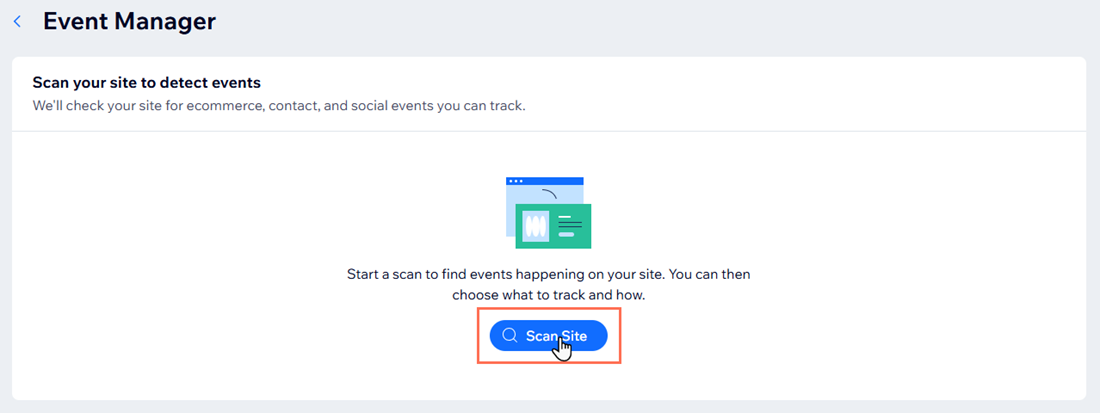
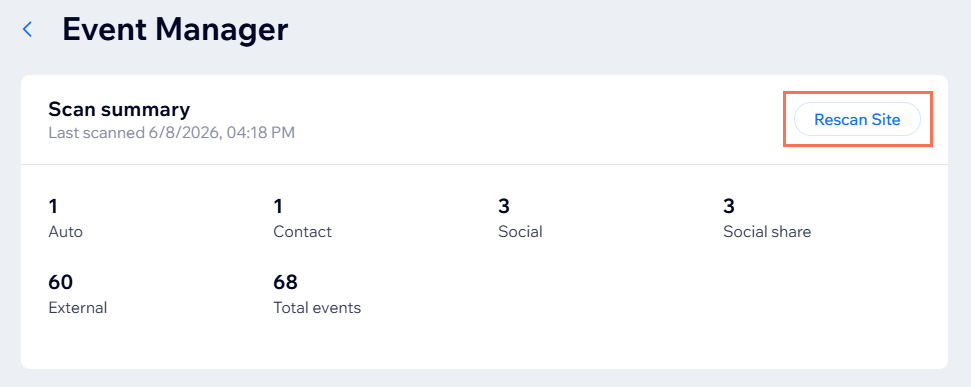
Allow Event Manager to scan your site to detect trackable events. After the scan, you can review the list and choose which events you want to keep tracked.
Important:
Some automatically detected events, such as page views, are always tracked and cannot be deselected.
To scan your site:
- Go to Marketing Integrations in your site's dashboard.
- Click Event Manager.
- Click Scan Site.
Tip:
Click
Rescan Site after you add new pages, apps, or actions to your site that you want to track. A new scan will detect newly available events.
Step 2 | Add a Google Ads conversion to an event
After you choose the events you want to track, you can add Google Ads conversions to specific events. This lets you decide which actions should count as conversions in Google Ads.
To add a Google Ads conversion to an event:
Click the event you want to add a conversion to.
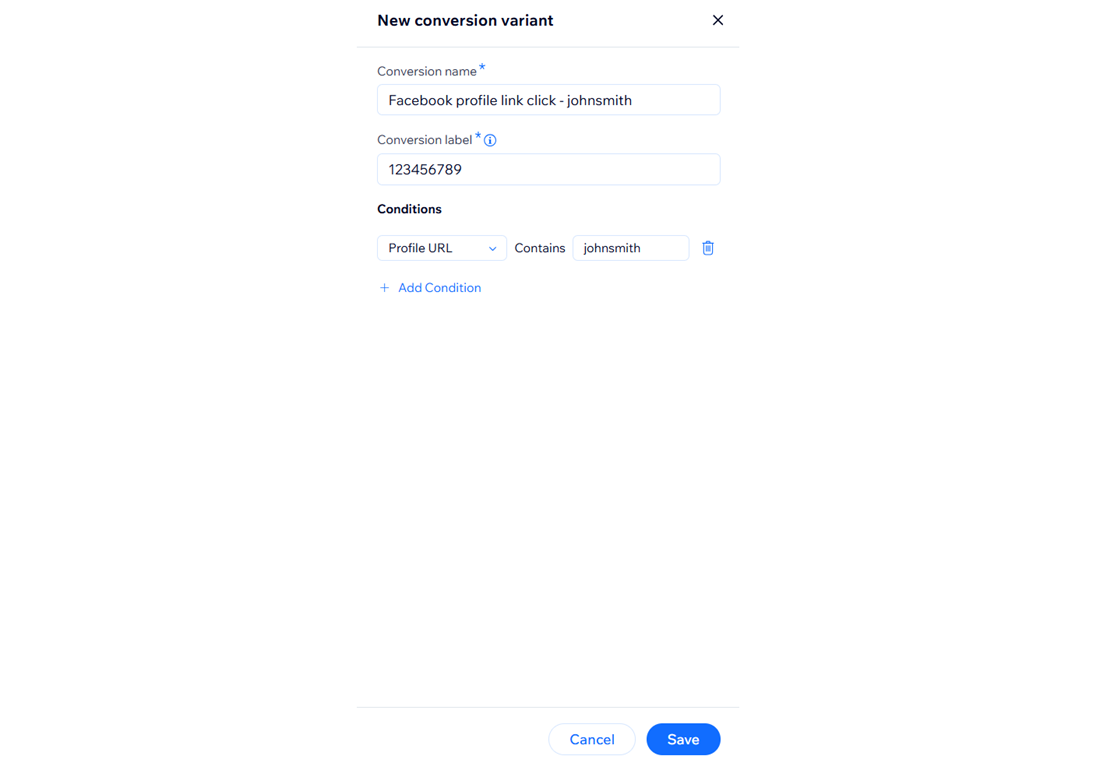
(Optional) Enter a new conversion name into the Conversion name field.
Paste your conversion label from Google Ads into the Conversion label field.
Tip: Learn how to find your conversion label in Google Ads.(Optional) Click Add Condition to adjust the values of the conversion:
Click the dropdown under Conditions and select from the available options.
Enter a value in the text field.
Tip: Learn more about setting up conversion value rules from Google.
Click Save.
Tip:

Variants within one conversion use AND logic, but you can add another conversion to the same event which implements OR logic.
Step 3 | Apply your tracking
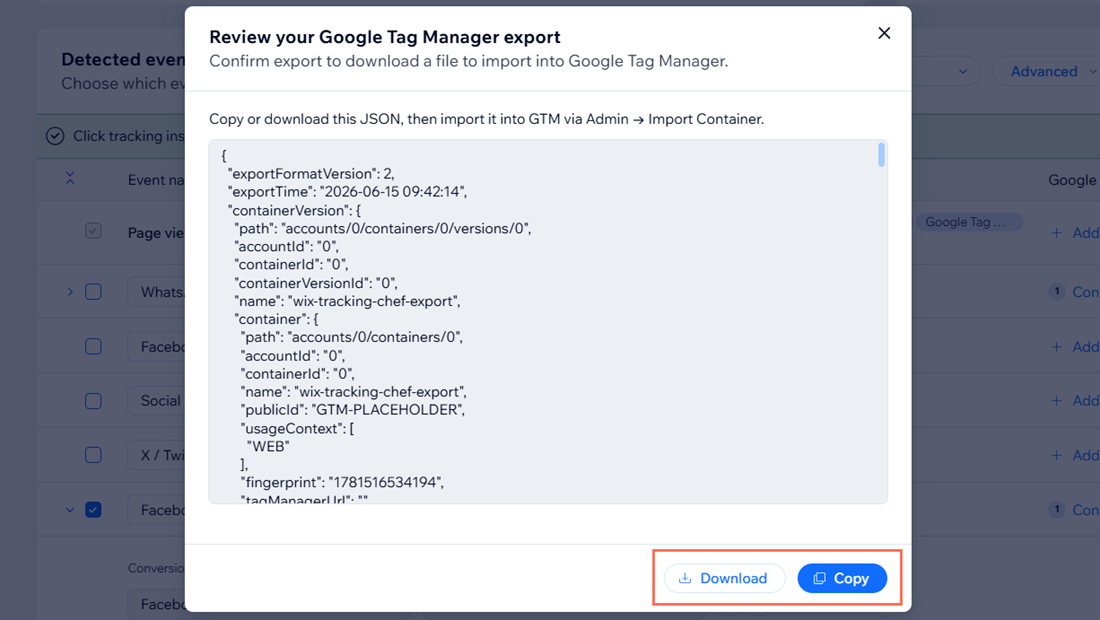
Once you finish selecting events and adding conversions, apply the tracking to your site. You can choose whether to track via Google Tag which applies the tracking directly to your site, or export a JSON file to Google Tag Manager.
Important:
Tracking the same conversion in Wix and Google Tag Manager at the same time can cause duplicates, so you must choose one path.
To apply your tracking:
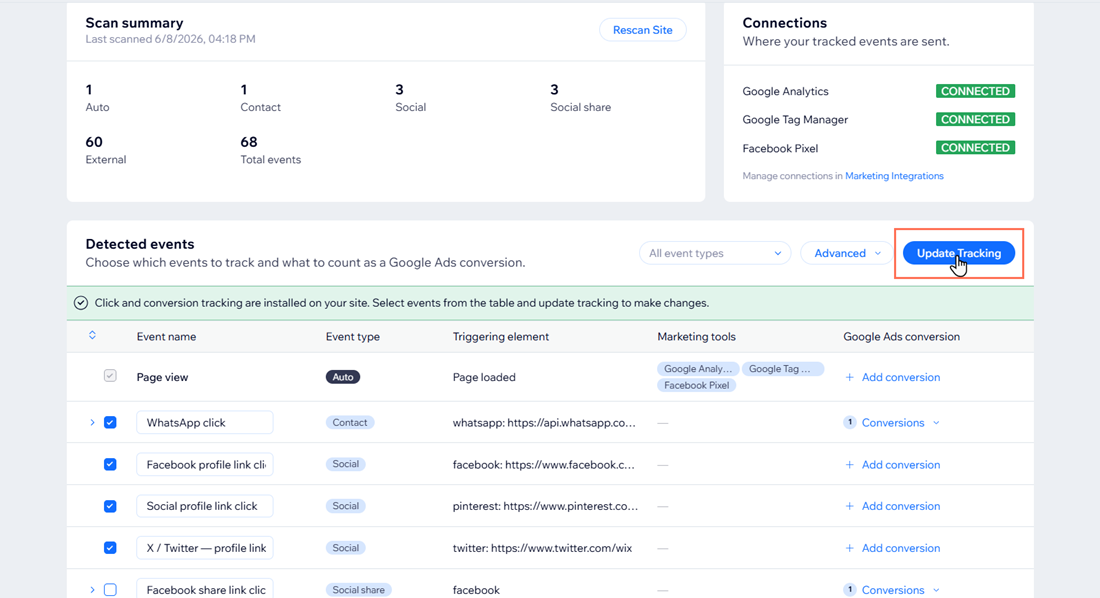
- Select the checkbox next to each event you want to track.
- Click Update Tracking.
- Choose a tracking platform:
Google Tag (Recommended)
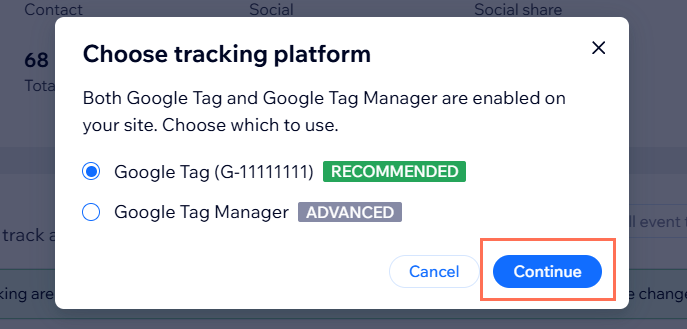
Google Tag Manager (Advanced)
FAQs
Click a question below to learn more about using Wix Event Manager.
Can I track conversions in Wix and Google Tag Manager at the same time?
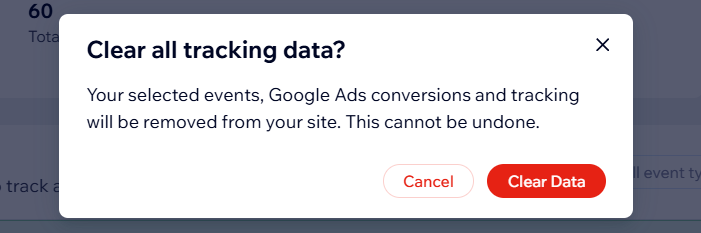
How do I clear my events table?
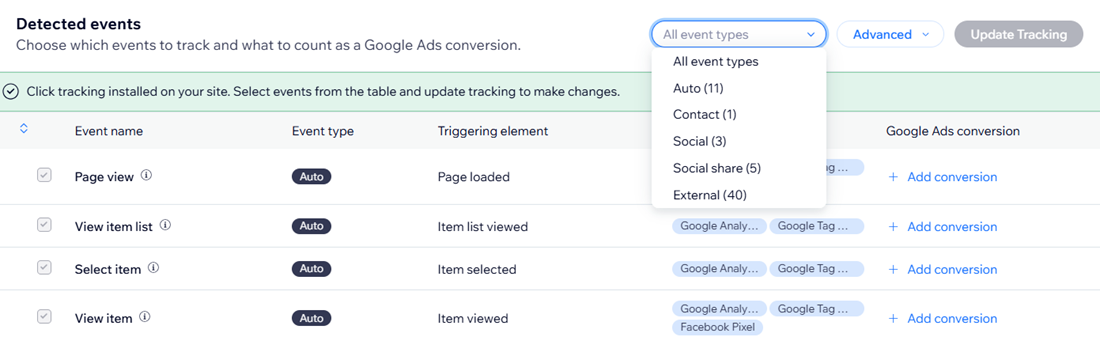
Can I filter my events table?
Why can't I deselect some events?
What’s the difference between Google Tag and Google Tag Manager in Event Manager?
Can I use Wix Event Manager for third-party widgets?
My event isn’t showing after I scan the site. What should I do?
