
Studio Two Editor: Working With Global Sections
This article refers to the new Studio Two Editor, released in November 2026. If you're unsure whether you’re using the Studio Editor or the Studio Two Editor, view more information here.
Want to show the same header, footer, or section on multiple pages of the site? Set it as global once, and every future edit applies everywhere the section appears. You can always manage the site’s global sections, add them to more pages, or detach one when a page needs its own version.
Setting a section as global
Set a section as global to reuse it across the site instead of rebuilding it on every page. Once it’s global, editing it in one place updates it everywhere it appears.
To set a section as global:
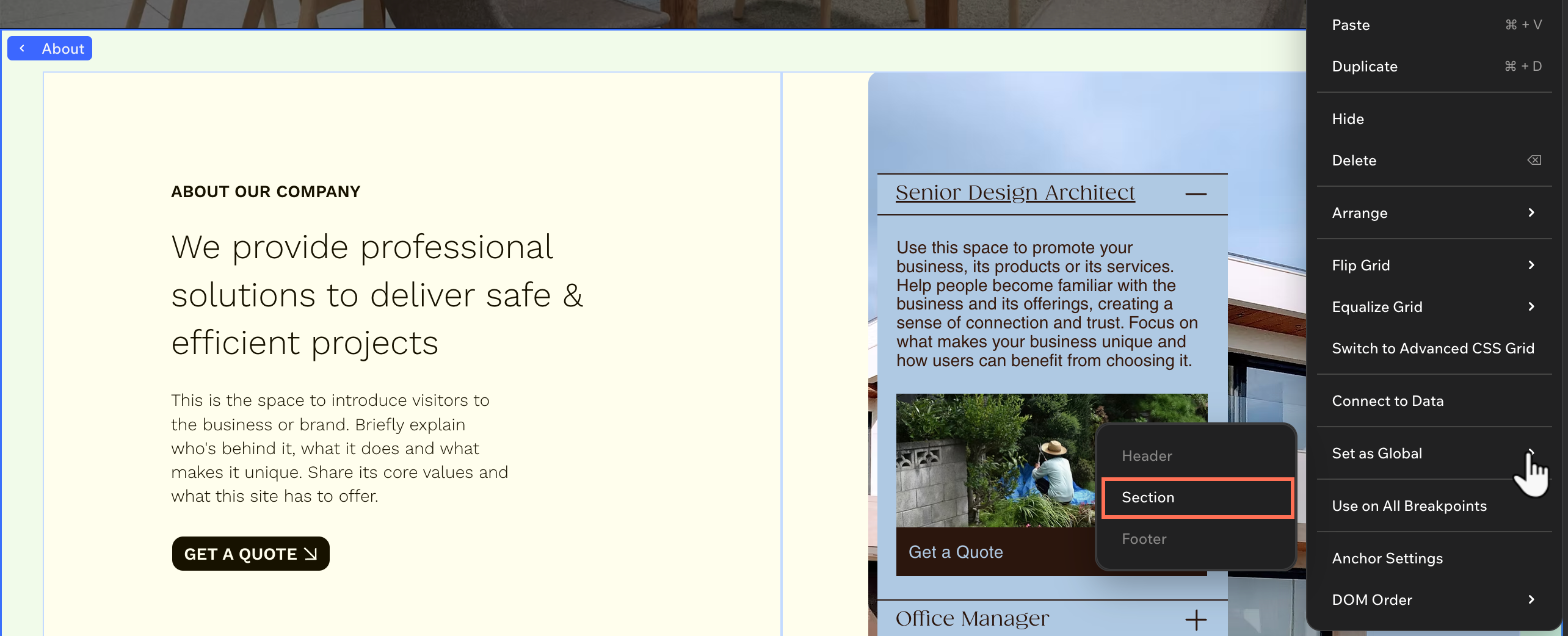
Right-click the section you want to make global.
Hover over Set as Global and select Header, Section or Footer.
Tip: The available options depend on the section's location on the page. For example, only the topmost section can be set as a global header, and only the bottommost section can be set as a global footer.(Optional) Add the global section to other site pages:
Right-click the global section.
Hover over Global Settings and select Add to More Pages.
Select the checkbox next to the relevant pages and click Apply.
Managing a global section
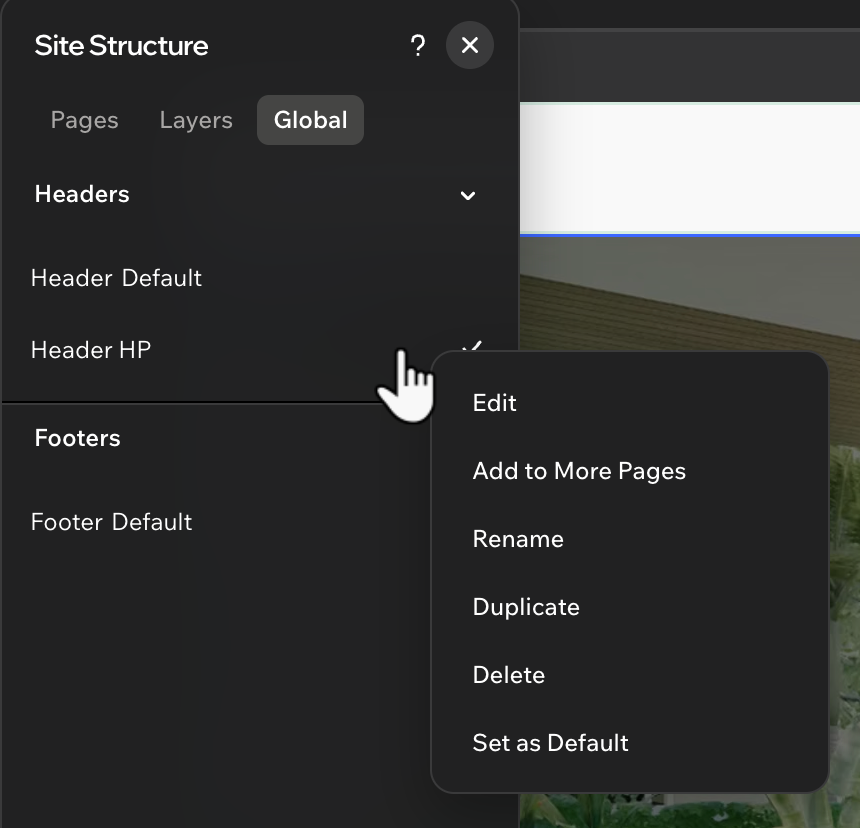
Manage all the site’s global sections from one place. As your site evolves, you can edit, rename, duplicate, add to more pages or delete a global section.
To manage a global section:
Hover the Site Structure icon
 at the bottom left and select Global.
Hover over a global section and click the More Actions icon
 .
Choose what you want to do next:
Edit: Edit the content, design and layout of the global section.
Note: The changes you make apply everywhere this global section appears.Add to More Pages: Show this global section on additional site pages.
Rename: Change the name of the global section.
Duplicate: Create a copy of the global section. This is useful when you want to replicate an existing design.
Delete: Remove a global section you no longer need.
Note: This deletes the section from the site.Set as Default: Set a global header or footer to be the default. This means it will appear at the top of your global headers / footers list.
Adding a global section to more pages
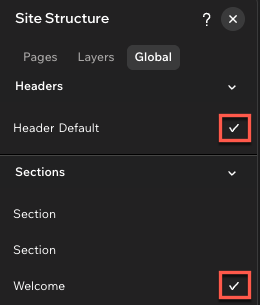
Decide which pages should show the global section you're designing. You can always add the section to more pages later on, or remove it from pages where it's no longer relevant.
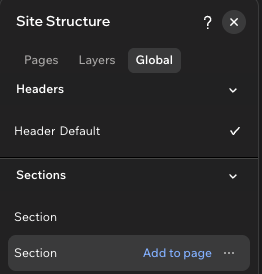
To show a global section on more pages:
Hover the Site Structure icon
at the bottom left and select Global.Choose where to add the global section:

Detaching a section from the global version
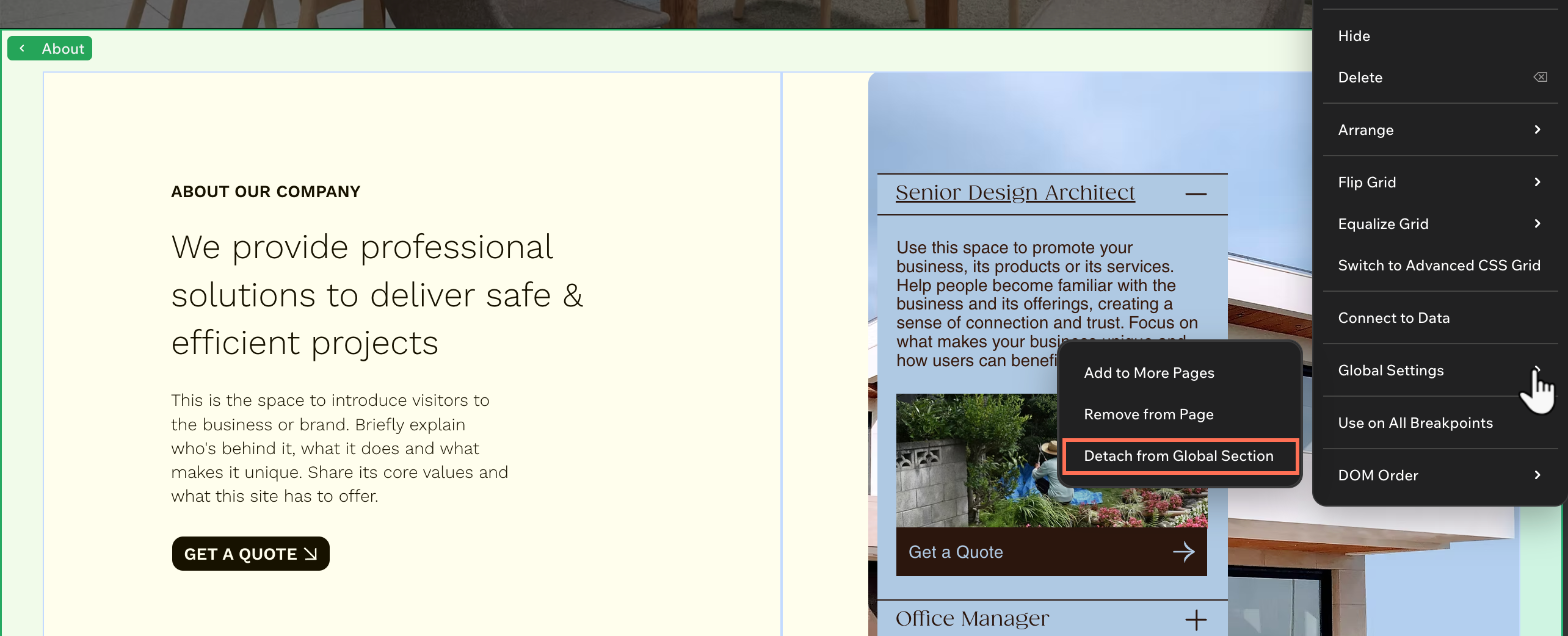
Detach a global section on a page when that page needs its own version. Changes to a global section apply everywhere it appears, so detaching lets you customize one page without affecting the rest.
The global section itself stays as it is, and the detached copy turns into a regular section on that page.
To detach a section from global:
Right-click the global section on the relevant page.
Hover over Global Settings and select Detach from Global Section.
FAQs
Click a question below to learn more.
 or Move section down
 icon next to the canvas.
 at the top right of the editor.
 .