Studio Two Editor: Using Ani-Mate on Sections
Ani-Mate is an all new AI tool that gives you the ability to create complex, layered effects on site sections—no coding required.
With Ani-Mate, you have full choice over the process. Design an effect from scratch, or use and customize a motion reference. You can also adjust the animation after applying it; ensuring a truly tailored effect on the site.
Choosing and applying an effect
Get started by applying an animation effect. Based on the section's content, Ani-Mate provides a variety of motion references that you can choose from. However, you can also create a completely custom effect from the chat.
Applying an effect with Ani-Mate removes any other animation you have previously added to the section (including its attached elements).
To apply an effect:
Select the relevant section on the canvas.
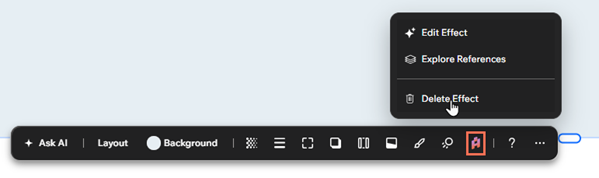
Click the Ani-Mate icon on the action bar.
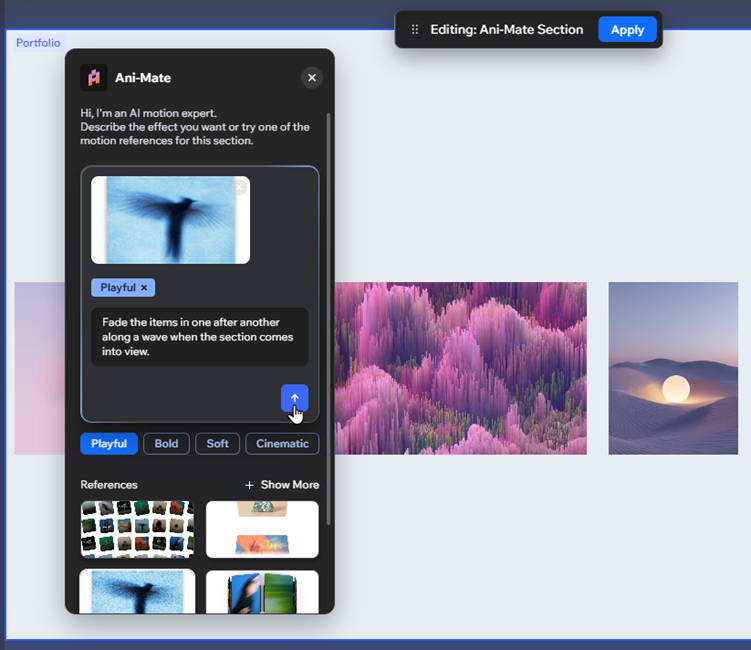
Choose how you want to apply an effect:
 on the action bar.
 .
Adjusting an existing effect
Whether you used a reference or created a custom effect, you can adjust the animation to look exactly the way you want.
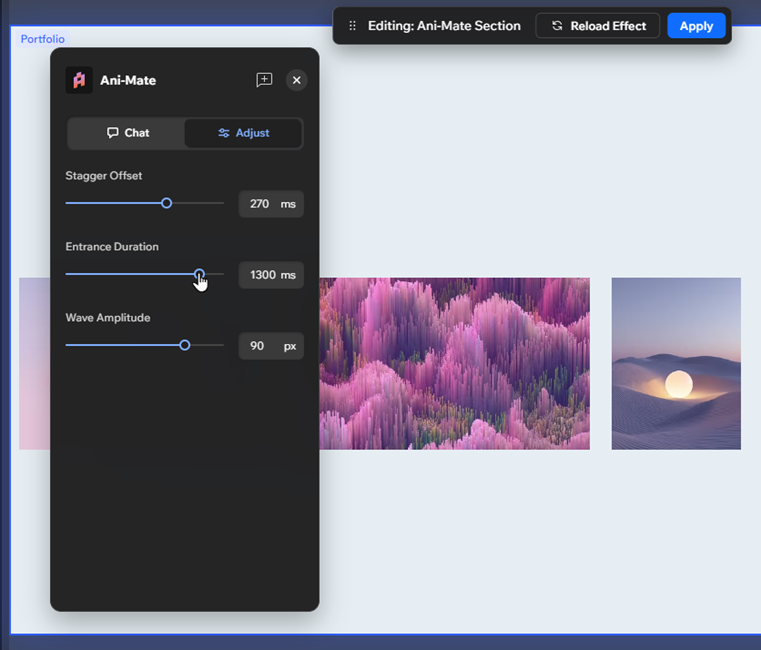
Manual adjustment options are tailored the effect, so you only see what you need to. Alternatively, you can always ask Ani-Mate to adjust the effect for you.
To adjust an effect:
Select the relevant section on the canvas.
Click the Ani-Mate icon on the top-left of the section.
(In the Ani-Mate panel) Choose how you want to adjust the effect:
Make manual adjustments:
Click the Adjustments tab.
Use the options to customize the effect.
Ask Ani-Mate:
Click the Chat tab.
Enter the changes you want into the field.
Click the Send icon .
(Optional) Click Reload Effect in the floating toolbar to preview your changes.
Click Apply in the floating toolbar to save your changes.
FAQs
Select a question to learn more about using Ani-Mate.
 on the top-left of the section.