


Studio Editor: Creating a Studio Version of a Wix Editor Site
In this article
- Creating a version on Wix Studio
- Setting up apps on your Studio branch
- Designing and building your Studio branch
- Managing site branches
- Publishing the Studio Editor branch
- Frequently asked questions (FAQs)
Built a site in the Wix Editor? Transferring it to Wix Studio allows you to rebuild the site with advanced design options - all while keeping the site's dashboard and data.
Moving from the Wix Editor to the Wix Studio Editor creates a new version (branch) of the site that you can edit separately. This doesn't unpublish or affect the original site, so you and your clients won't have to worry about downtime.
Learn more about Wix Studio branches.
Important:
If you choose to create a Wix Studio branch, there are some things to keep in mind:
- It's only possible to create a Wix Studio version of a Wix Editor site with a Premium plan. If you choose to publish the Studio version of the site, you will need to upgrade to a Wix Studio plan.
- If you publish the Studio branch, it is not possible to go back and republish the original Wix Editor branch.
Creating a version on Wix Studio
To get started, create a Wix Studio branch of an existing Wix Editor site. Branches share most data and apps, so you don't need to worry about losing any of the site's information.
Good to know:
The design of the site is not carried over to the Wix Studio branch. You can build the new version in the Studio Editor to create the design you want.
To create and edit the Studio version of the site:
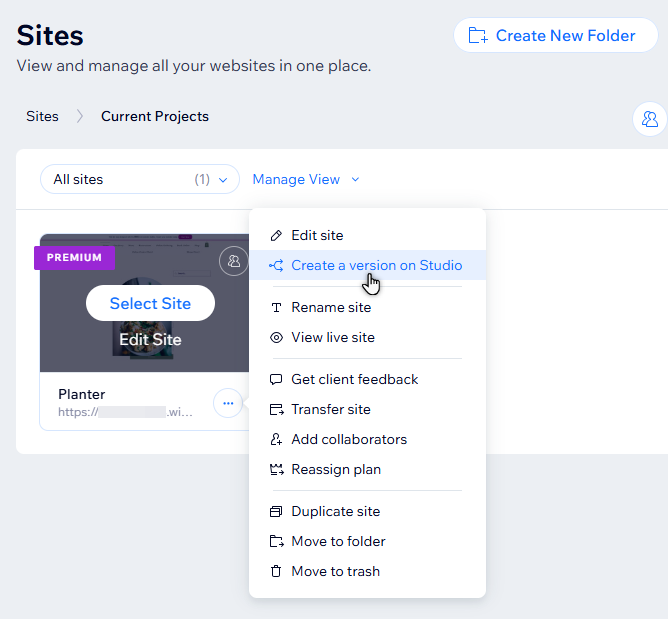
- Go to Sites in your Wix account.
- Click the Site Actions icon
 next to the relevant Wix Editor site.
 - Select Create a version on Studio.
- Click Create Studio Version.
Setting up apps on your Studio branch
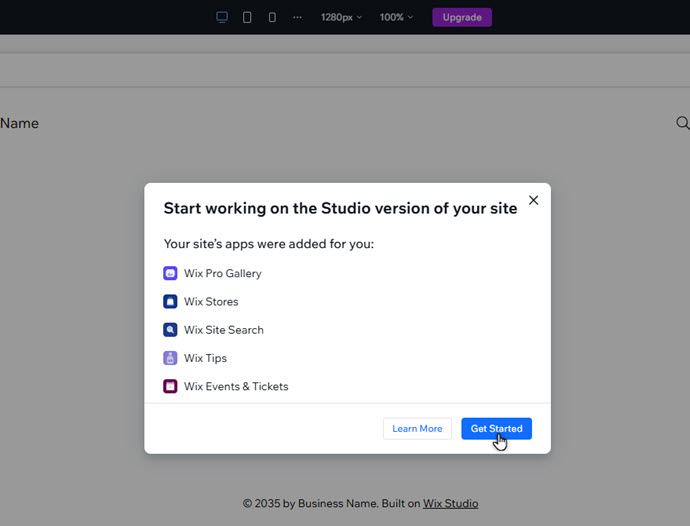
After creating a Studio branch, access the editor to set up the relevant apps. When you first open the Studio Editor, apps you previously added in the Wix Editor are automatically installed to your Studio branch.
Some apps may not be carried over due to a technical issue on our end. You can always manually add them from the
My Business panel if that's the case.
Important:
Some apps are
unsupported in Studio, and therefore cannot be added to your Studio branch.
To set up apps on a Studio branch:
- Go to your site's dashboard.
- Click Site & Mobile App in the panel on the left.
- (If needed) Click Website under Website Overview in the left panel.
- Click Edit next to the Studio branch.
Tip: The first branch you create is titled: Wix studio version - Allow apps to finish installing and click Get Started.
- (If some apps were not installed) Manually add the rest of your apps:
- Click My Business
 on the left side of your editor.
 - Click the tab of the relevant app.
- Click Add to Branch.
- Click My Business
Want to know more?
Read our
Studio Editor overview to learn more about responsive design.
Designing and building your Studio branch
Open the branch in the Studio Editor to begin creating its design and content. The Studio Editor has a variety of advanced options and elements, so you can build the best possible site for your clients and their visitors.
To begin designing a Studio branch:
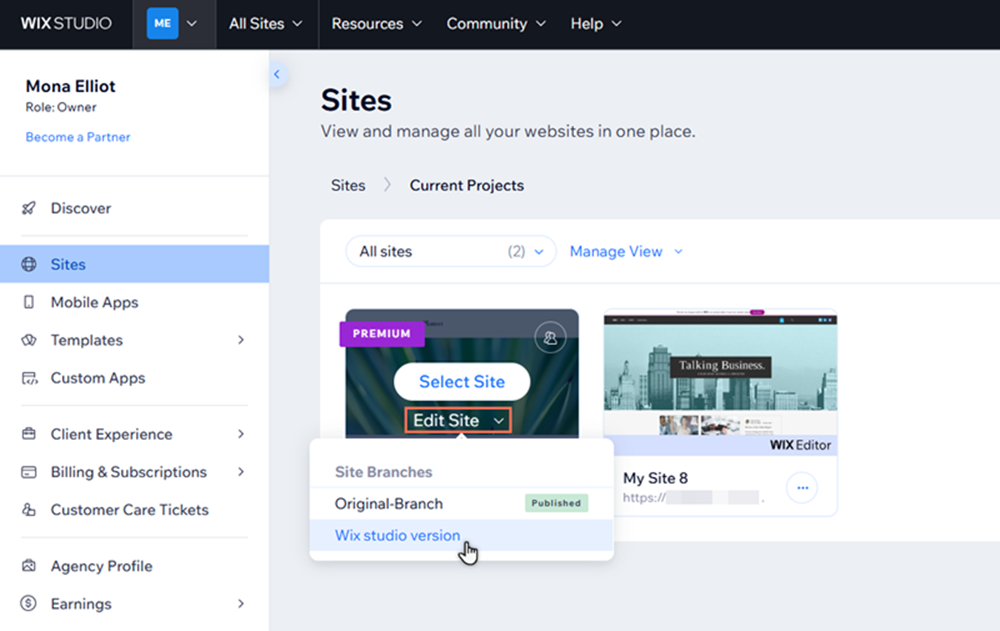
- Go to Sites in your Wix Studio workspace.
- Hover over the relevant site and click the Edit Site dropdown.
- Click the Studio branch.
Tip: The first branch you create is titled: Wix studio version - Begin working on the site. Here are some ways to get started:
- Create and manage pages to build the branch the way you want.
- Add sections and cells to structure your page content.
- Use the Site Styles panel to create a consistent, custom design.
Managing site branches
You can manage site branches from your editor, no matter which version you're working on. Rename branches so they're easy to identify, and delete branches you no longer need.
To manage site branches:
- Go to Sites in your Wix Studio workspace.
- Hover over the relevant site and click the Edit Site dropdown.
- Click the Studio branch.
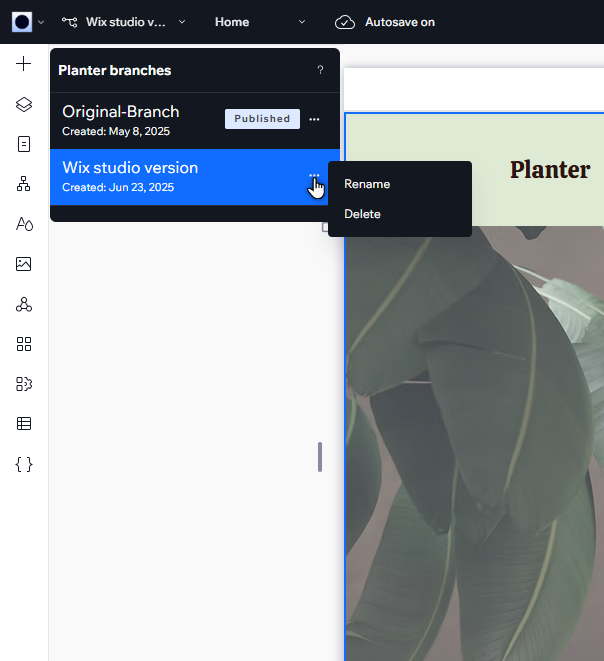
Tip: The first branch you create is titled: Wix studio version - Click the Version icon
 at the top.
 - Click the More Actions icon
 next to the relevant branch.
 - Select an option to manage your branches:
- Rename: Choose a name for the branch that makes it easy to identify:
- Type the new name into the field.
- Press Enter on your keyboard.
- Delete: Delete a branch you no longer need:
- Click Go to Dashboard.
- Click the Delete Branch icon
 next to the relevant branch.
 - Click Delete Branch.
- Rename: Choose a name for the branch that makes it easy to identify:
Notes:
- It is not possible to delete the site branch that is currently published.
- If you delete the site's only Studio branch, the site is reverted back to the Wix Editor experience.
Publishing the Studio Editor branch
Ready to complete the move to Wix Studio? Publish the Studio branch
from your editor. This automatically unpublishes the live Wix Editor branch, providing an easy transition for you and your clients.
Before you publish:
- We recommend checking that the design and content are ready, and that all of the relevant apps are installed.
- Publishing a new branch can affect the site's SEO. Make sure to optimize the branch pages and content to minimize the impact.
- Once you publish the Studio branch, it is not possible to go back and republish the original Wix Editor branch.
Reminder:
In order to publish the Studio version of the site, the site needs a
Wix Studio plan. If the site doesn't have a Studio plan, you can use the steps below to upgrade it.
To publish the Studio branch:
- Go to Sites in your Wix Studio workspace.
- Hover over the relevant site and click the Edit Site dropdown.
- Click the Studio branch.
Tip: The first branch you create is titled: Wix studio version - Click Publish at the top right of your editor.
- Follow the steps depending on the site's plan:
- Site has a Studio plan:
- Click Publish.
- Click Done.
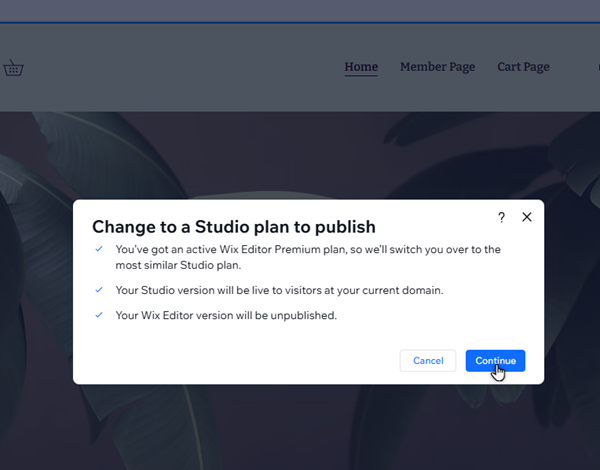
- Site does not have a Studio plan:
- Click Continue.
- Click Change Plan & Publish Site.
- Click Done.
- Site has a Studio plan:
Note:
Site plans can only be upgraded by site owners, co-owners, and contributors with the relevant billing permissions.
Learn more about upgrading site plans.
Frequently asked questions (FAQs)
Select a question to learn more about site branches.
What data is copied?
Does publishing the Studio branch impact the site's SEO?
Can I delete the Wix Editor branch?
Can site contributors publish the Studio version of the site?
Why can't I / my client access or create Studio versions of a site?
