Getting started with WixBuild your website and business with Wix. Try using our AI tools to create your website, customize templates, or hire professionals to build or enhance your online presence.
Creating a websiteRead how to use the Wix Editor and manage content on your site. Discover how to protect your visitors' privacy and make your site accessible.
Account & billingReview your account settings, manage your subscriptions and plans and understand your invoices.
Using the Wix mobile appsUse our mobile apps to run your business efficiently on the go and set up a dedicated app for your site members to stay in touch.
Connecting a domainFollow our step-by step guides to learn how to purchase, connect or transfer a domain for your site, and find out how to keep your site’s data secure.
Managing your businessGet tools to grow your business and web presence. Find the right tools for your specific needs, set up online payments and keep track of your site's analytics.
Promoting your siteLearn to make your site more visible promoting it on search engines, sending emails and running paid ads. Improve your online presence with practical tips.
Studio, Partners & EnterpriseGet the most out of your Studio or Enterprise account with advanced features that'll help you work more efficiently.
Need more help?Find solutions for site performance and technical issues, learn about issues we’re working to fix or contact us for help.
Wix LearnImprove your skills with our courses and tutorials.
Wix BlogGet tips for web design, marketing and more.
SEO Learning HubLearn to increase organic site traffic from search engines.
The Pricing Plans app offers several different types of plans and packages. These include: One-time payment plans,
Free plans, and
recurring payment plans.
One-time payment plans are a great way to give your regular clients access to exclusive premium services and content, or hidden site pages.
One-time plans are a great way to reward loyal clients as they use more of your services.
Connect premium services or exclusive content to your plans to encourage repeat engagement.
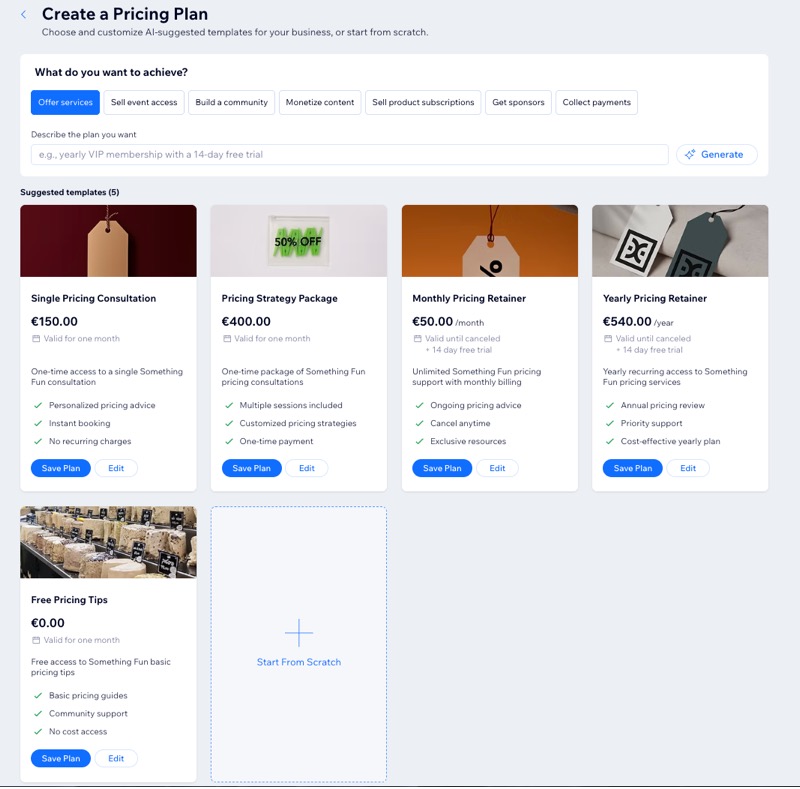
Choose and customize AI-suggested templates for your business, or start from scratch to build your own.
Read an example of how one business used Pricing Plans
Mark runs a fitness center. Using Wix Bookings, he's created a variety of weekly classes and coaching sessions. He shares content with his followers through his popular fitness blog and hosts lively discussions on his site's forum. Lately, Mark added a new page to his site where he offers healthy meal plans. He's made this site page and his blog into Members Only pages, to limit access to paying members.
Now Mark wants to create his pricing plans. He decides to offer clients the following:
Silver Membership: A monthly gym membership that offers unlimited access to all classes (Wix Bookings services).
Gold Membership: A monthly gym membership that offers unlimited access to all classes + access to his blog, his meal plan page, and a private forum category reserved for paying members.
6-Class Package: Access to 6 personal training sessions for a reduced price.
To encourage potential clients to try his gym, Mark also created a week-long free
trial plan, so clients can try before they buy.
Create with AI: Enter the relevant details under Describe the plan you want and click Generate. Then, click Edit to make changes, or click Save Plan if you do not need to make changes.
Start with a template: Select a category to filter the available templates. Then, click Edit to make changes, or click Save Plan if you do not need to make changes.
Start fresh: Click + Start From Scratch.
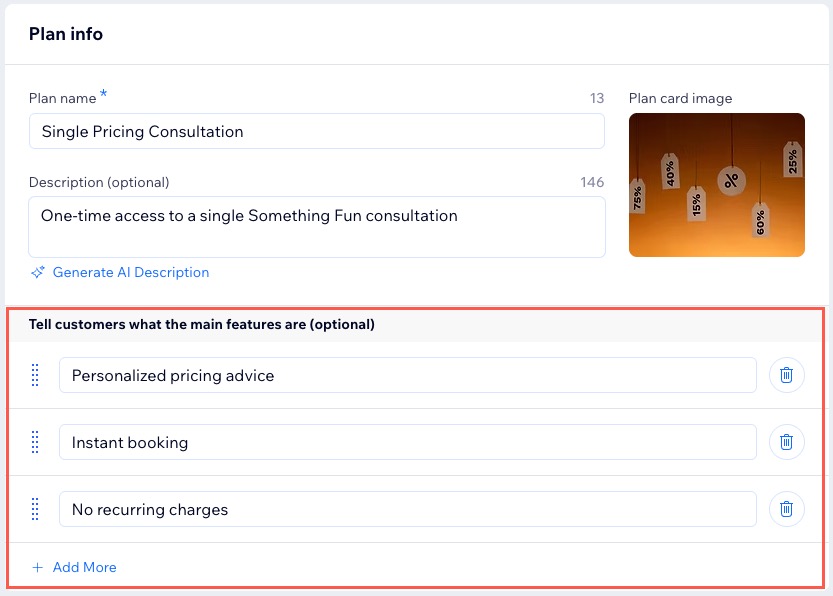
If you chose to edit the plan or start from scratch, review the plan details in the Plan info section and make any necessary changes.
Scroll down to Tell customers what the main features are (optional). Note: What you enter here displays the benefits. It does not connect Wix services or content to the plan.
Enter the relevant features for your plan.
(Optional) Click + Add More to include additional services or benefits.
Step 3 | Set the price and duration of your plan
Set how much you charge for your plan and how long it lasts. Consider offering a price break to encourage clients to commit to a one-time payment.
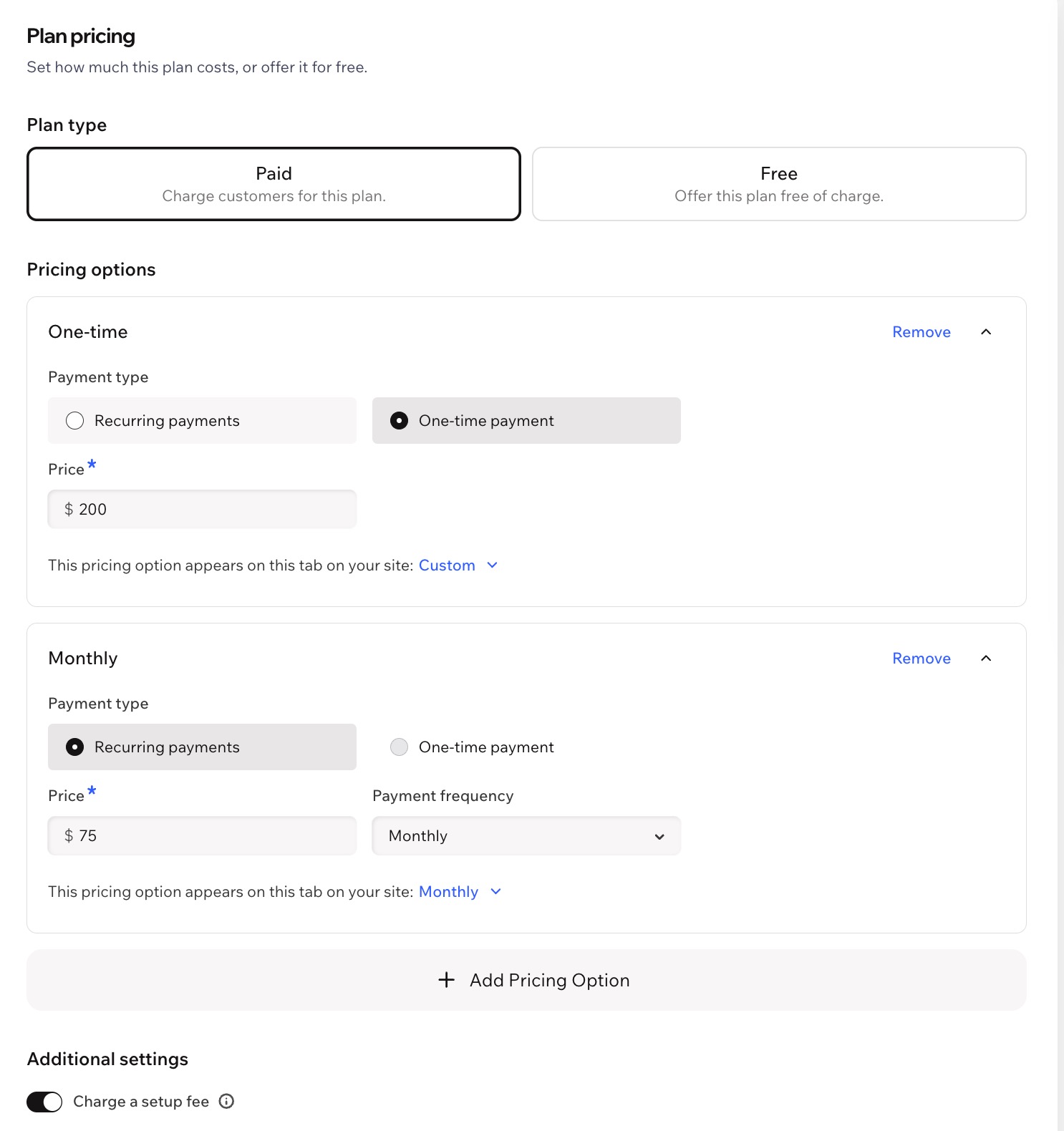
You can also offer the plan at more than one price by adding pricing options, such as a one-time payment alongside monthly or yearly options.
To set the price and duration of your plan:
Select Paid under Plan type.
Select One-time payment under Pricing options.
Enter the Price.
(Optional) Click + Add Pricing Option again to add more options.
Select a new Payment type (e.g. Recurring payments). Note: Each plan can have one one-time pricing option.
Enter the Price.
Click the Payment frequency drop-down and select how often customers pay (Weekly, Monthly, Yearly or Custom).
(If you selected Custom) Enter how often the payment repeats (e.g. every 3 months).
Next to This pricing option appears on this tab on your site, select the tab customers click to see this option.
(Optional) Click + Manage Tabs tocreate or rename the tabs customers use to switch between pricing options.
Next to This pricing option appears on this tab on your site, select the tab customers click to see this option.
Repeat steps 2-5 to set up the new option.
(Optional) Charge a setup fee:
Enable the Charge a setupfee toggle.
Enter the amount under One-time setup fee.
Enter the name for the fee under Setup fee name.
(Optional) Click the Enable a free trial toggle to add a free trial to the plan and set its length. Note: Customers who choose the one-time payment option won't get the free trial.
Click the Package is valid for dropdown under Plan duration and select select the duration or enter a custom duration. Note: To set a custom plan duration, all pricing options must use the same time unit (e.g. months).
Step 4 | (Optional) Add a custom pricing rule
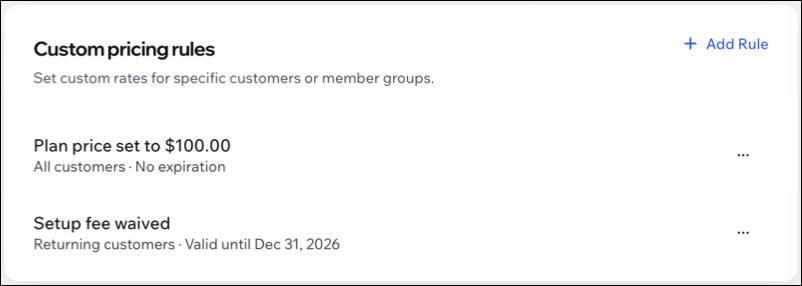
With custom pricing rules, you can give each customer the price that fits their circumstance. Apply a discount or a special rate to all customers, returning customers, or specific site members for a set period, or with no end date.
To add a rule:
Click + Add Rule.
Choose who the rule applies to and when it applies:
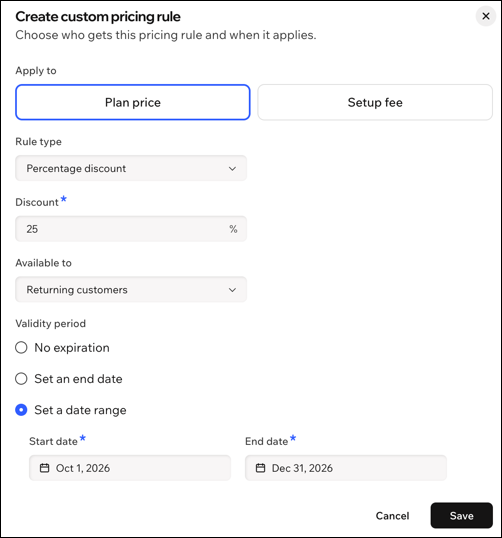
Plan price
Select Plan Price under Apply to.
Click the Rule type dropdown and select the relevant option:
Fixed price: Enter the New Price.
Percentage discount: Enter the Discount.
Click the Available to dropdownand select the relevant option (All customers, Returning customers, Specific site members).
(If you select 'Specific site members') Click the Choose members dropdown and select the relevant members. Tip: You can select up to 50 members.
Select the Validity period:
No expiration: The rule remains active indefinitely.
Set an end date: Select the date when the rule expires.
Set a date range: Select the start and end dates for the rule.
Click Save.
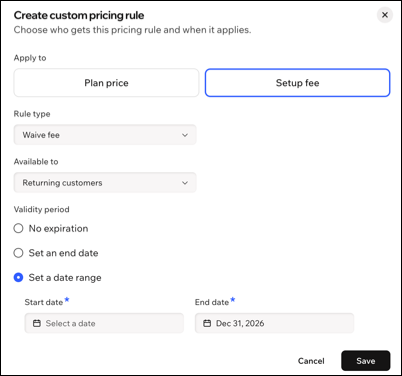
Setup fee
Note: This option is available for plans with a setup fee.
Select Setup fee under Apply to.
Click the Rule type dropdown and select the relevant option:
Fixed fee: Enter the New fee.
Waive fee: The setup fee is waived.
Click the Available to dropdownand select the relevant option (All customers, Returning customers, Specific site members).
(If you select 'Specific site members') Click the Choose members dropdown and select the relevant members. Tip: You can select up to 50 members.
Select the Validity period:
No expiration: The rule remains active indefinitely.
Set an end date: Select the date when the rule expires.
Set a date range: Select the start and end dates for the rule.
Click Save.
Step 5 | Set your plan start date
Decide when your pricing plan starts by setting a specific date or let customers choose before they check out.
To set your plan start date:
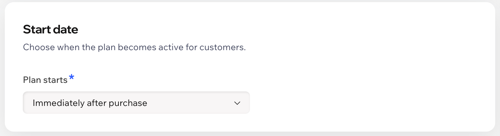
Choose when you want the plan to start:
Immediately after purchase
Click the Plan starts dropdown and select Immediately after purchase.
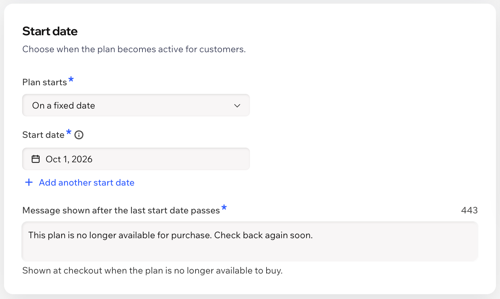
On a fixed date
Click the Plan starts dropdown and select On a fixed date.
Select the relevant Start date.
(Optional) Click +Add another start date.
(Optional) Enter a checkout message in Message shown after the last start date passes.
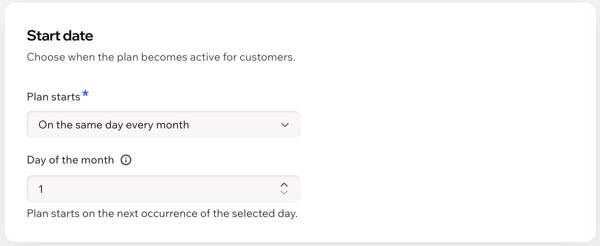
On the same day every month
Click the Plan starts dropdown and select On the same day every month.
Enter the Day of the month when the plan should start.
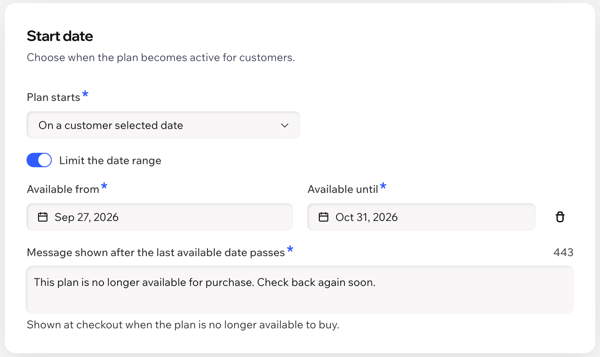
On a customer selected date
Click the Plan starts dropdown and select On a customer selected date.
(Optional) Enable the Limit the date range toggle:
Under Available from, select the earliest date customers can choose.
(Optional) Click + Set last available date and select the last date customers can choose.
(If you set a last available date) Enter a checkout message in Message shown after the last start date passes.
Step 6 | Adjust your plan's settings
After entering your plan's details, pricing and benefits, adjust its settings. Make your plan more flexible by letting clients choose their start date or cancel the plan if needed. Create a policy to explain how your plan works and how your clients can get the most value from it.
To adjust your plan's settings:
Scroll down to Settings.
Choose how you want to adjust your plan's settings:
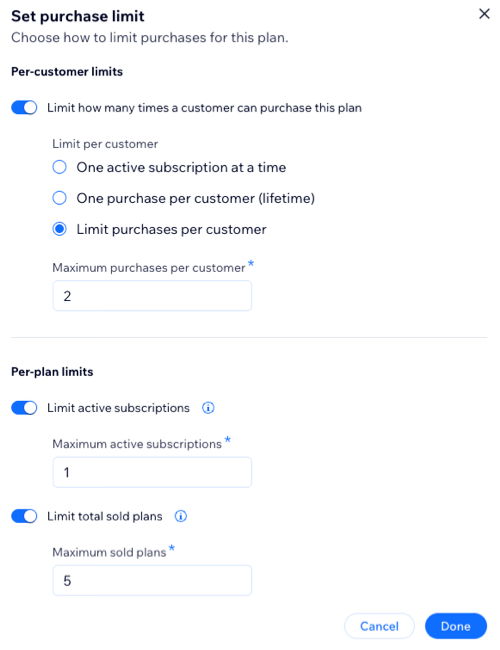
Set purchase limits
Manage how your plan is purchased by setting limits on both active subscriptions per customer and the total number of times the plan can be sold overall.
Click Edit Limits.
Choose how to limit purchases for this plan:
Per-customer limits:
Click the Limit how many times a customer can purchase this plan toggle and select the relevant option:
One active subscription at a time.
One purchase per customer (lifetime).
Limit purchases per customer. Then, enter the .
Per-plan limits:
Click the toggle(s) next to the relevant option:
Limit active subscriptions. Then, enter the .
Limit total sold plans. The, enter the .
When ready, click Done.
Let clients cancel
Enable this
toggle to allow clients to cancel their plan subscriptions by themselves in their personal My Subscriptions page.
Enable the
Let people set start date toggle to let clients choose when their plan starts.
Add a policy
Create a policy for your pricing plan that appears on the checkout page. This could include legal requirements, renewal details, or other important information. Although individual responses aren’t tracked, you can require guests to agree to the policy before completing their purchase.
Note: There is a 3,000-character limit for plan policies, which appear on the checkout page for customers.
To add a plan policy:
Click Add next to Add a policy.
Write your terms and conditions in the field provided.
(Optional) Enable the Policy checkbox toggle so clients have to agree to your terms and conditions before completing checkout.
(Optional) Enable the Checked by default toggle to automatically tick your policy checkbox for clients. Note: Make sure to check any legal requirements regarding policies, terms, and conditions in the country where you sell your plans.
Click Save.
Add custom form fields for clients to fill
Add a custom form field to your checkout form to gather more information from your customers. It can include specific contact details you need, a checkbox, drop-down or multi-choice field.
Click Select next to Collect additional info at checkout.
Click + Create Form.
Drag and drop the form field onto the page.
Thank you message
Add a message you display to customers after they purchase one of your plans. The message also includes a button, which can lead to your site's home page or any other page.
Click Edit next to Customize a Thank You page.
Enter a title for your Thank You page.
Add the message you want this page to display. Tip: You can add links to direct customers to additional products, services or plans that may interest them.
Enter your Button text.
Choose where the button directs customers to:
Home Page: When they click the button on the Thank You page, your customers return to your home page.
Other page: Direct customers to a specific URL, such as your services or products page or a landing page.
Enter the Page URL.
3. Click
Save at the top to finish creating your plan.
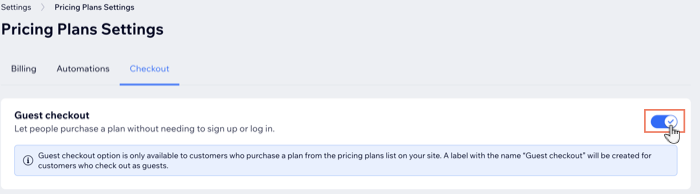
Step 7 | (Optional) Enable guest checkout
You can allow visitors to your site to buy your pricing plans without signing up or logging in, using
guest checkout. This is useful if your plans include offline benefits, or if clients don't want to register as a site member. It's also a great way to attract new clients who aren't sure they want to commit right away.
Important:
Guest checkout isn't available for plans that include online content and services. Visitors need to sign up as members of your site to gain access these plan benefits.
Enable the Guest Checkout toggle at the bottom to let people buy a plan without signing up or logging in to your website.
Click Save.
What's next?
Promote your new plan with a coupon. Click the
More Actions icon
next to your new plan in the
Pricing Plans dashboard. Learn more about creating
price coupons and
percentage coupons.



 next to your new plan in the
Pricing Plans dashboard. Learn more about creating
price coupons and
percentage coupons.
next to your new plan in the
Pricing Plans dashboard. Learn more about creating
price coupons and
percentage coupons.